Your online store opens and closes on its own schedule — it doesn't have to match the hours your dining room keeps.
This page is the weekly pattern. For day-to-day control — opening, pausing, and why the store says closed when it shouldn't — see Opening and pausing online orders.
Set your weekly hours
In Back Office, open Online Order → General Settings and find Your Online Order Schedules. It shows your week at a glance.
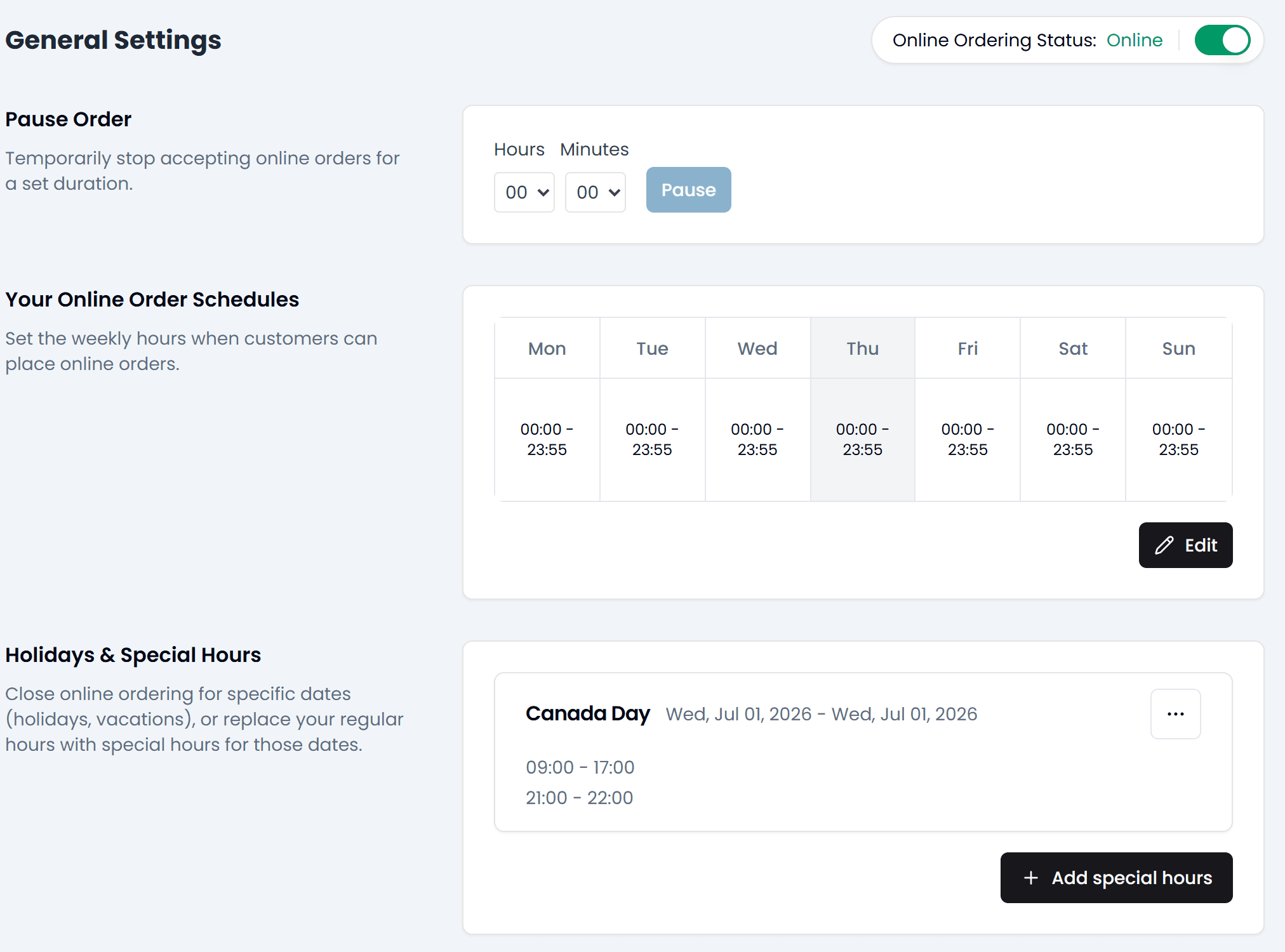
Tap Edit. Edit opening hours opens with a row for each day.
- Use the switch beside a day to open or close it. A day that's switched off takes no online orders.
- Set the start and end of its time slot. Whether a time reads 9:00 AM or 09:00 follows your browser.
- Tap + to give the day another slot, or the bin to remove one.
- To give other days the same hours, tap the copy icon beside the day's name, tick the days, and tap Duplicate.
- Save. Back Office won't save while two slots overlap or a slot ends before it starts.
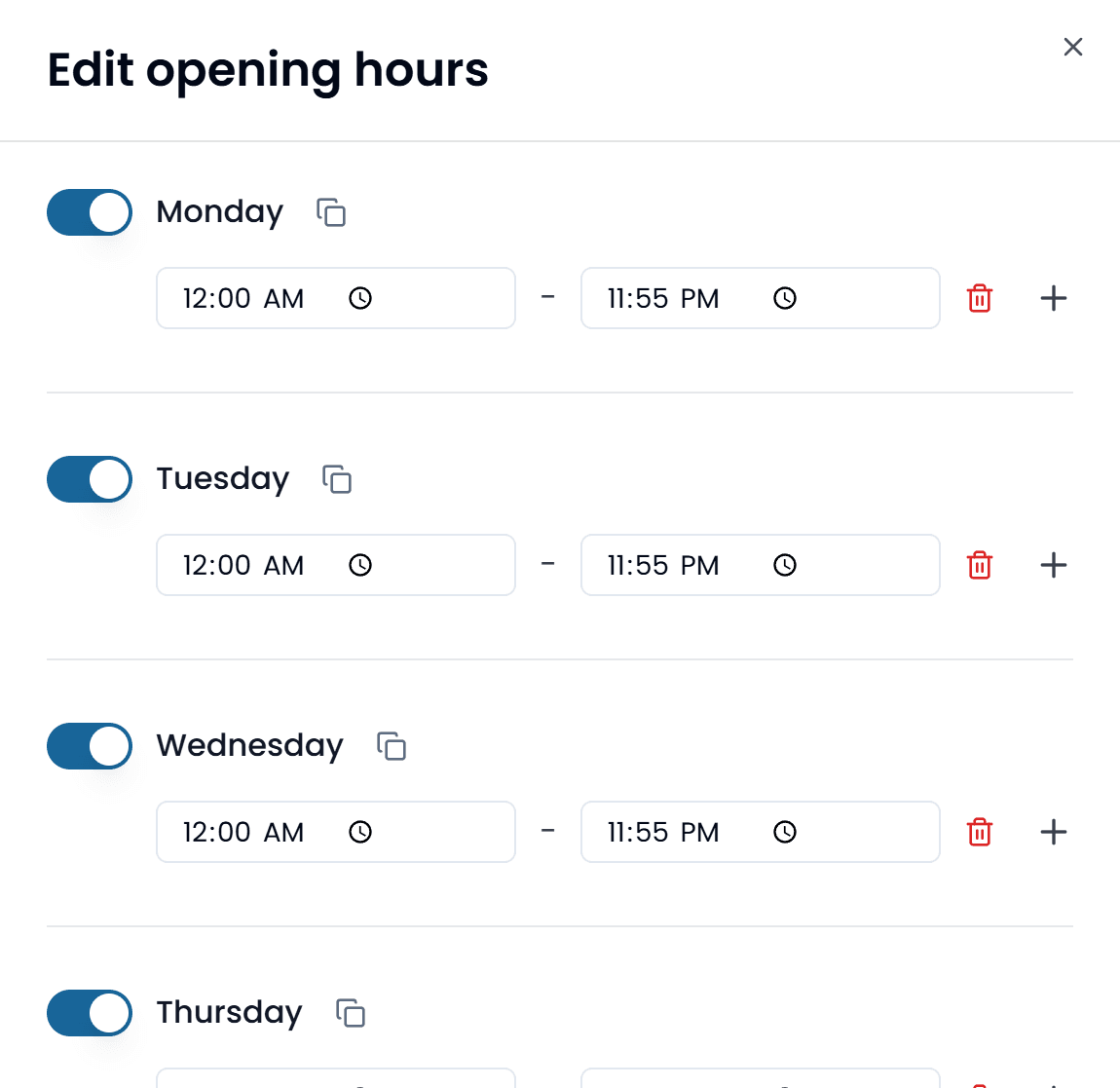
A day with no slots is closed all day, the same as switching it off. That is how you say "we never take online orders on Mondays" — cleaner than setting hours you don't mean.
Two service windows in one day
Add a second slot: lunch 11:00–14:00, dinner 17:00–22:00. Customers see the store as open in both windows and closed in the gap, where the status reads Break until.
You don't have to enter slots in order — saving sorts them by start time.
Hours don't roll over midnight. A slot of 22:00–02:00 won't work; End has to be later the same day. If you serve past midnight, close at 23:59 and add a 00:00–02:00 slot on the next day.
Close for a holiday
Special hours override your weekly schedule for specific dates. Use them for a statutory holiday, a closure, or a day you're opening late — rather than editing your weekly hours and having to remember to put them back.
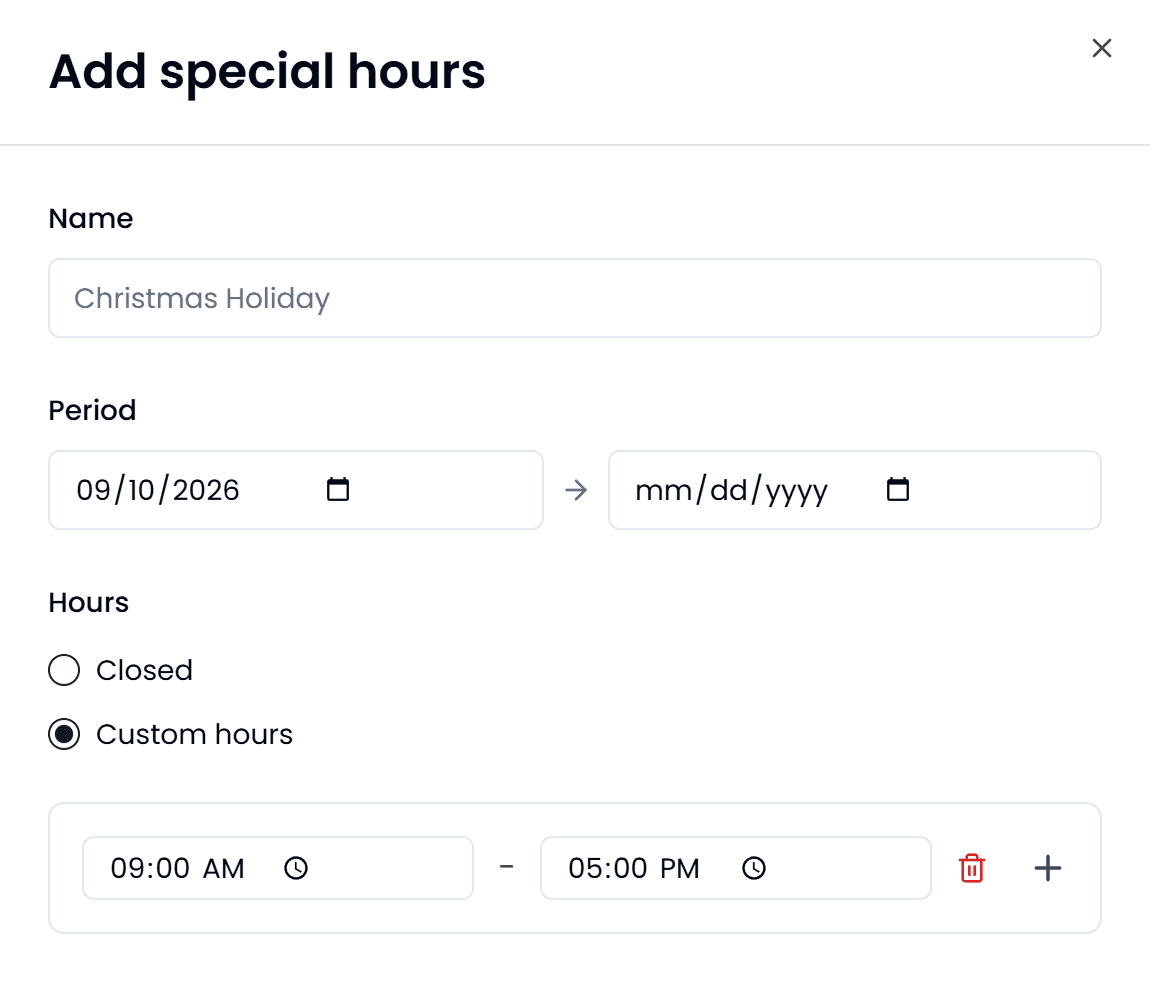
- Under Holidays & Special Hours, tap Add special hours.
- Give it a Name, and set the Period — the first and last date it covers.
- Choose Closed, or Custom hours and enter the slots for those dates.
- Save.
The weekly schedule should describe your normal pattern. One-off changes belong in special hours or in the daily toggle.
Letting customers order ahead
Customers can order for later — later today, or up to six days ahead — while you're closed as well as while you're open. It's off until you turn it on.
- In Back Office, select Online Order, then Settings.
- Under Order Ahead, turn on Accept scheduled orders for future dates and choose How many days ahead? (1 to 6).
- Under Default lead time, set Minimum advance notice (minutes) — the time the kitchen needs between the order and the pickup time. Leave it at 0 and the first time on offer is the next one going.
- Set Time slot length — how long each window you offer runs: 15 min, 30 min, 45 min or 60 min.
- For a cut-off on next-day orders, turn on Next-day orders must be placed by: and pick the time.
- Save.
Time slot length is the window, not the gap between windows. Customers are always offered a new time every quarter of an hour, so at 30 min they choose between 3:00 – 3:30, 3:15 – 3:45, and so on. Pick the length that matches how precisely your kitchen can promise.
A category can have its own rule: open the category and turn on Set a custom lead time for this category. When a customer's cart mixes categories, the strictest rule applies.
Scheduled orders reach the POS as soon as they're paid. If the kitchen then needs longer on one, you can move it — see Changing an online order's time.
What your customers see
Before they browse, the store asks When would you like your order? — As soon as possible, or Schedule for later and then a day and a time. Their choice stays at the top of the page as Pickup: or Delivery: with the time, and Change beside it.
If you're closed but taking orders ahead, they see We're closed right now — You can still order for later. Pick a pickup time to continue. — along with when you next open. A pause, or Online Order switched off, closes the store to them completely; ordering ahead doesn't get around either. See Opening and pausing online orders.
If a customer's chosen time stops working — the slot passes, or they add something that needs more notice — the store asks them to pick a new time before they pay.
If a change hasn't appeared
Schedule changes reach the storefront within a few minutes. If you're editing minutes before opening, allow for that.