Your weekly schedule says when the store can open. Three other controls decide whether it actually does — the master toggle, the morning prompt on the POS, and any pause that's running.
Read the status line first
A status line sits at the top of every Online Order tab. When a customer says your store is closed, this is the fastest way to find out why.
| Status | What it means | What to do |
|---|---|---|
| Online | Customers can order now | Nothing |
| Offline | The master toggle is off | Turn it on |
| Offline (waiting for store to accept prompt for the day) | Nobody answered the morning prompt on the POS | Tap Open Store on the POS — or toggle the master switch off and on in Back Office, which acknowledges the day for you |
| Offline (outside operating hours) | You're outside today's scheduled hours | Wait, or fix today's hours |
| Offline (holiday / special hours) | Today is closed by a date you set under Holidays & Special Hours | Wait, or change or remove that date |
| Paused until … | A pause is running | Wait, or end it early with Resume in Back Office or Unpause on the POS |
| Break until … | You're in a gap between two service windows | Normal — the next window opens on schedule |
If you take orders ahead (see Your online ordering hours), customers can still place an order for later in every one of these states except Offline with the master toggle off, and Paused until.
The master switch — the everyday control
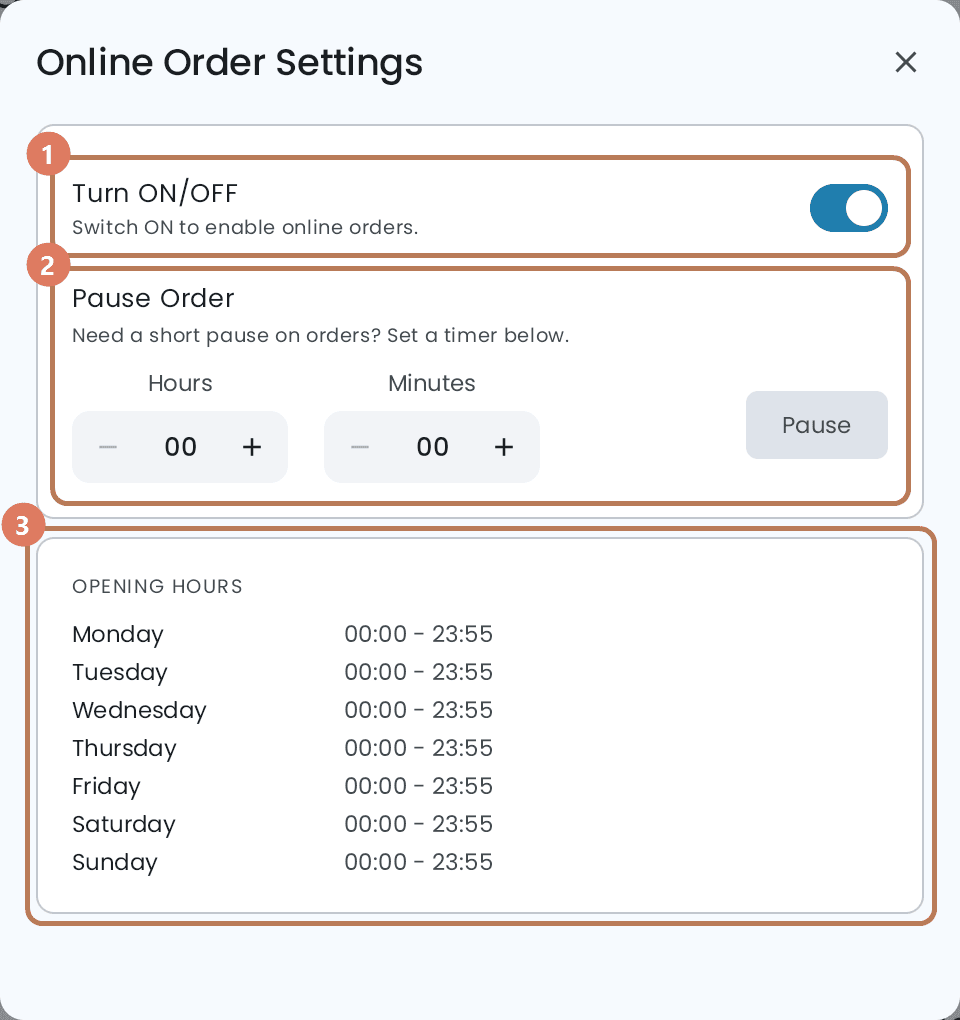
The master switch is the toggle beside the status at the top of every Online Order tab in Back Office. It has no label there; on the POS it is Turn ON/OFF. Off, the storefront tells customers ordering is offline and hides the checkout button.
Turning it on also acknowledges the day on the POS, so the cashier won't be asked the morning prompt again until tomorrow.
Use this for a holiday or for maintenance. Use a pause for a short interruption.
The morning prompt
Once Online Order is active, the POS asks each morning: Open Online Order for Today? — Open Store or Keep Closed. It can't be dismissed; someone has to answer.
This is the most common reason a merchant reports "our online store didn't open today." Someone tapped Keep Closed, or nobody answered. It sticks for the whole day and the prompt does not come back. Check the POS status before assuming a schedule problem.
Pause — the details that catch people out
The pause widget takes Hours (00–23) and Minutes in five-minute steps, then Pause. It won't accept 00:00.
- The longest pause is 23 h 55 m. There's no indefinite pause — for that, turn the master switch off.
- A new pause replaces the old one. Pausing for an hour while a 30-minute pause is running gives you an hour from now, not an hour after the original.
- A pause survives the master toggle. Turning off and on again does not clear it.
- You can end a pause early. In Back Office, click Resume beside the pause; on the POS, tap Unpause. Otherwise it ends on its own when the timer runs out.
- Pause stops customers, not the kitchen. It blocks new orders on the storefront; an order already in flight still lands on the POS.
On the POS, Turn ON/OFF and Pause Order sit behind the gear at the top right of Online Orders, above a read-only copy of your opening hours.
A message on your storefront
Display Message puts a banner in front of every visitor — a closure notice, a new menu, a promotion. Up to 500 characters, shown about a second after the page loads.
- English and French save separately. Pick the language, type, then Save. Switching language without saving loses what you typed.
- Clear only empties the box. You have to Save afterwards, or the old message comes back.
- Preview shows it in your real storefront colours.
- Korean visitors see the English message — there's no Korean version.
- Customers see it again on every fresh visit; there's no "don't show this again" for them.
- Unlike the other settings here, it's read when the storefront loads, so someone already browsing won't see a new message until they refresh.
If you run more than one POS
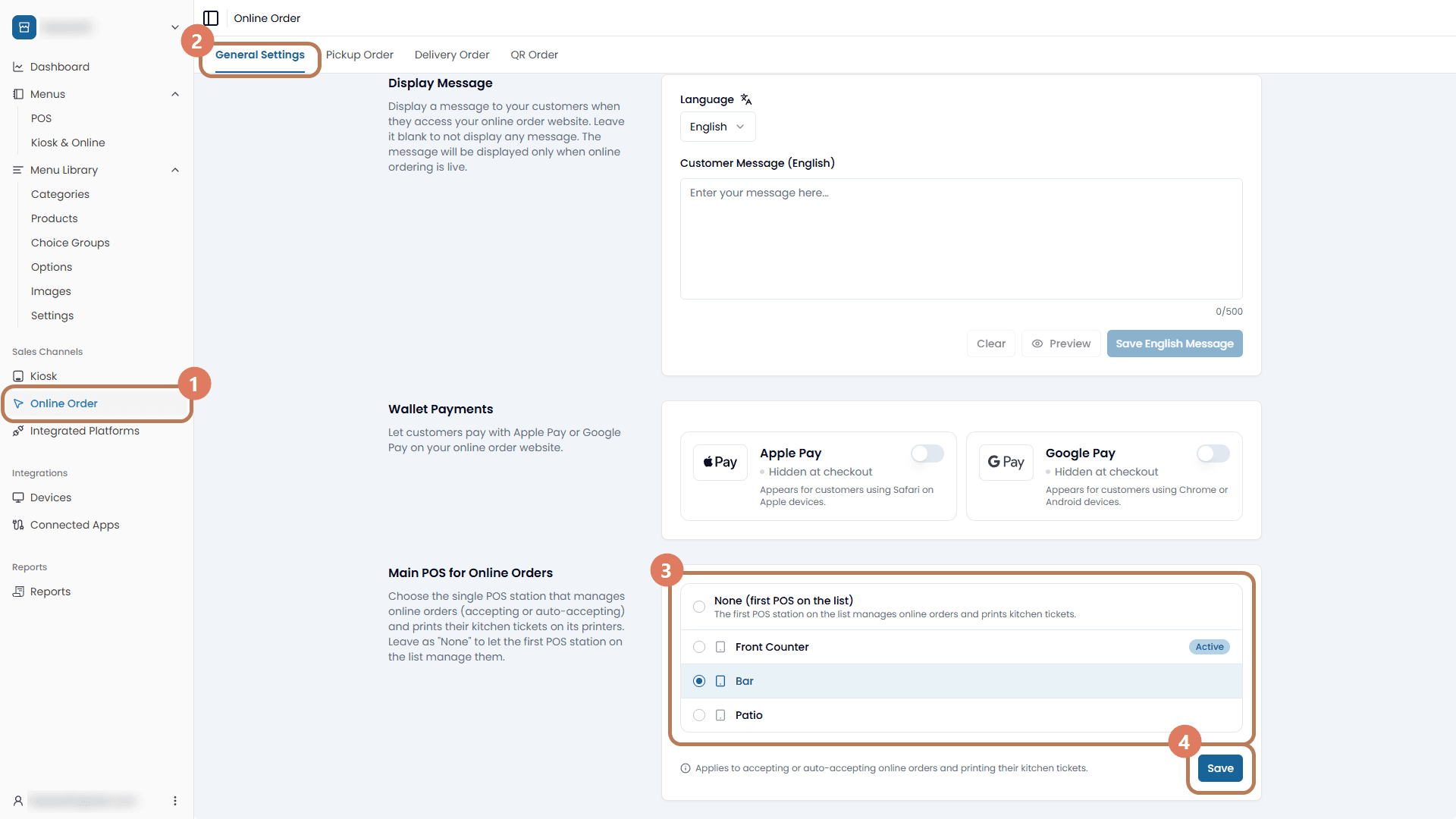
Main POS for Online Orders elects a single station to handle them. That station shows the incoming-order alerts, accepts them, prints their kitchen tickets on its own printers, and is the only one that can change an order's time. Left on None, the first POS on your device list handles them.
Online orders reach your kitchen on that printed ticket. They are deliberately kept off the Kitchen Display Screen, which shows the orders your staff take in store. Orders you key in yourself for a delivery platform still appear there.
Keep the elected station powered on during service. If you delete it from your devices, the setting falls back to all stations rather than stranding orders.