QR ordering is for customers already in your store. They scan a code at the table or counter and order from their phone.
Getting your code
The QR Order tab shows your QR code. Click the image, or use Download, to save a PNG for signage and table tents.
If you want a branded design, Create Your Own QR Code gives you the same URL to paste into any QR designer.
QR orders can never be delivery. The QR site assumes the customer is on the premises, so the delivery toggle doesn't affect it.
QR Order Processing — the one real decision
Two modes. Pick the one that matches how your counter works.
| Immediate Processing | Staff Confirmation | |
|---|---|---|
| Kitchen ticket | prints straight away | prints straight away |
| Customer receipt | prints straight away | waits for staff |
| Order state | arrives already complete | sits in PREPARING |
| Staff action | none | tap Complete |
| Payment captured | on arrival | when staff tap Complete |
Immediate suits quick service where every order can be fulfilled the moment it lands — zero taps per order.
Staff Confirmation suits stores that want a human check first: busy nights, items that sell out, new staff. The customer is only told their order is ready once someone confirms it.
The customer's experience is identical either way. You can switch modes whenever you like; the next order follows the new one, within a few minutes.
How orders arrive on the POS
Online orders land on the POS Online Orders tab as cards:
- NEW ORDER — just arrived. Accept or Decline.
- PREPARING — accepted. Complete or Cancel. A pickup or delivery order also has Ready.
- READY — you've told the customer it's ready. Complete or Cancel.
- COMPLETED, DECLINED, CANCELLED, REFUNDED — finished, read-only.
The screen has two tabs. Active holds the orders you still have to deal with, under New Orders and In Progress. History holds the finished ones, under Done.
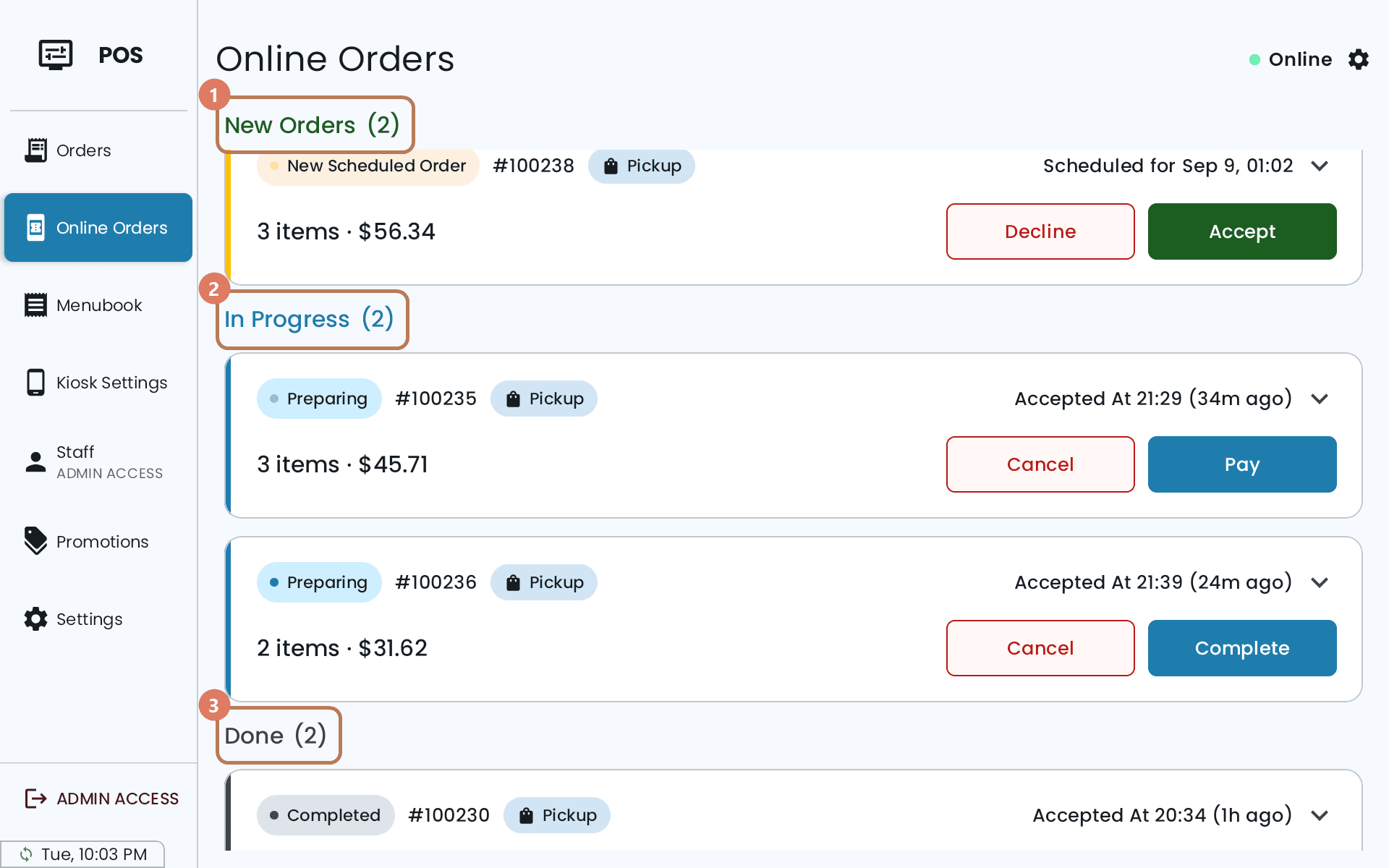
Pickup and delivery orders always start at NEW ORDER and need someone to accept them. QR orders skip that, per the mode above.
Telling the customer their order is ready
When a pickup or delivery order is ready to go, tap Ready on its card. The customer gets an email saying so, and the order stays in In Progress until you tap Complete as they collect it. Update time goes away once an order is ready, so change the time first if you need to.
Ready is optional. If you skip it, a customer who paid online is told the order is ready when you tap Complete. A customer paying at the store is only told if you tap Ready.
A pickup or delivery order that hasn't been completed yet also has Update time, for when the kitchen needs longer — see Changing an online order's time.
If the customer chose to pay when they collect, the card tells you what to collect, and Pay takes the payment.
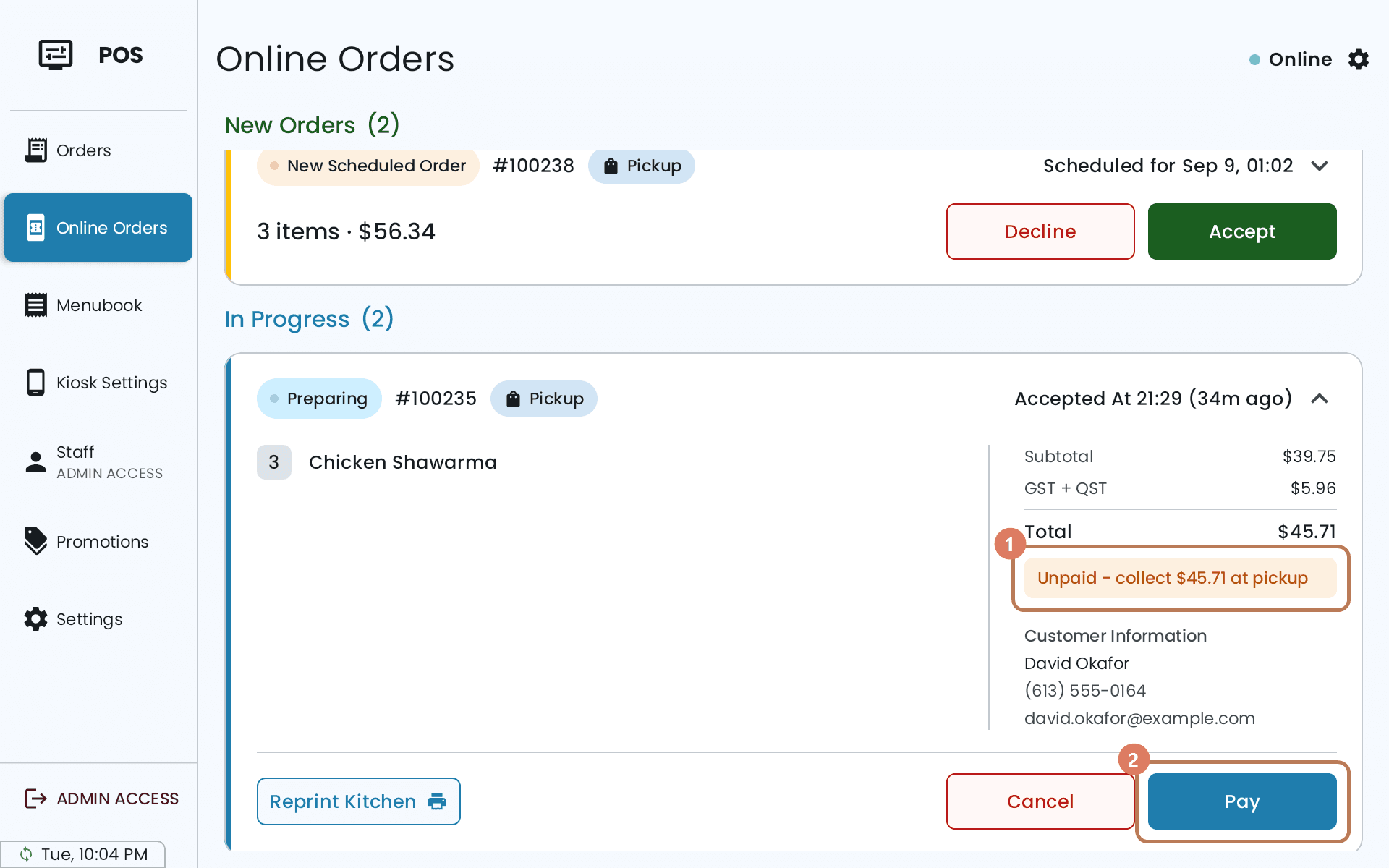
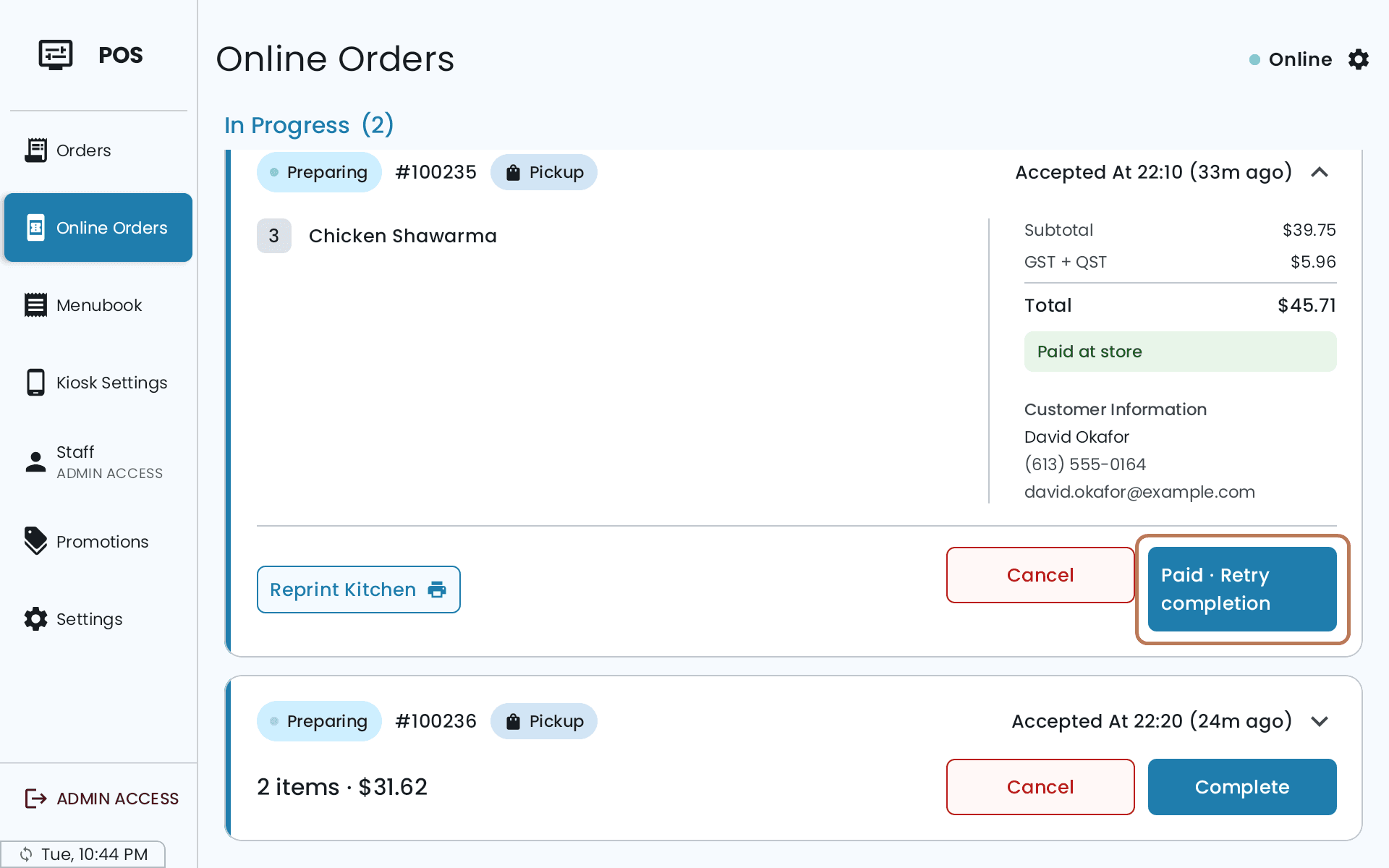
Once you've taken it the card reads Paid at store. Should the order stay open after you've been paid, Retry completion finishes it. It doesn't charge them again.
The customer's receipt for an online order starts with the order number and the order type — Online - Pickup, Online - Delivery or Online - QR Order — then the customer's first name and last initial and, for a delivery, the address. Bills and refunds don't carry it.
Each change of state emails the customer — received, accepted, declined, ready, cancelled — and so does changing the time.