Most of this page is for Global Payments terminals, including handhelds running FT Link. The Stripe and Clover messages are at the end. One rule runs through it: the terminal knows what happened; the POS may not. Look at the terminal before you charge the card again or refund anything.
The POS says to check the terminal
Three messages end the same way:
- The terminal is busy with another operation. Wait for it to finish before trying again. — a previous transaction is still running on the terminal. Let it finish, then try again.
- The operation result is unknown. It may have completed on the terminal. Check the terminal before trying again. — the POS sent the payment but never got a clear answer back.
- The terminal rejected the request. Check the terminal before trying again. — the terminal refused to start. Clear whatever is on its screen, then try again.
For an unknown result, open the transaction history on the terminal itself.
- The payment is there and approved — the customer has paid. Don't run the card again. Finish the order on the POS with a payment method that doesn't charge the terminal, so your report matches what was taken — see Payment methods on the POS.
- It isn't there — the customer wasn't charged. Run the payment again.
Stopping the POS from waiting
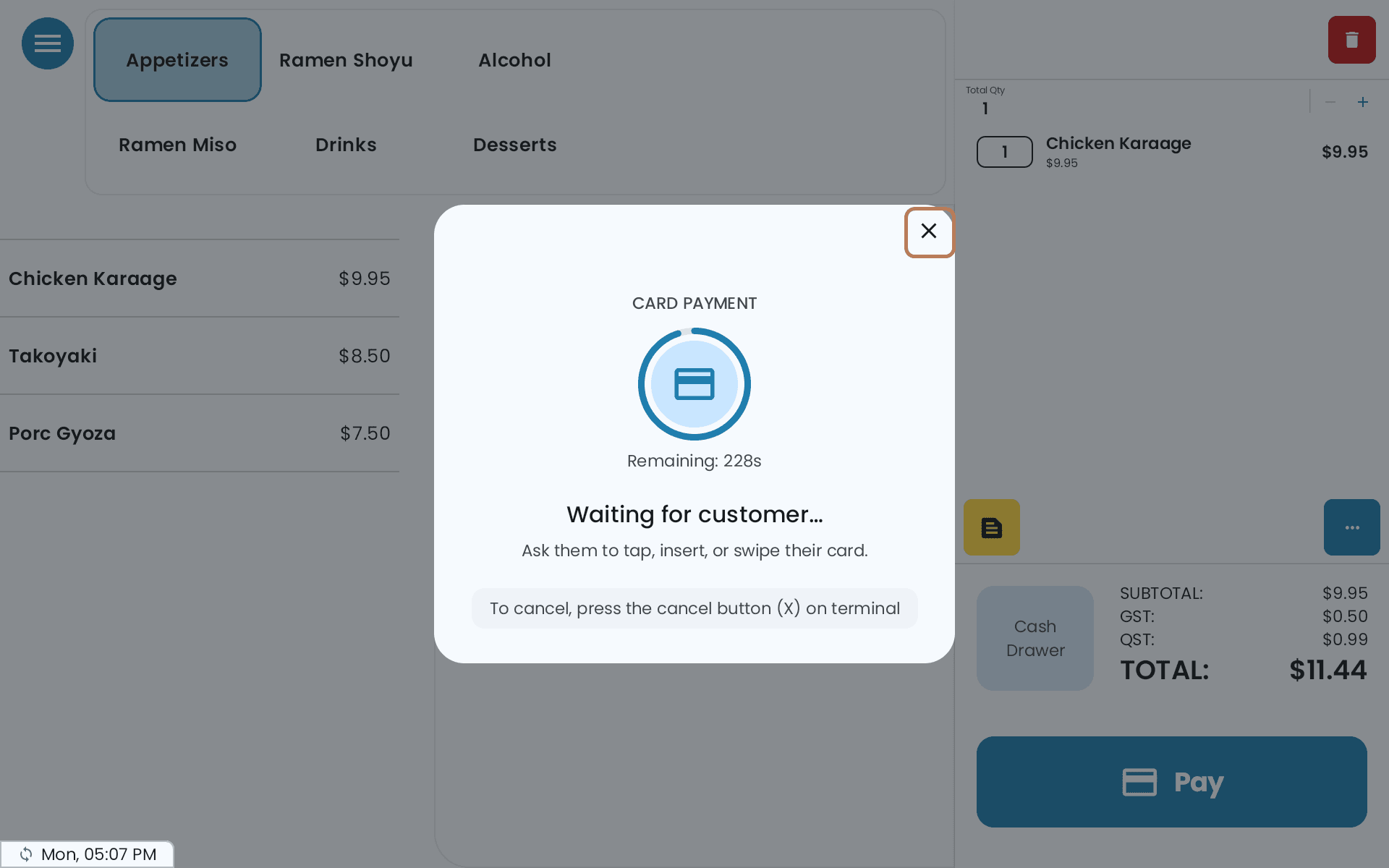
While the POS waits on the terminal, an X appears in the corner of the payment screen after about ten seconds. Tapping it asks Close this payment on POSApp only?
The transaction may already have completed or may still complete on the terminal. Closing this screen only stops POSApp from waiting; it does not cancel or reverse the terminal transaction. Check the terminal's transaction status before trying again.
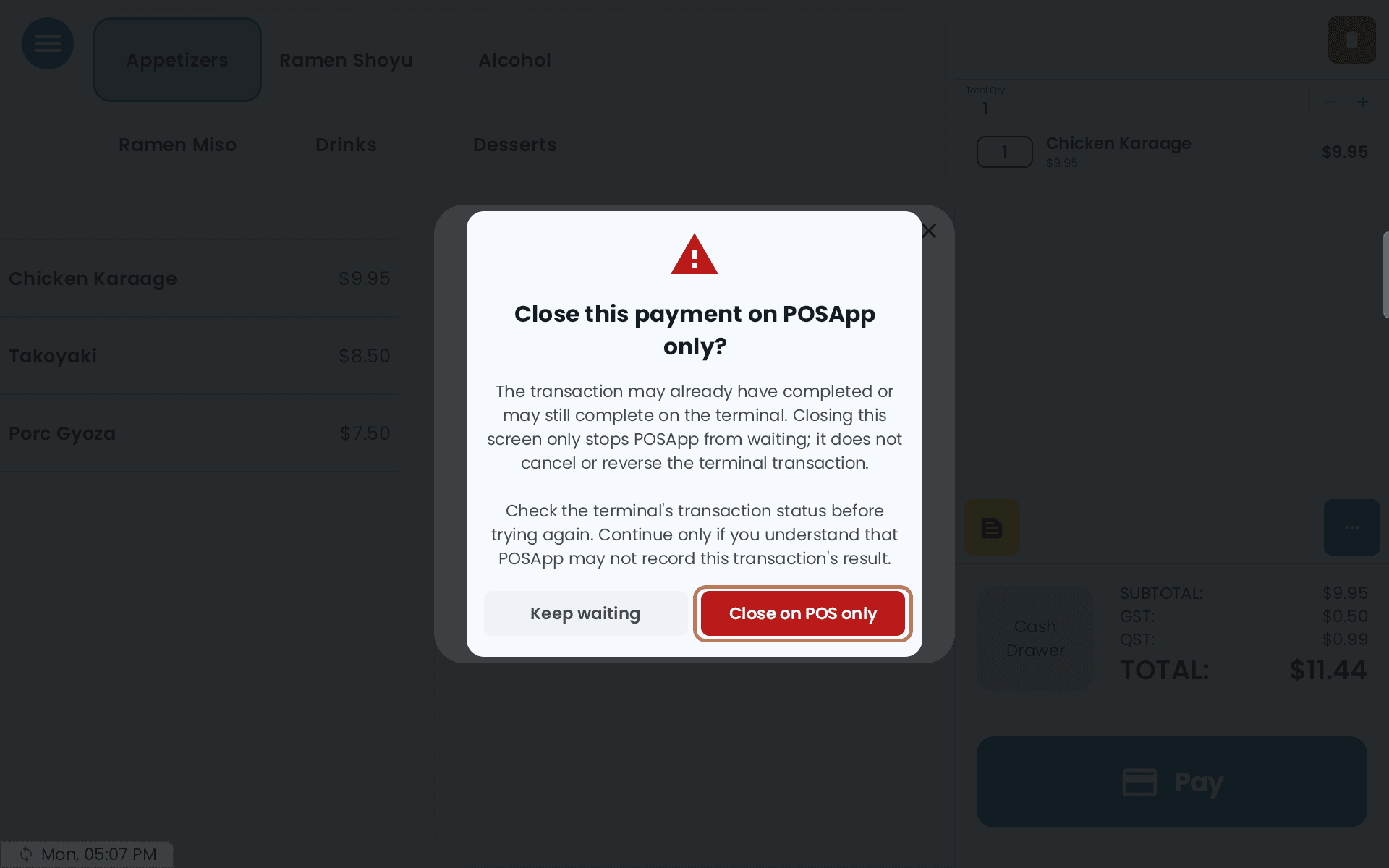
- Keep waiting — the safe choice if the customer is still tapping or the terminal is still working.
- Close on POS only — the POS stops waiting and records nothing: no payment, no receipt, no retry. The order stays open with its items. You may also see Closed on POSApp only. Check the terminal before trying again.
To cancel the transaction itself, use the cancel button on the terminal. Closing on the POS doesn't do that.
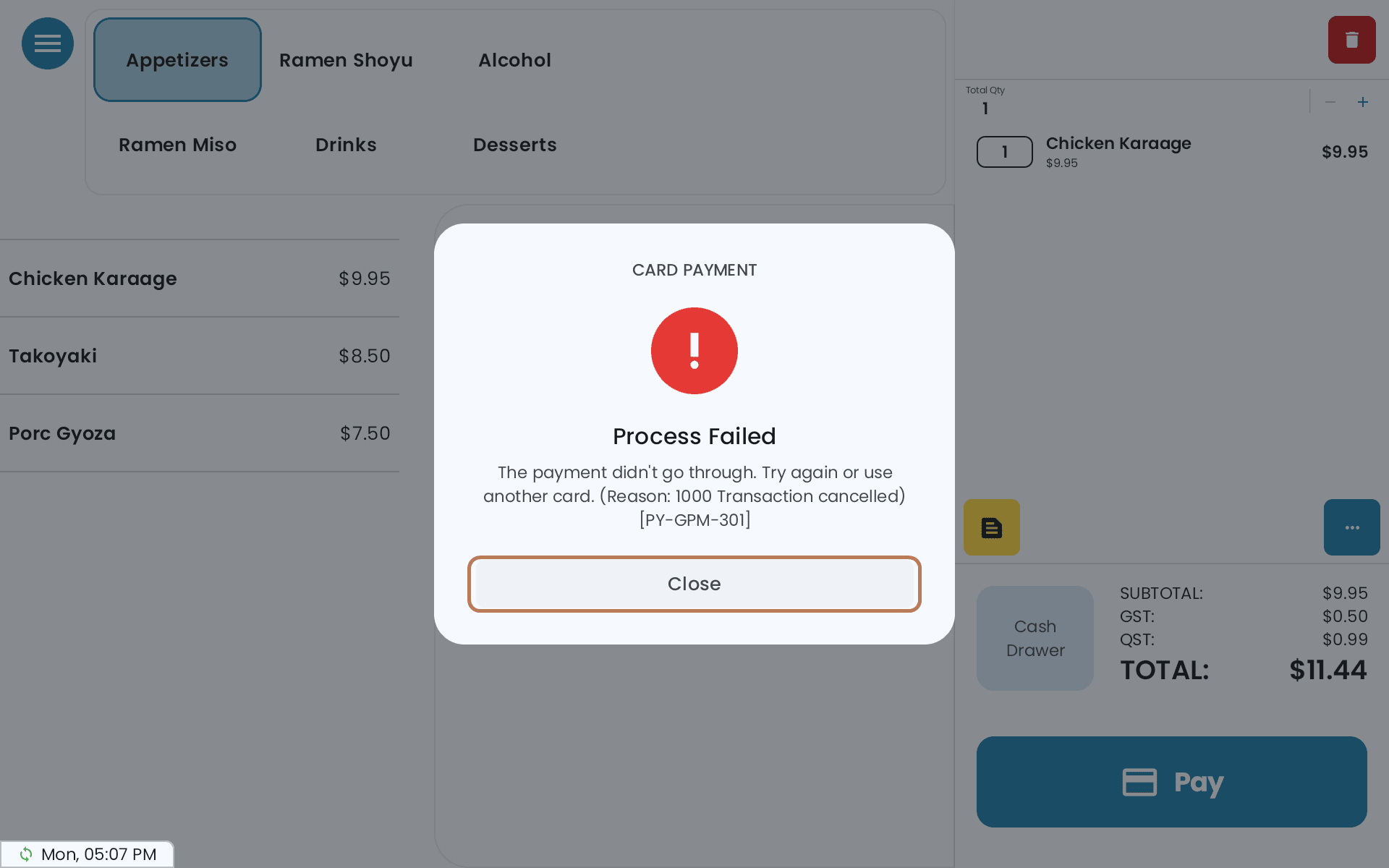
If the terminal answers while the warning is still on screen, the POS drops the warning and finishes the payment normally.
The same X, and the same rules, apply while a refund or a void is waiting on the terminal.
On a kiosk
When the kiosk can't confirm a payment it shows Payment status unknown:
This payment may have completed or may still complete on the terminal. Please ask a staff member to check the terminal's transaction status before paying again. KioskApp has not confirmed this payment.
The only button is Close. A staff member checks the terminal. If the payment is approved there, take the order through the POS rather than have the customer pay again; if it isn't, the customer can pay again at the kiosk.
A handheld payment no POS confirmed
This is for a terminal running FT Link in Standalone Mode — a handheld that takes table orders and payments. After the card goes through, the handheld waits for your main POS to record the sale. If no POS confirms it in time, the payment is flagged for your main POS to review.
On the handheld
The handheld shows Payment approved — POS didn't confirm, with the card and amount, and Do NOT charge this customer again. The card was charged. Tap OK and finish on the main POS.
- While it waits, the handheld shows Processing receipt… and Stop waiting. The money is already taken: stopping only sends the payment to the main POS for review.
- This handheld could not flag it yet and keeps trying — keep the app open. The POS will show the payment once it gets through.
- That table on the handheld now reads Possibly paid on a handheld. If someone tries to charge it again, the handheld asks This table/bill may already be paid. Tap Cancel unless you're sure it's a different payment.
On the main POS
The floor plan shows 1 payment to verify (or more) at the top, and a warning badge on the table. Inside the table, a banner reads A handheld took … for this table, but no POS confirmed it. Review it before charging again.
To deal with it:
- Tap Review on the table's banner, or tap payments to verify at the top of the floor plan and choose the payment from Payments to verify. The list includes payments whose table was closed since — they're marked Table cleared.
- Read Payment taken on a handheld: the table, the amount, the card, the time, the staff member, the handheld, and Why it is here. Below, the POS shows what closing will do to the table: what was Paid on the handheld, what Will be removed and what Will stay open.
- Choose:
- Close with this payment — the customer paid for this table. The POS records the sale now, with the current date and time, and removes only the paid items. Items added after the payment stay open.
- Not paid – dismiss — the payment doesn't belong to this table. The POS asks Dismiss this payment? — tap Dismiss.
Dismissing does not refund the card. Dismiss only removes the flag. If the customer was charged by mistake, refund or void the payment from the handheld's Transactions screen. The handheld also says so: The POS marked this payment as not paid. It was not refunded — refund or void it from Transactions.
With Enable Tables Sync on, every main POS lists these payments, and whoever handles one first clears it everywhere. Without it, the payment shows on the POS the handheld sends its tables to.
When closing isn't available
Close with this payment is greyed out when the table no longer matches what was paid — the POS says why. For example, the table was closed or reopened for new guests, the paid items were changed or voided, or the table was split or merged. If the split screen is open for that table, close it, then review again.
Otherwise, dismiss the payment if it doesn't belong to this table, or update the table by hand. If you're not sure how to record the sale, contact support before you dismiss it.
If something goes wrong
- The table changed. Check the updated plan, then try again. — someone edited the table while you were reviewing. Read the new plan before you tap again.
- An order may already have been saved. Check the order history before trying again. — look in Order History first, so the sale isn't recorded twice.
- Remove the paid items by hand — the sale is recorded, but the paid items are still on the table. Remove the items listed so nobody charges them again.
- Check for a duplicate sale — this POS recorded the sale, but another device also handled the payment. Check Order History for a second sale.
On a Stripe or Clover terminal
Each message says what to do. Read it before you take the payment again:
- The payment result is unknown. The card may have been charged. Don't take the payment again — contact support. — the POS couldn't tell whether the card was charged. Leave the order as it is and contact support.
- The payment didn't go through, but its sale is still recorded in WEB-SRM. Take the payment again, then contact support to reverse the first sale. — no money was taken, but the first attempt is still on record. Take the payment, then call support.
- The payment couldn't be completed and was cancelled. Take the payment again. — nothing was charged. Take the payment again.
- Insufficient funds. The partial charge may not have been reversed. Check it on the Clover device and void it there if it isn't, then try again. — on a Clover terminal, look at the partial charge on the device and void it there if it's still there.
If the terminal isn't responding at all, see Payment terminal won't connect. For refunds, see How to issue a refund.