The buttons on the payment screen are yours to arrange: Settings → Payment Settings → Payment Methods Layout.
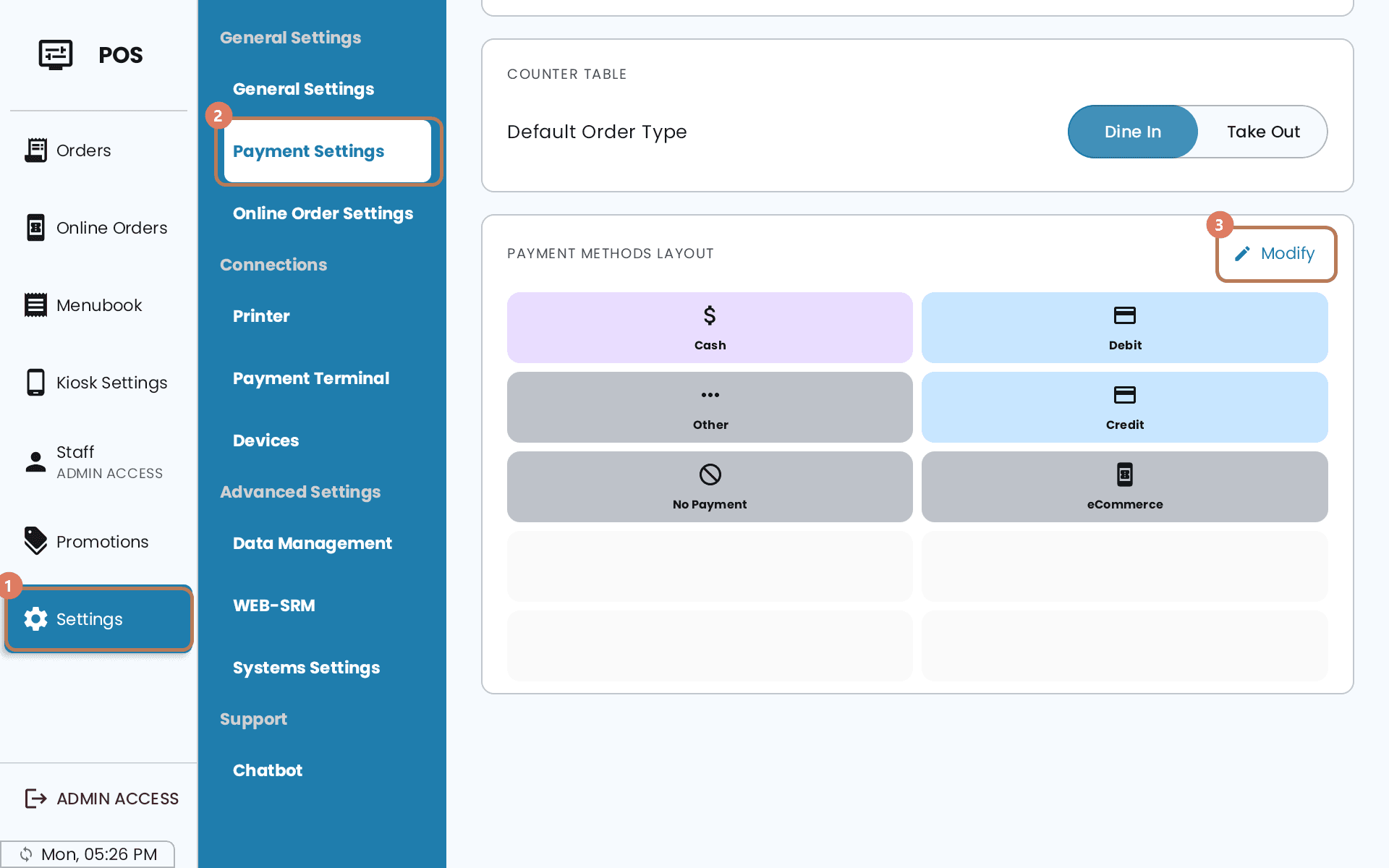
The layout is saved on the device you set it up on, so each POS keeps its own. It isn't available on a POS running in Mobile Device Mode.
The buttons you can use
There are nine, and the list is fixed — you choose which appear and where, not what they're called.
| Button | What it records |
|---|---|
| Cash | Paid in cash. Opens the cash drawer if one is paired |
| Terminal | Charges the card on your payment terminal |
| Debit | A debit card run on a separate machine, recorded here |
| Credit | The same, for credit |
| Other | Anything without its own button — a cheque, a transfer, a meal voucher |
| No Payment | Closes the order with nothing taken. For comps, staff meals and corrections |
| eCommerce | An order from a delivery app or placed online, settled at the POS. On the payment screen it reads Ecommerce Order, and it can ask which platform the order came from — see Taking an order |
| Gift Card | Opens the gift card flow |
| Mixed Payment | Splits one bill across several methods |
Terminal is the only button that charges the card terminal. Debit and Credit just record that you ran the card somewhere else. If you tap them expecting the terminal to wake up, nothing happens.
Changing the layout
Tap Modify to open Edit Payment Buttons Layout. Two grids: Active is what your staff see, Inactive is everything else. Each holds ten slots, and empty slots are fine — they show as gaps.
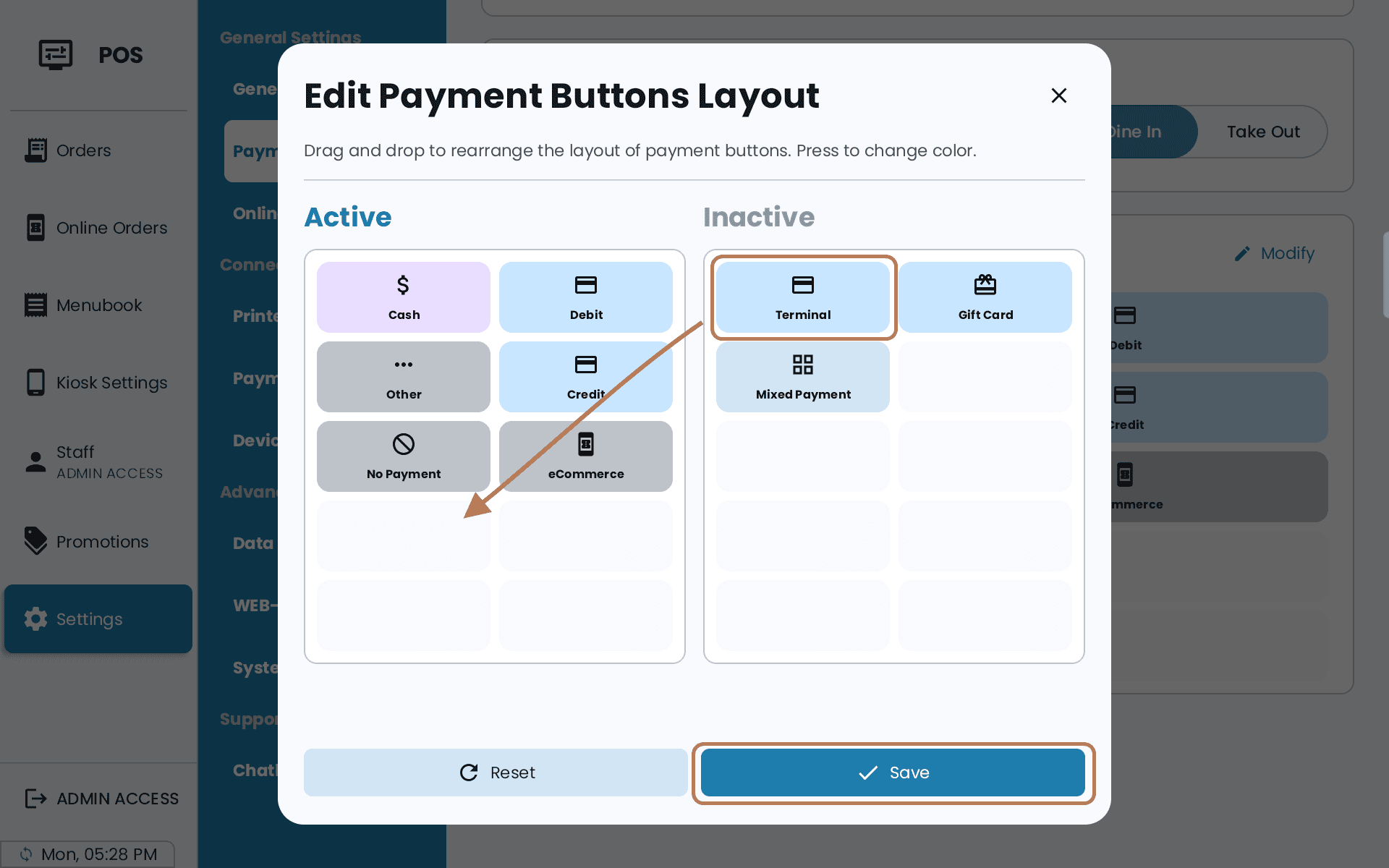
- Press and hold a button until it lifts, then drag it where you want it.
- Drop it on an empty slot to move it there, or on an occupied one to swap the two.
- Drag between Active and Inactive to add or remove a button.
- Tap a button — a short tap, no holding — to open Pick Color and choose one of four colours.
- Save.
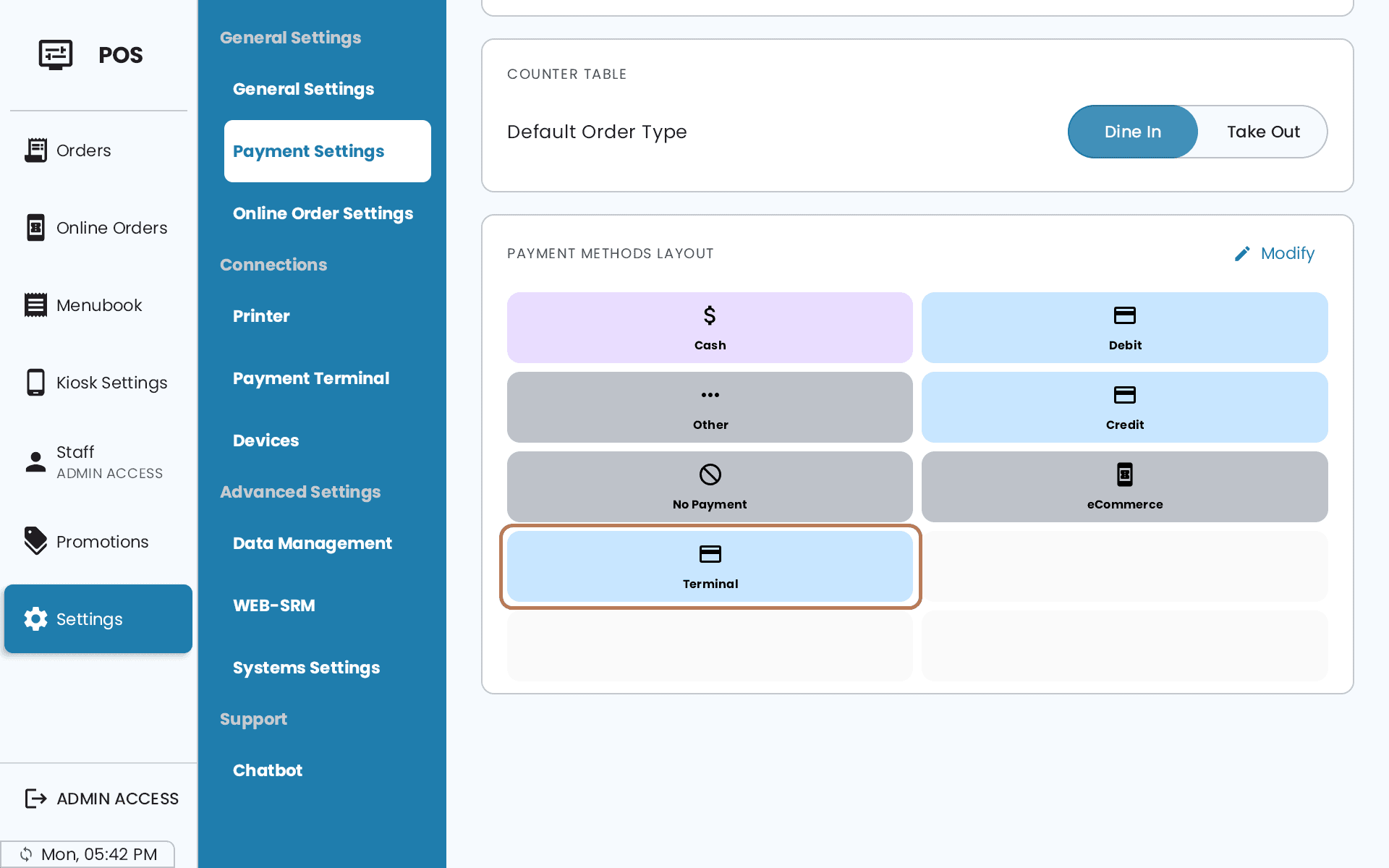
The payment screen updates straight away; there's no restart.
Reset undoes the changes you've made since opening the editor. It does not bring back the original defaults — for those, you rebuild by hand.
Before you go live
- Put Terminal in Active if you take card payments. Until you do, terminal payment won't work, and the Payment Terminal settings screen will keep warning you about it. That warning asks for a "Card" payment method — it means the button labelled Terminal.
- Gift Card and Mixed Payment aren't in the defaults. If you want either, drag it in yourself.
- Hiding a button hides that money from your reports. Take Debit out and nothing can ever be recorded as debit.
- Set up each POS. The layout doesn't travel between devices.