Four things at closing, in this order.
1. Close every open table
An open table isn't a sale yet, so it's missing from today's sales. If it's paid tomorrow, Orders still lists it under today, the day the table was opened. Pay or clear every table before you close the batch.
2. Close your card batch
If you take cards on a Global Payments terminal, do this every day at closing. Until the batch is closed, the day's card payments aren't settled with Global Payments.
Where you do it depends on how the terminal is connected to your POS.
POS connected straight to the terminal
- On the POS, open Settings → Payment Terminal.
- Under Global Payments, tap Perform End of Day (EOD).
- Tap Confirm. The window closes when the batch is closed. If something goes wrong, it stays open and shows the terminal's error.
To check the batch before you close it, use View Current Batch Transactions, or Print Current Batch Report to print its totals on your receipt printer.
Foodteria Link
With Foodteria Link, you close the batch on the terminal, not the POS. The POS's Payment Terminal page says so in place of the End of Day button.

- On the terminal, open the Station Menu: tap all four corners of the Ready for POS payments screen, then enter the Station Access PIN. See Set up Foodteria Link.
- Tap Transactions. It shows the list it last loaded; to check the batch before closing it, tap Refresh.
- Tap Close Batch at the top.
- Tap Close Batch again to confirm. The terminal shows Batch Closed Successfully.
If it shows Batch Close Failed and offers Open Payments App, the terminal's Global Payments app wasn't running. Tap Open Payments App, go back to FT Link, and try again.
3. Check your sales
-
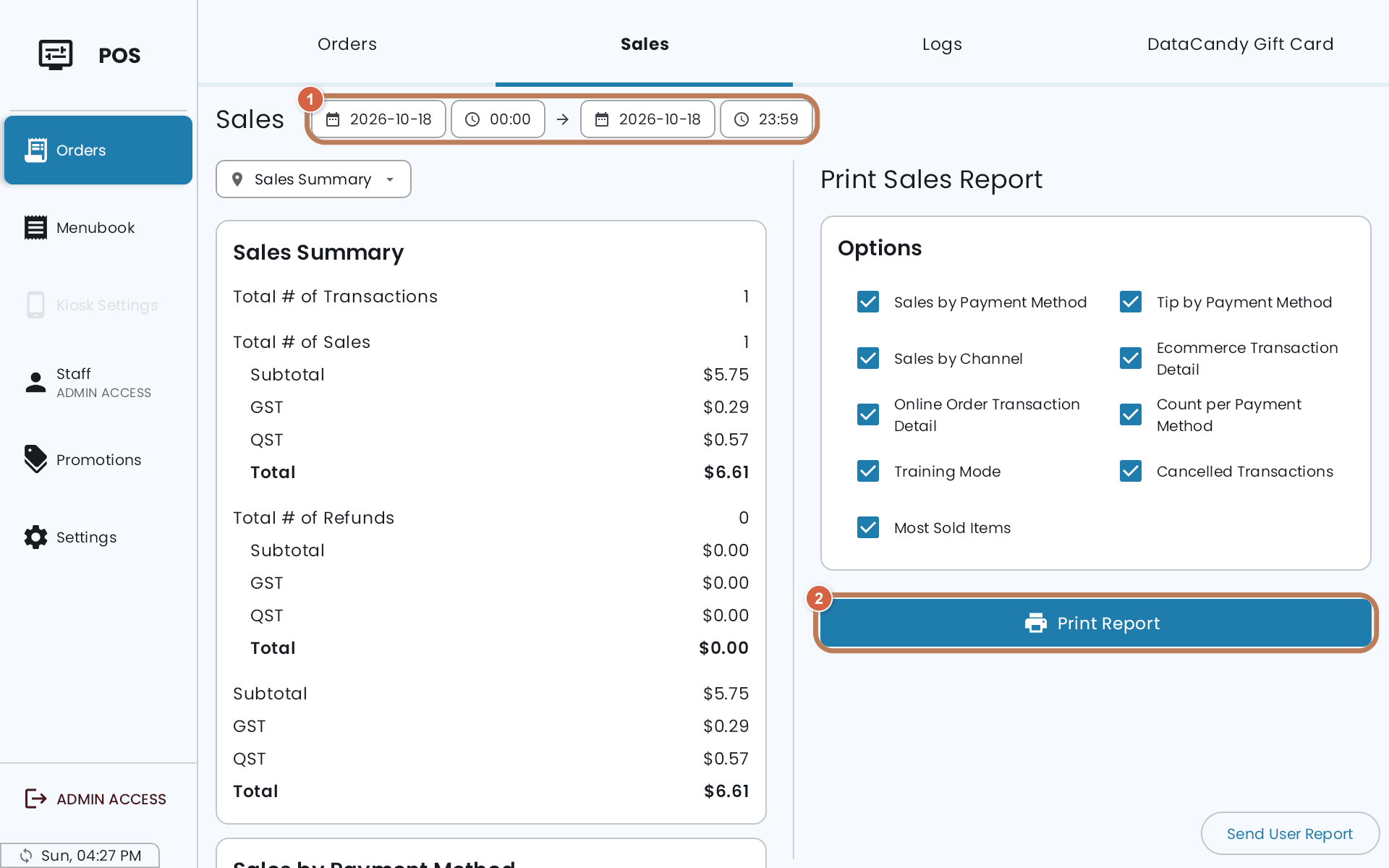
On the POS, open Orders, then the Sales tab.
-
Set the dates and times to cover the day, check the totals against what you counted, and tap Print Report for a paper copy.
4. In Quebec, send anything WEB-SRM hasn't received
If the POS lost its connection during service, some transactions may not have reached WEB-SRM.
Settings → Advanced Settings → WEB-SRM → Offline Unsent Transactions → Send to WEB-SRM.
These are transactions Revenu Québec hasn't received yet. Send them before you close.
If the numbers don't match
Work backwards: refunds first, then tips, then any table left open at closing. Most mismatches are one of those three. Also check whether Training Mode was left on (Settings → General Settings, in the POS card). Transactions taken in Training Mode are left out of your reports on purpose.
Related: Set up Foodteria Link · A card payment didn't finish · What WEB-SRM means for you.