Every POS runs in one of two modes. Settings → General Settings → POS → POS Mode: Table or Counter. The setting belongs to the device, so each POS in your store is set on its own.
A new POS starts in Counter mode. Setup doesn't ask. If your customers sit down and order over a meal, switch to Table before your first service.
| Counter | Table | |
|---|---|---|
| Floor plan | None. Every order goes on one running cart. | You pick a table first. Each table holds its own bill. |
| Taking an order | Add the items, then Pay | Open the table, add the items, Send Order, then Pay when they're done |
| When the kitchen gets it | When you take payment | When you tap Send Order |
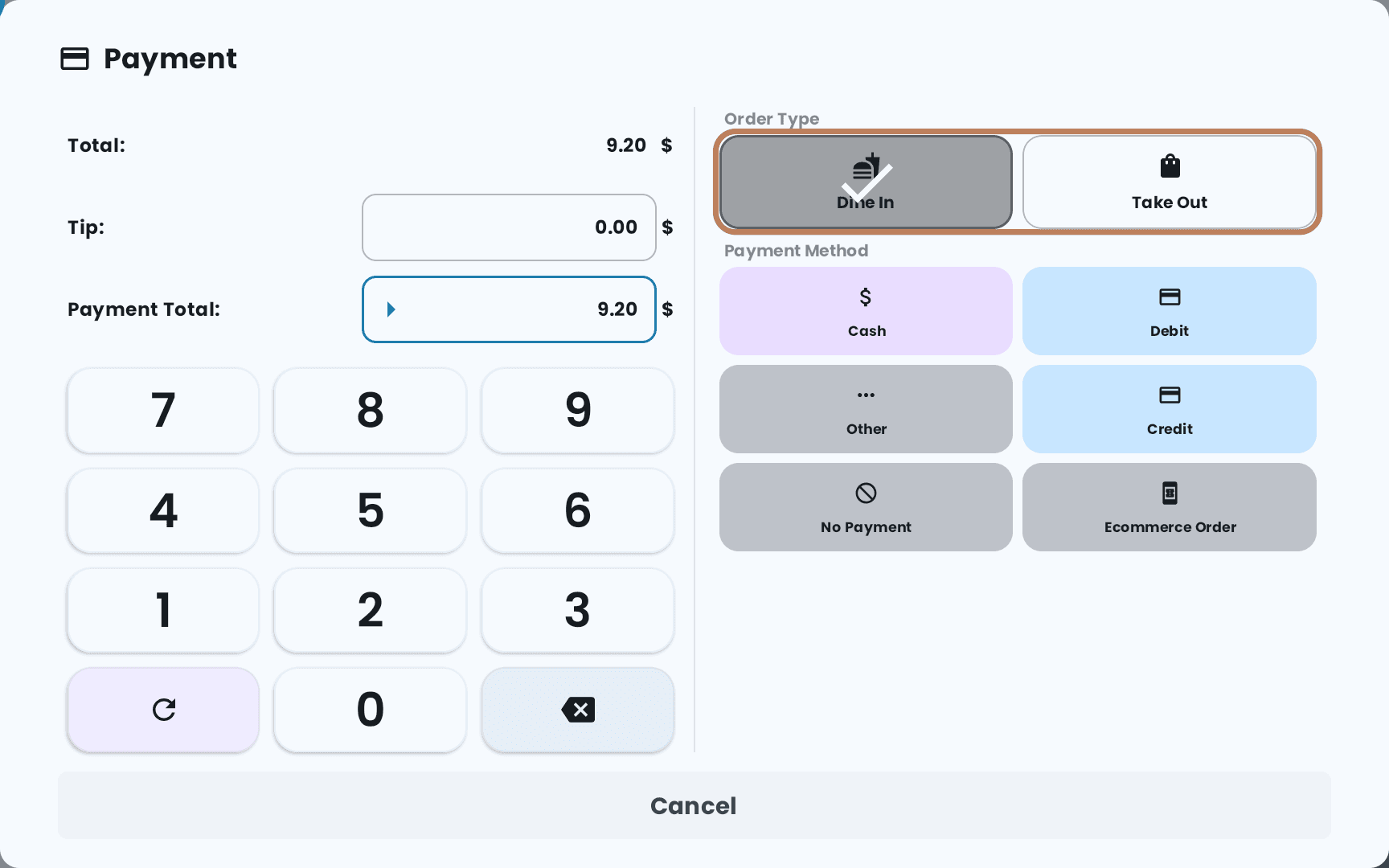
| Dine In or Take Out | Asked on the Pay screen | Not asked — a table order is dine-in |
| What heads the kitchen ticket | The order number | The table name |
| Print Bill | Not offered | Prints the bill without closing the table |
| After paying | Ready for the next customer | The table clears and you're back on the floor plan |
| Six-or-more bakery exemption | Applies | Only on a table whose Mode is Counter |
| Good for | Fast food, takeout-only stores, food trucks, a café with no table service | Dine-in restaurants, bars, anywhere a bill stays open while people stay seated |
Counter mode
Add the items and tap Pay. The Pay screen asks Dine In or Take Out — whichever you set as Default Order Type under Settings → Payment Settings → Counter Table is already selected, and you can change it for that order. The kitchen ticket prints with the payment, so there is no Send Order step. Once paid, the POS is ready for the next customer.
Customer notes and voids work the same as they do on a table.
Table mode
The POS opens on your floor plan. Tap a table to open its bill, add the items and tap Send Order so the kitchen starts. The bill stays open, and the table can keep ordering through the meal. Tap Pay at the end; once paid, the table clears and you're back on the floor plan.
Building the floor plan, and what each table's own Mode changes, is in Tables and your floor plan.
Switching
Settings → General Settings → POS → POS Mode.
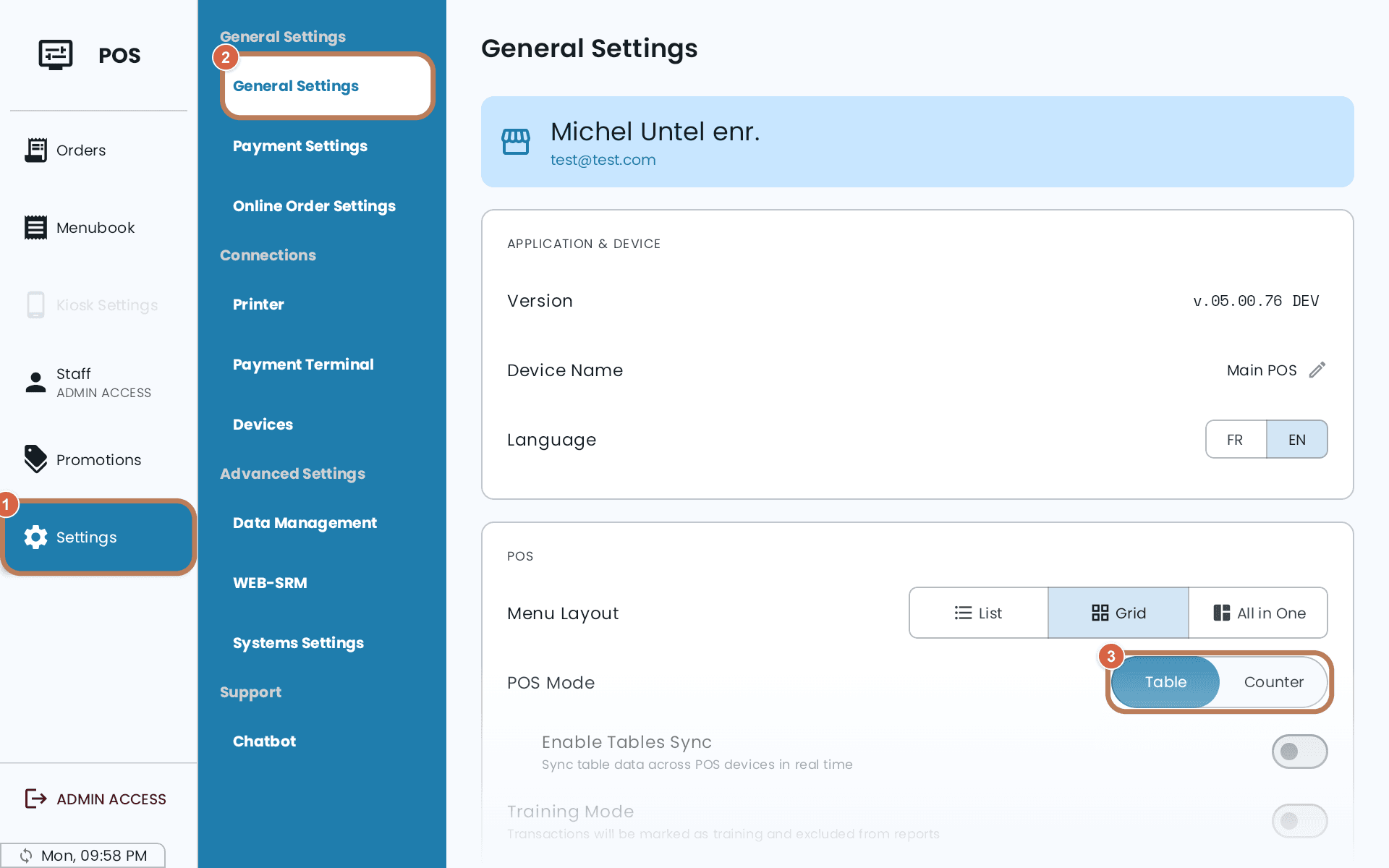
- Counter is greyed out while Enable Tables Sync or Mobile Device Mode is on. Turn those off first; the POS tells you which one is blocking you. A handheld always runs in Table mode.
- Nothing is deleted when you switch. Going to Counter hides the floor plan; your sections, tables and open bills are there again when you switch back.
A counter inside Table mode
You don't have to choose one or the other for the whole store. In Table mode, any table can have its Mode set to Counter — a walk-up counter, a bar pickup spot, a takeout window — and it works like Counter mode on that one table while the rest of the floor works normally.
So "Counter" means two things on the POS. POS Mode → Counter is the device-wide switch, with no floor plan. A Counter table is one table on a floor plan set to work that way. Setting one doesn't change the other.
Some tax handling is specific to counter service — see Bakery items sold in sixes.