The basic flow
-
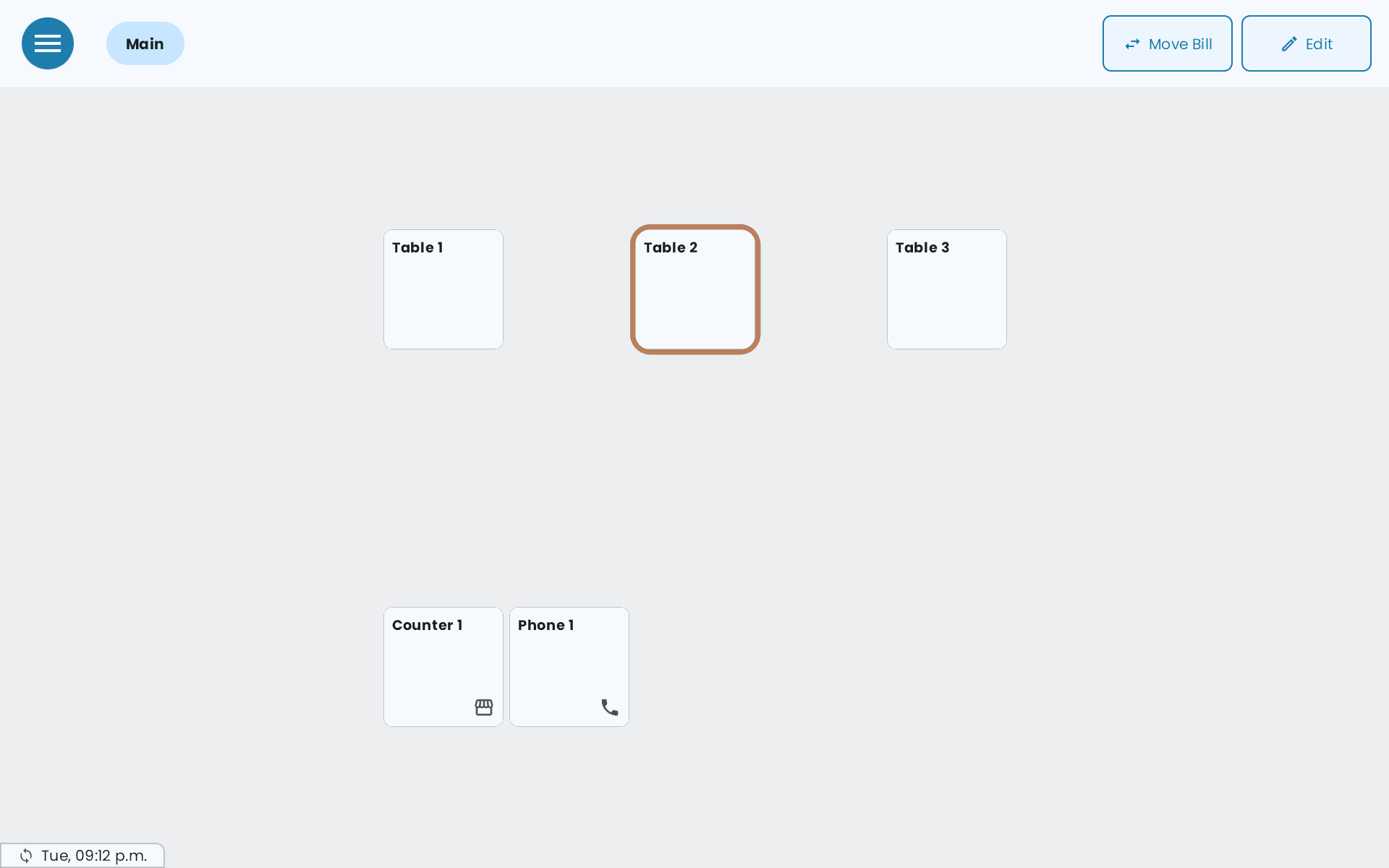
Open a table, or go straight to the order in Counter mode. See Counter mode or Table mode and Tables and your floor plan.
-
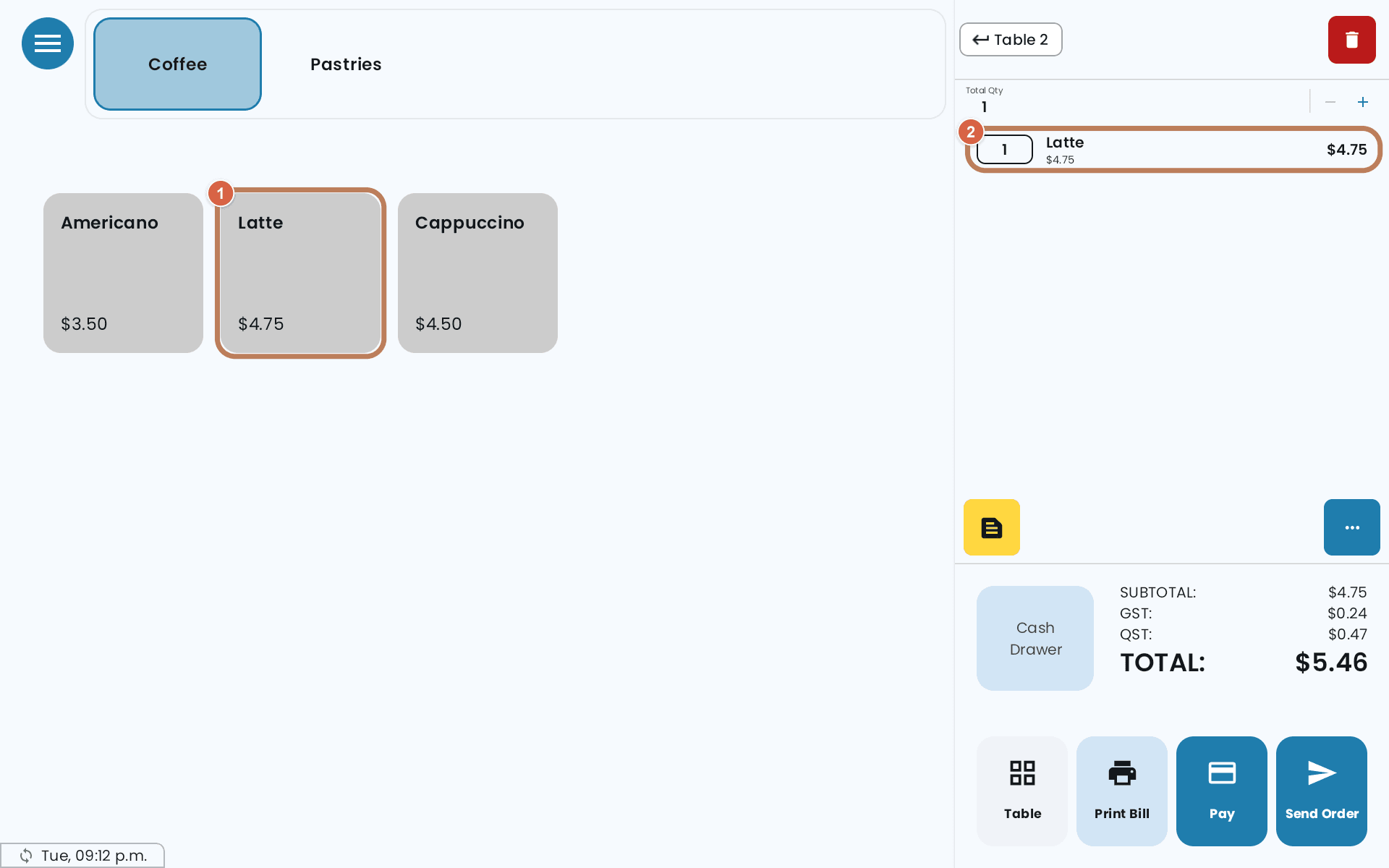
Add items, with their choices as the customer asks for them.
-
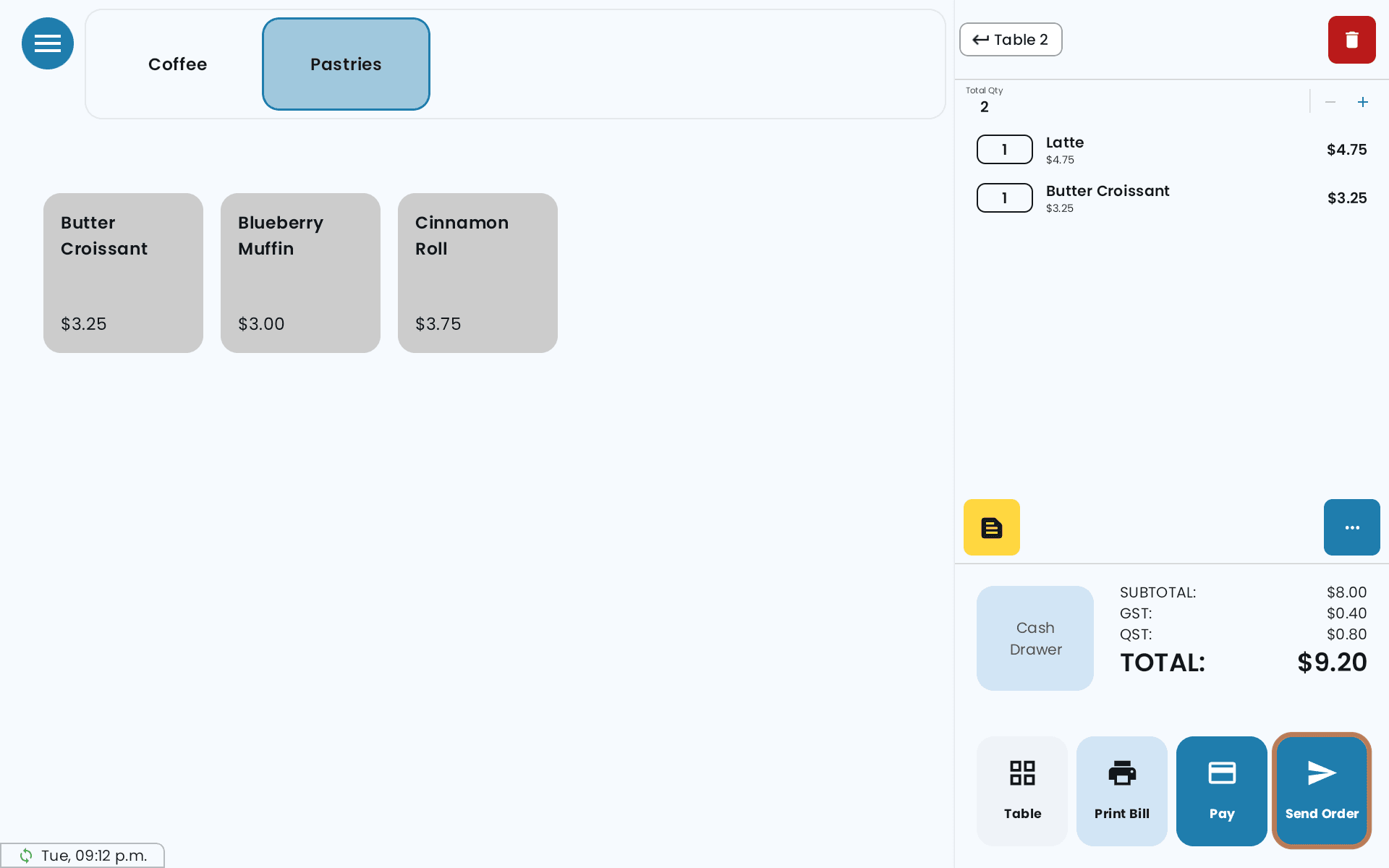
Send Order so the kitchen gets it. On a table, the POS then goes back to the floor plan.
-
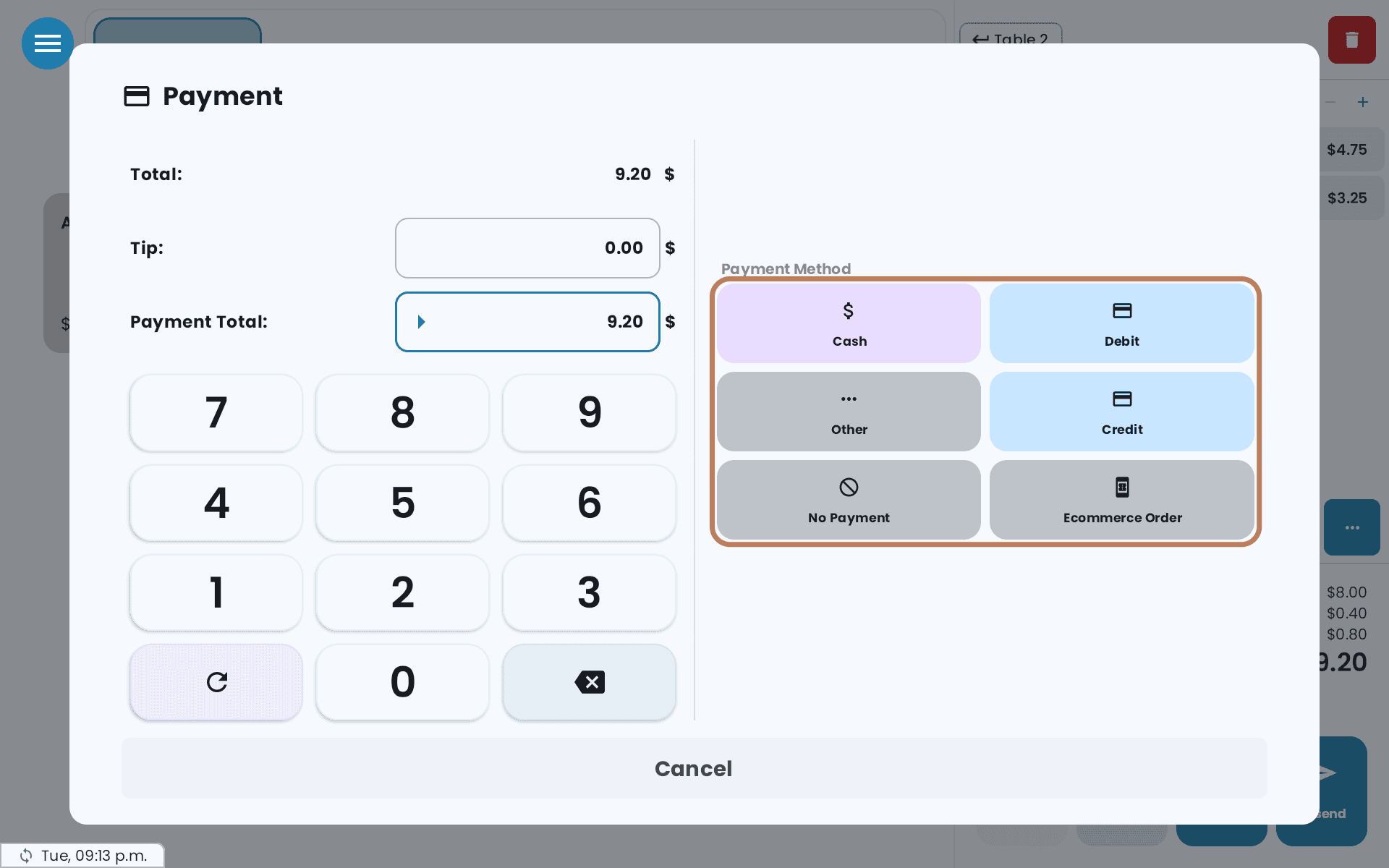
Pay.
-
Give the customer their receipt.
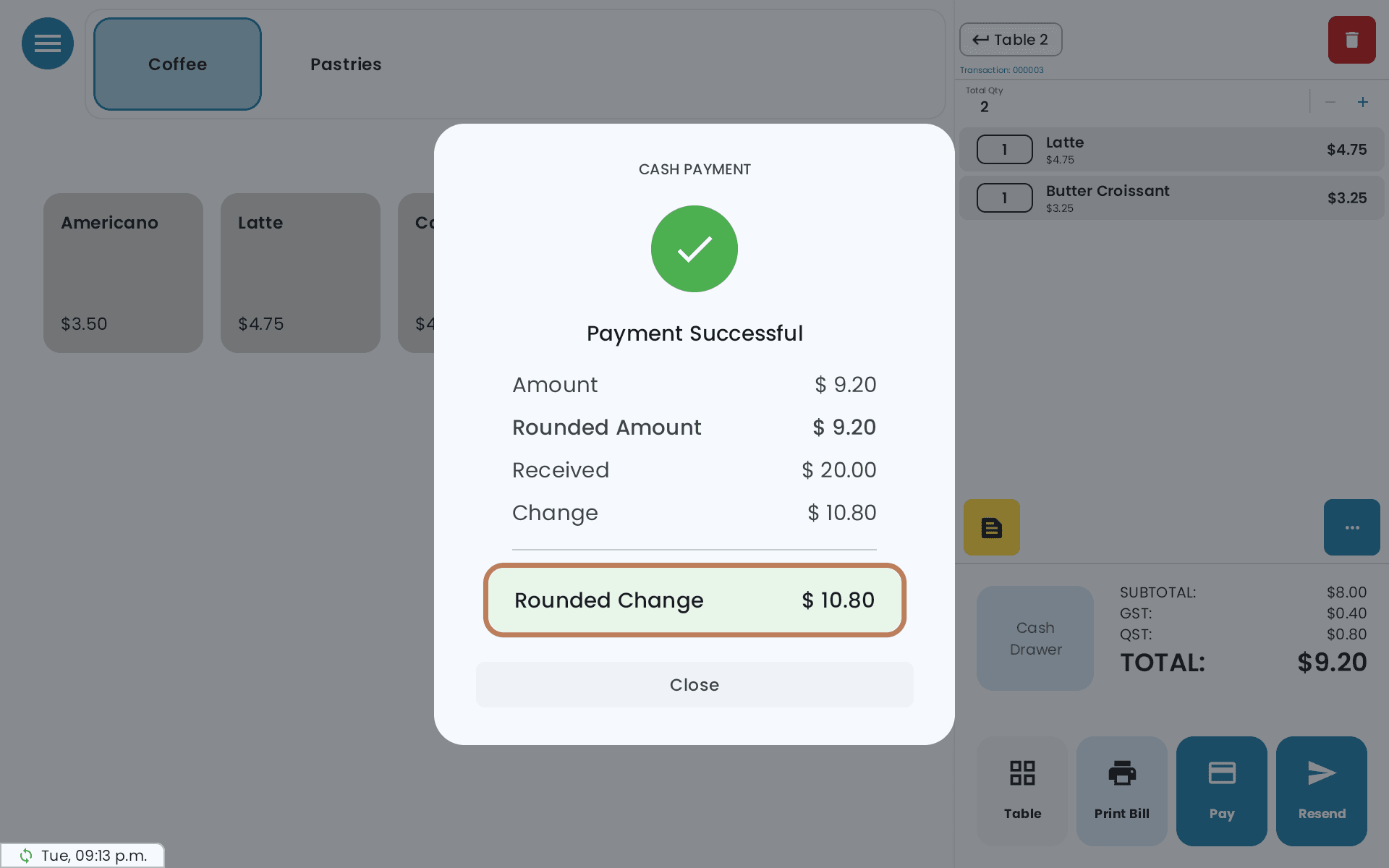
Send Order and Pay are separate on purpose. Sending puts the order in the kitchen without closing it, so a table can keep ordering through a meal. In Counter mode there's no Send Order: Pay sends and pays in one go.
The main buttons
| Button | What it does |
|---|---|
| Send Order | Sends new items to the kitchen. Once everything has been sent it reads Resend — see Reprinting a kitchen ticket. On a table split into several bills it's Send All / Resend All |
| Pay | Opens the payment screen — see payment methods |
| Print Bill | Prints the customer's bill without closing the order. It also sends any items that haven't gone to the kitchen yet |
| Reproduce Bill / Duplicate Bill | Replace Print Bill once the bill has been printed and nothing new has been added. Each prints another copy of the same bill, marked as a reproduction or a duplicate |
| Cash Drawer | Opens the drawer without a sale |
| Table | Goes back to the floor plan |
Send Order, Print Bill, Reproduce Bill and Duplicate Bill are for tables; in Counter mode the cart has only Pay.
The cart shows Total Qty, SUBTOTAL, GST, QST and TOTAL as you go, plus Sweetened Bakery Tax Exemption Applied when a bakery order of six or more qualifies — see Prices and taxes.
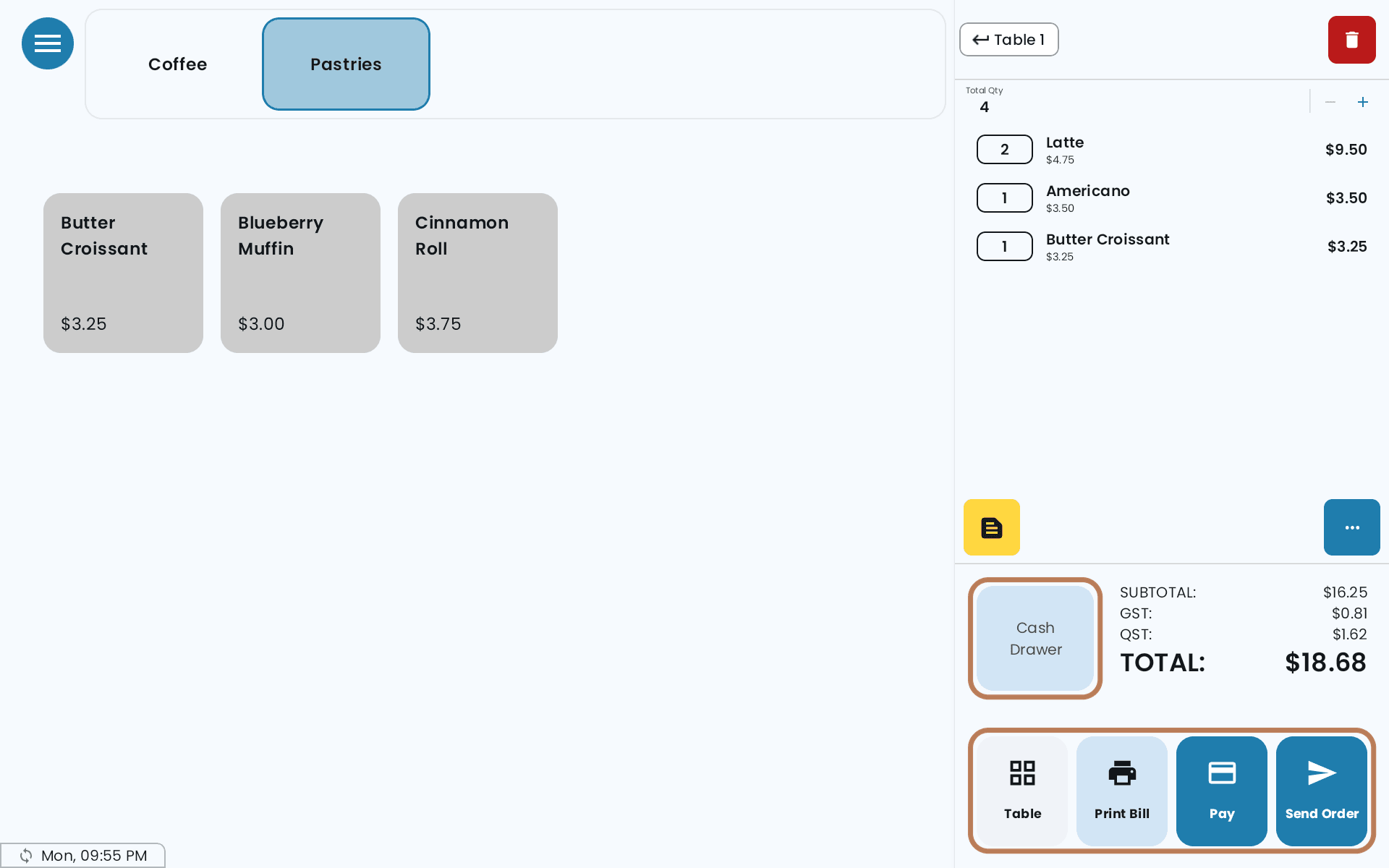
If you print the bill with items that haven't been sent, the POS asks first: "Some items in the cart have not yet been sent to the kitchen". Confirming sends them and prints.
Additional options — the ··· menu
| Option | What it does |
|---|---|
| Cart Wise Discount | Percentage or Fixed Amount off the whole order. You can save percentage presets. Staff without the discount permission need the Master PIN |
| Service Fee | Adds a percentage fee |
| Split/Manage Bills / Equal Split | Splitting the bill. Tables only; Equal Split needs a single bill |
| Void Order | Refunds and voids. Tables only, once something has been sent |
| Custom Item | Adds something that isn't on the menu |
| Other Price Settings | Switches to a different price list — see pricing. While one is in use it reads Normal Price Settings, to switch back |
| Gift Card | Gift cards |
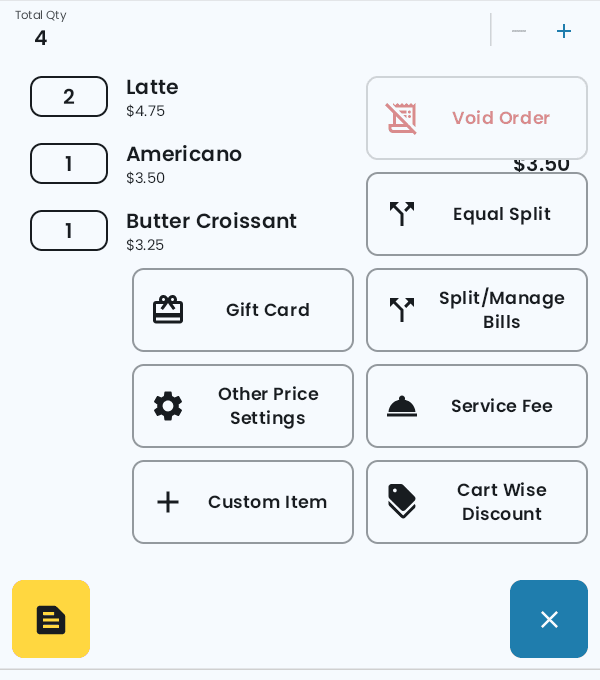
A tip is entered on the payment screen, not from this menu — see tips. In Personal PIN mode, the staff member an order belongs to shows in the cart header; tap it to reassign the order (this needs admin or the Manage Other Staffs' Tables permission).
Item-level actions
Tap an item in the cart. What you can do depends on whether it has gone to the kitchen.
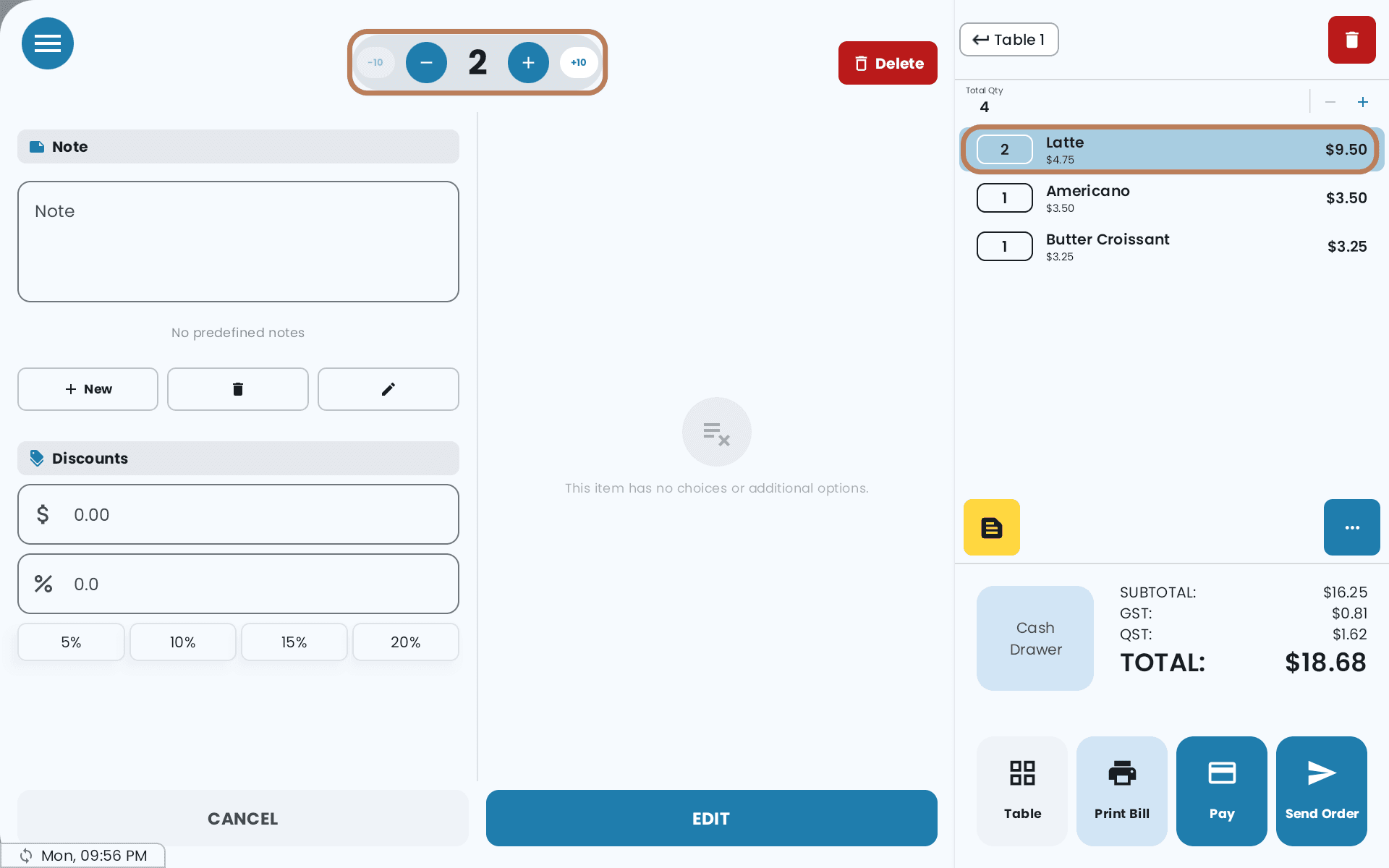
Not sent yet:
- Change the quantity, or Delete it
- Discounts — on that line only, as an amount or a percentage
- Note — pick a predefined note or write one
- Edit — change its choices
Already sent:
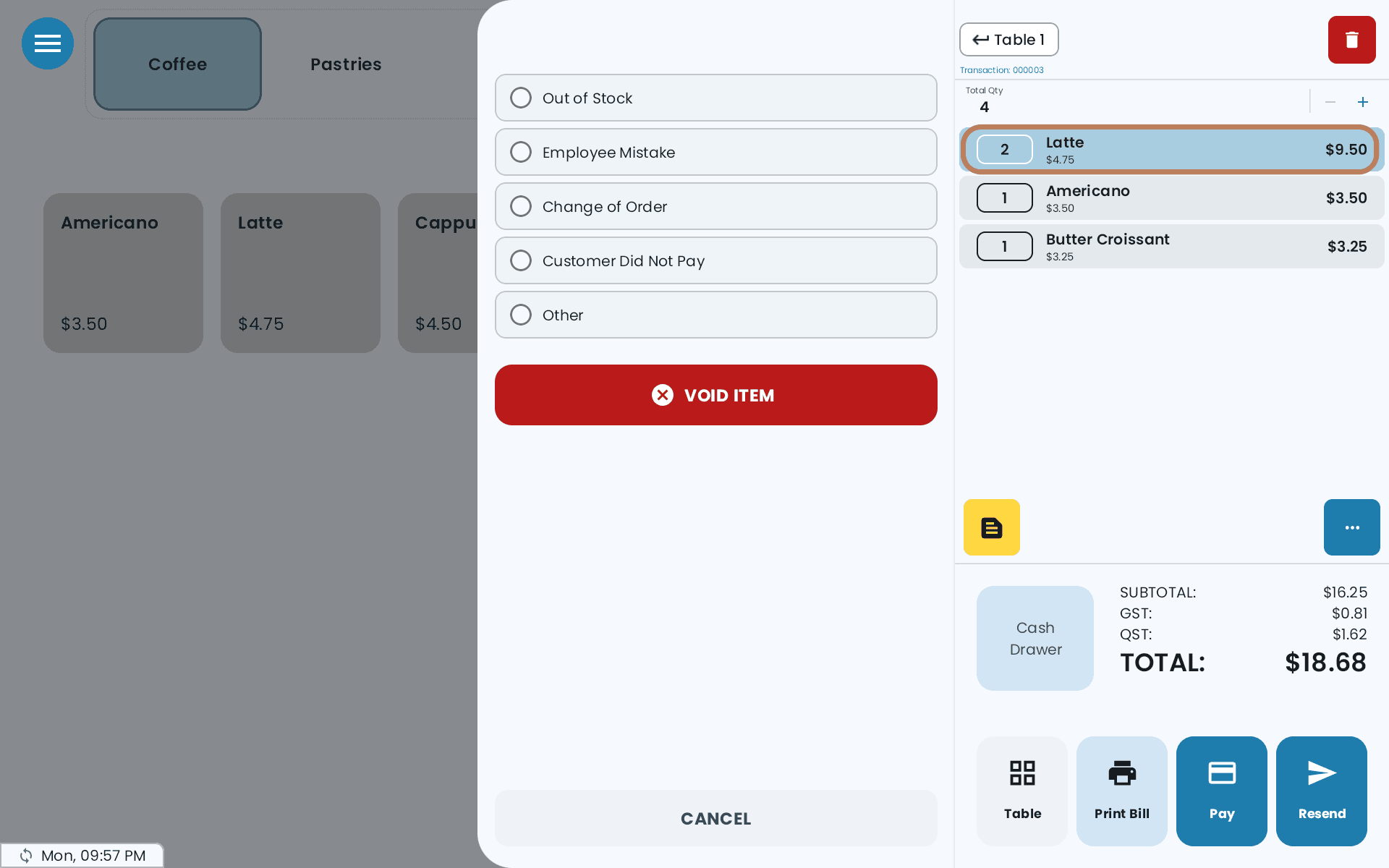
- Void Item, with a reason: Out of Stock, Employee Mistake, Change of Order, Customer Did Not Pay or Other. This needs the void permission or the Master PIN.
Where a choice group includes a free allowance, it shows Free up to that number, so staff can see what's included before it starts charging.
Custom Item
For something with no menu entry — a special, a staff meal, an odd-size order.
Enter a Name and a Price, and choose whether GST and QST apply. Turn on Use After Tax if the price you're typing already includes tax. The price must be more than zero. Tap ADD.
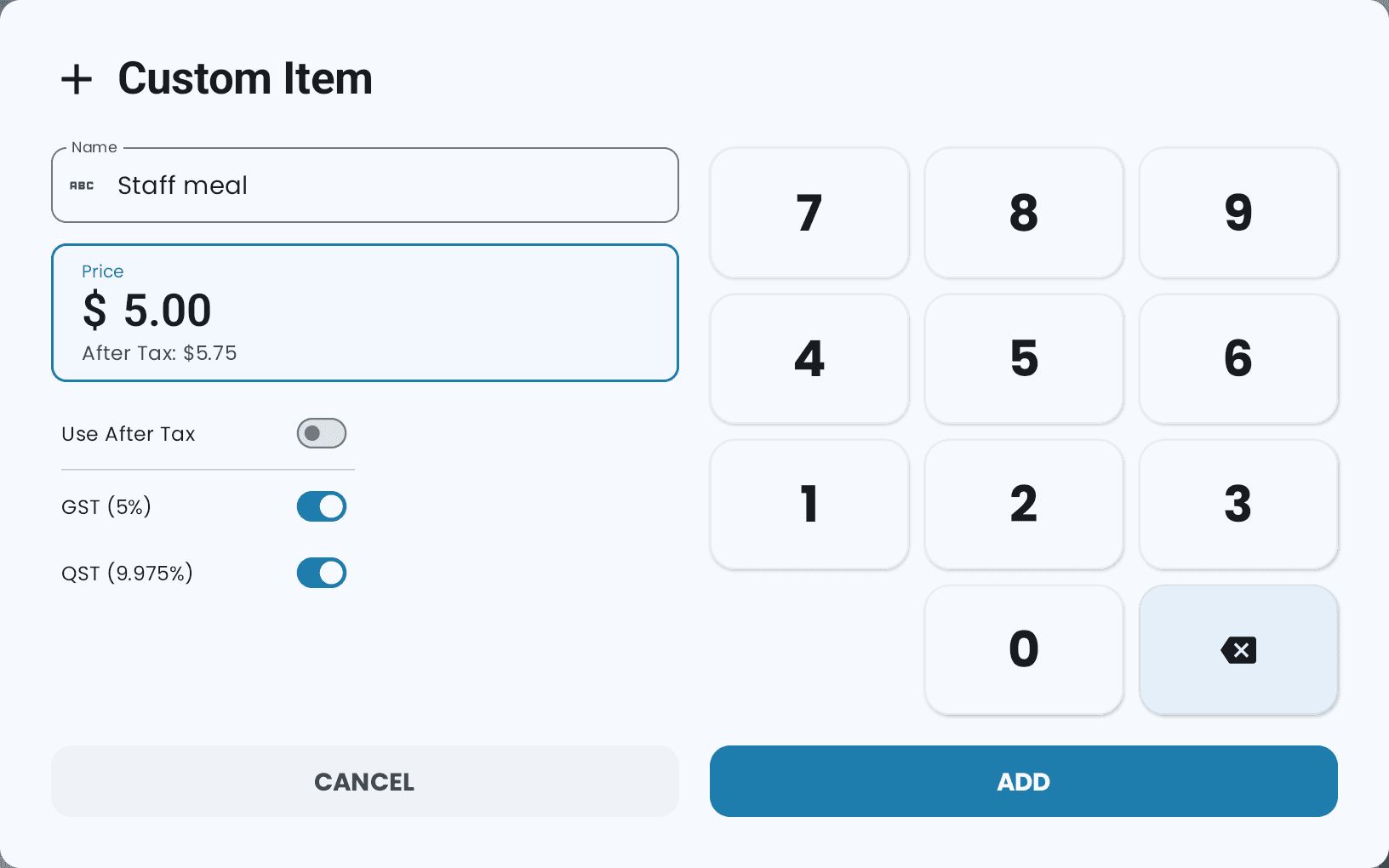
Entering an after-tax price can leave a variance of about a cent, because tax is calculated back out of the number you typed. The POS warns you. If the exact cent matters, enter the before-tax price.
Customer notes
Customer Notes go to the kitchen — allergies, "no onions", "table is in a hurry". You can pick from predefined notes or type one. They're available on tables.
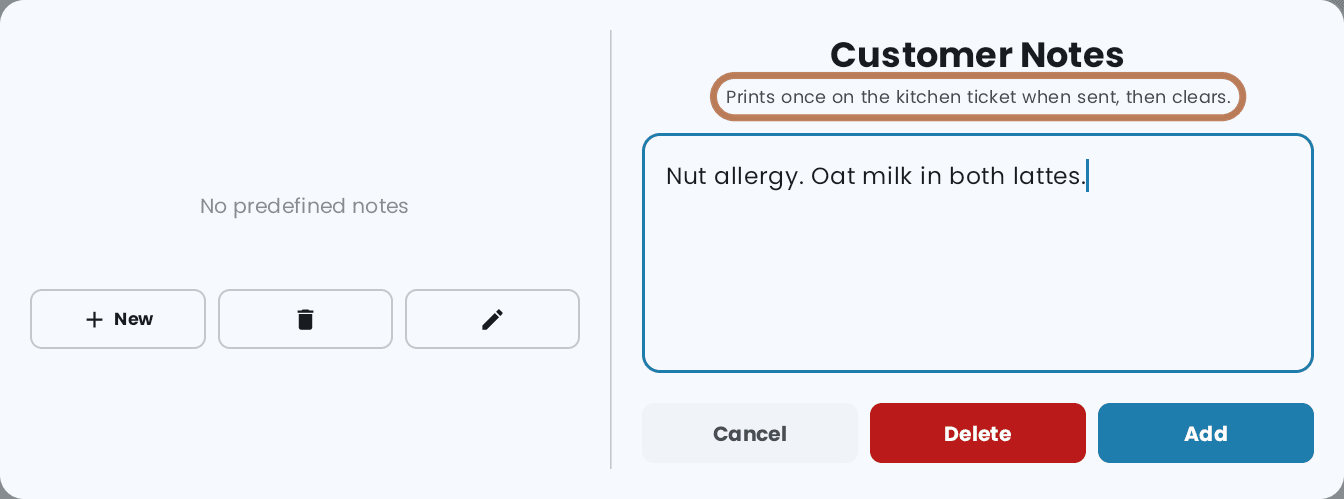
A customer note prints once on the kitchen ticket when the order is sent, then clears. It is not a standing instruction on the order. If a second round needs the same note, add it again.
Phone orders
On a Take Out Phone Order table, the phone button in the cart opens Phone Order Customer Details — the customer's name, number, address and delivery instructions, saved for next time and printed for the kitchen. See Taking a phone order.
Recording an order from a delivery app
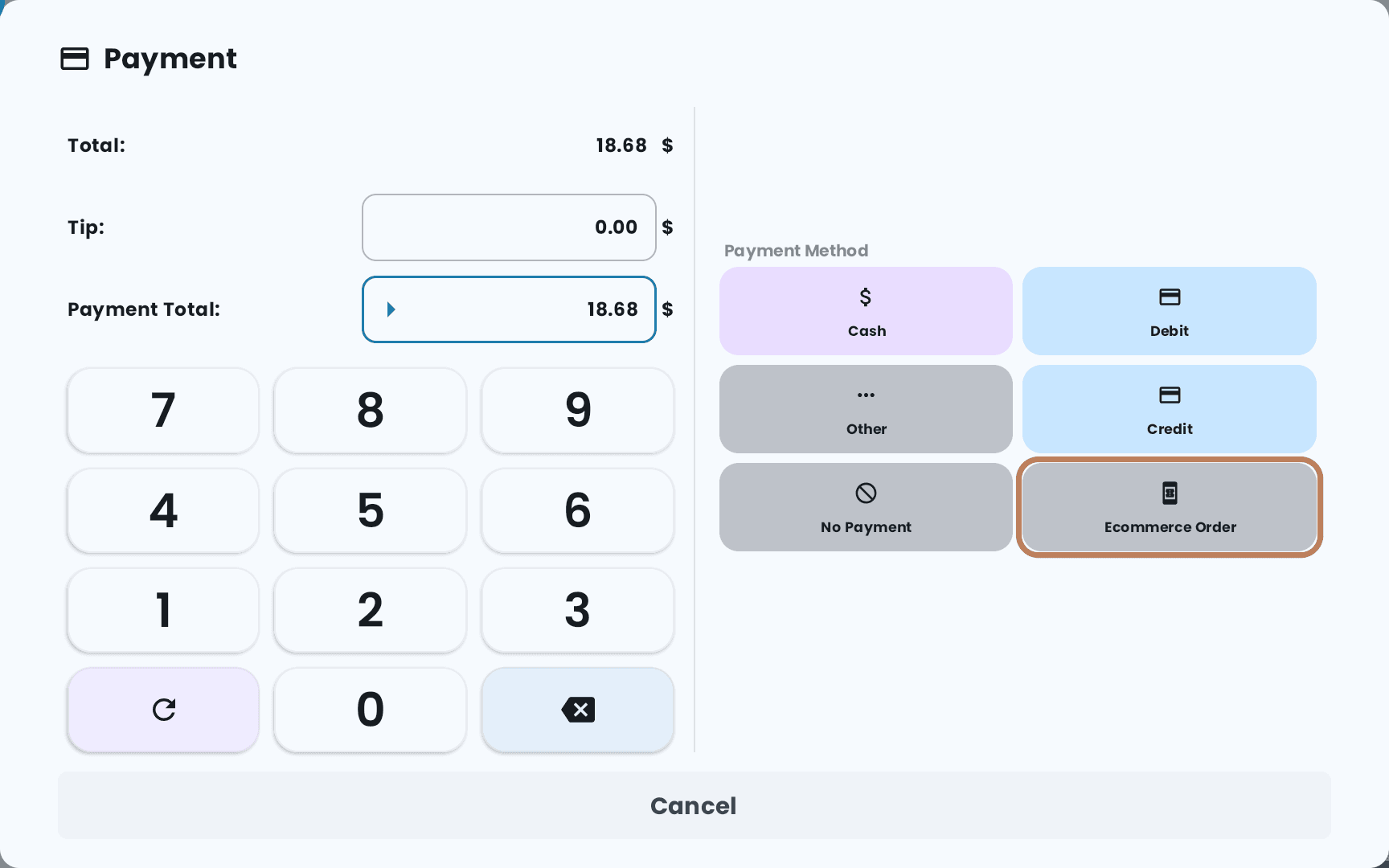
For an order that came in on Uber Eats, DoorDash or another app, tap Pay and choose Ecommerce Order. The sale is recorded as an online one; the platform pays you separately. To apply the platform's own prices automatically, take the order on a table with its own price list — see Tables and your floor plan.
Tag each order with its platform
To see in your reports which app each order came from, turn on Settings → Payment Settings → Name & Type Input Before Ecommerce Payment. It's off by default, and it's set on each POS separately, so turn it on on every station that takes delivery-app orders.
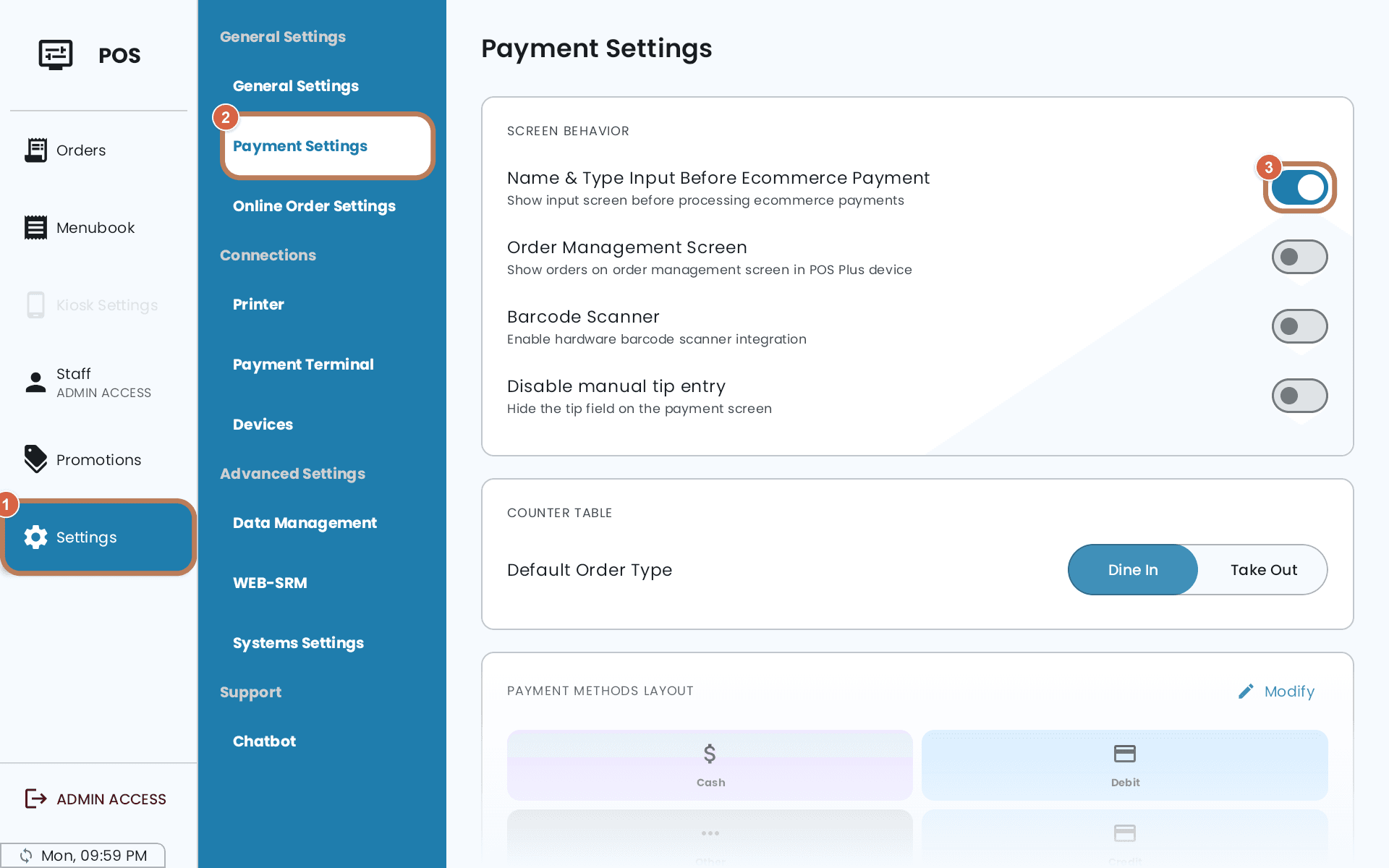
With it on, Ecommerce Order opens Ecommerce Order Information before the sale completes:
-
Optionally enter the Customer Name and the app's Order ID.
-
Tap the Order Platform: UBER EATS, DOORDASH, SKIP THE DISHES, FANTUAN, ONLINE or OTHER. Tapping it completes the sale.
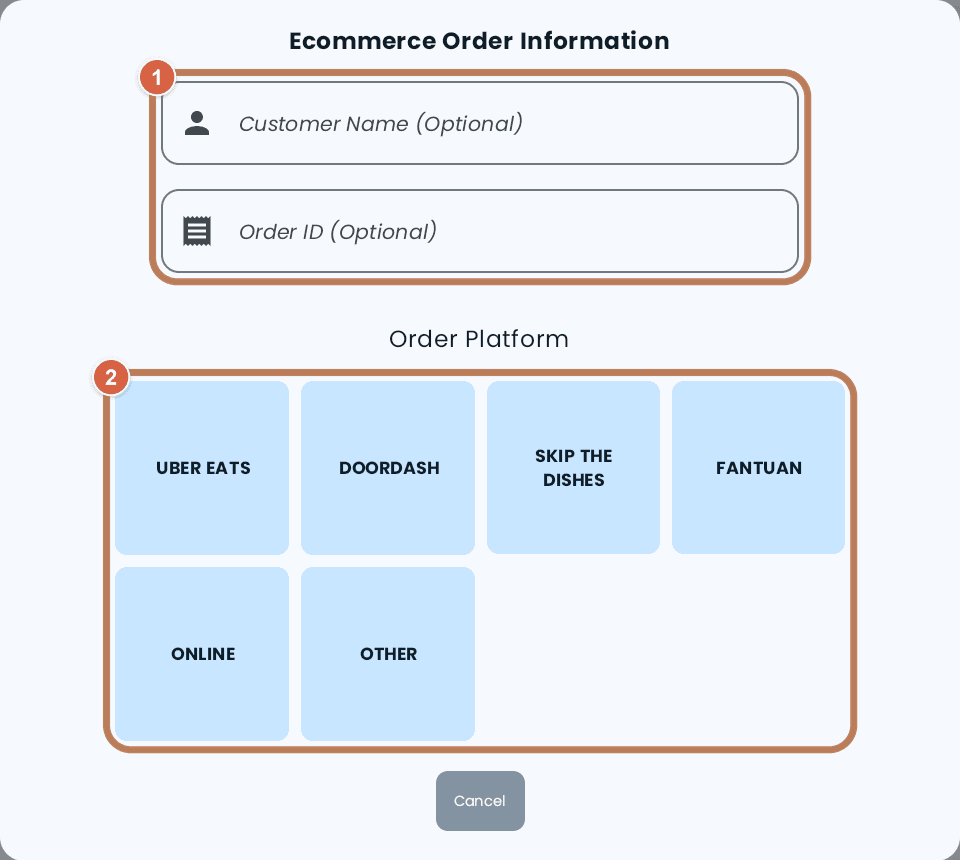
The platform is saved with the sale, so the Ecommerce Transaction Detail report can break sales down By Platform.
Where the order goes
The order lands in your sales report, and while it's open the customer display shows the cart and totals as you build it.