Custom price — decide at the till
For items where the price isn't fixed: sold by weight, made to order, priced case by case.
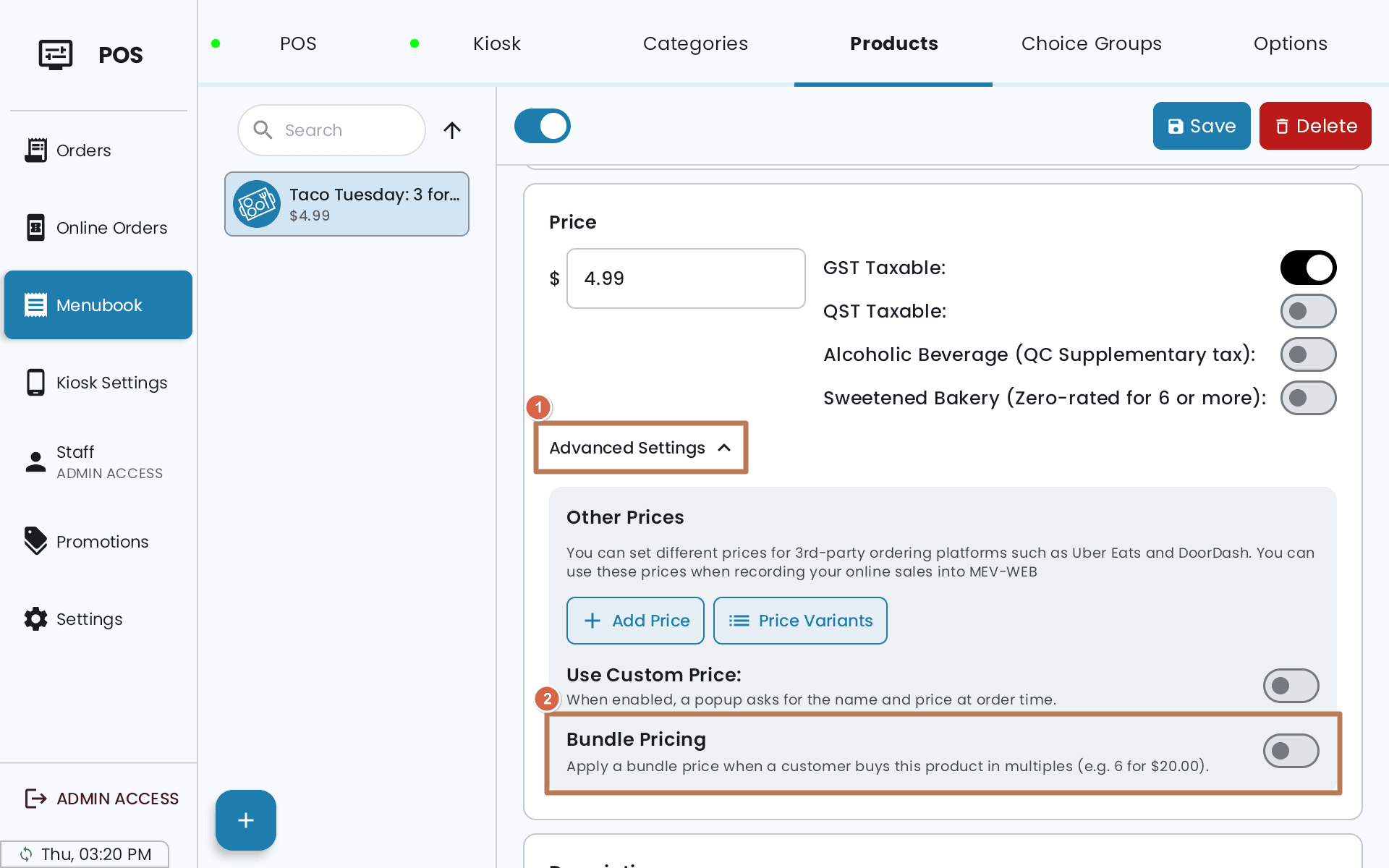
Open the product, choice or option, go to the Price section, tap Advanced Settings, and turn on Use Custom Price. It works on products, on individual choices inside a choice group, and on options.
At the POS the item's button shows Custom instead of a price.
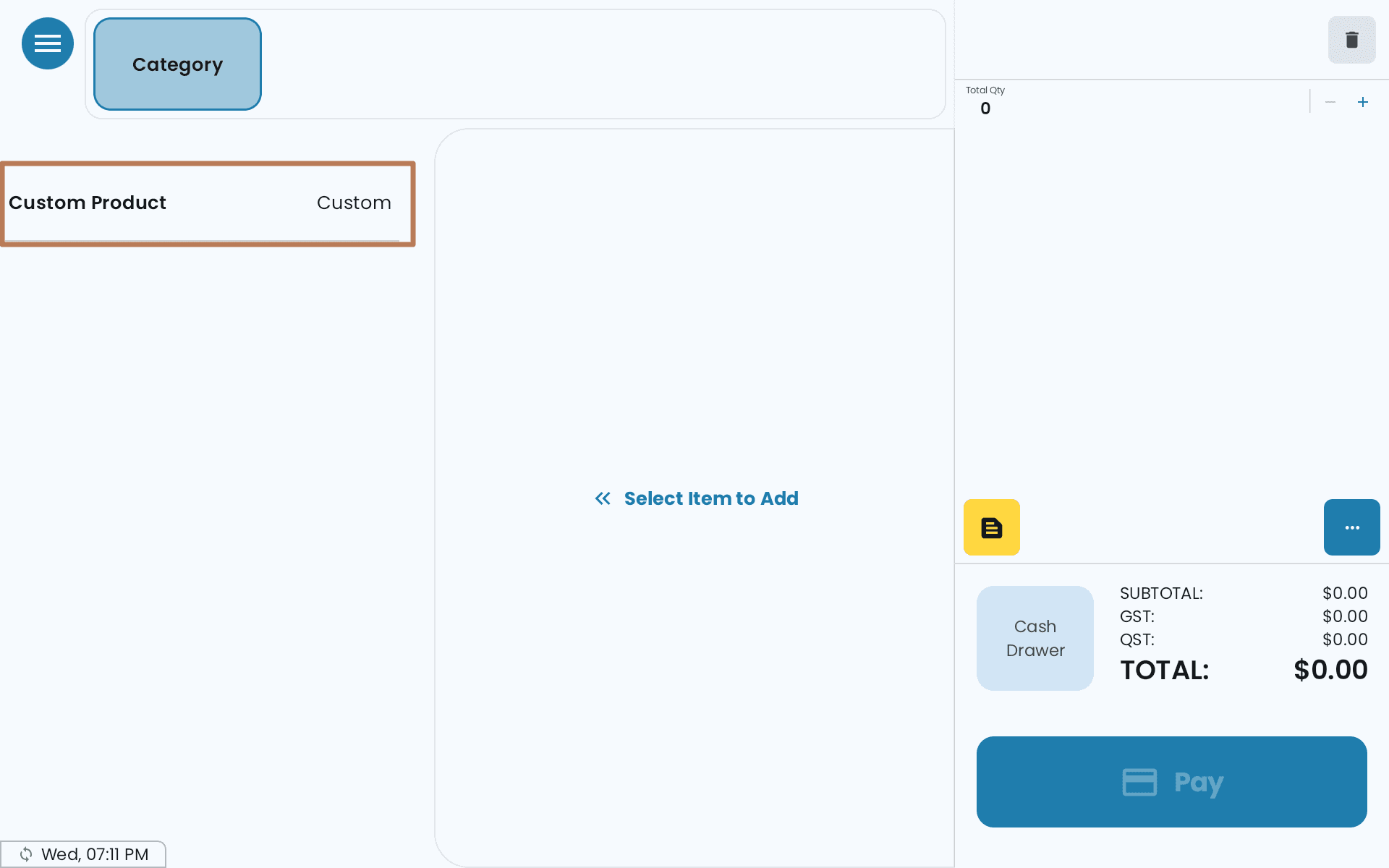
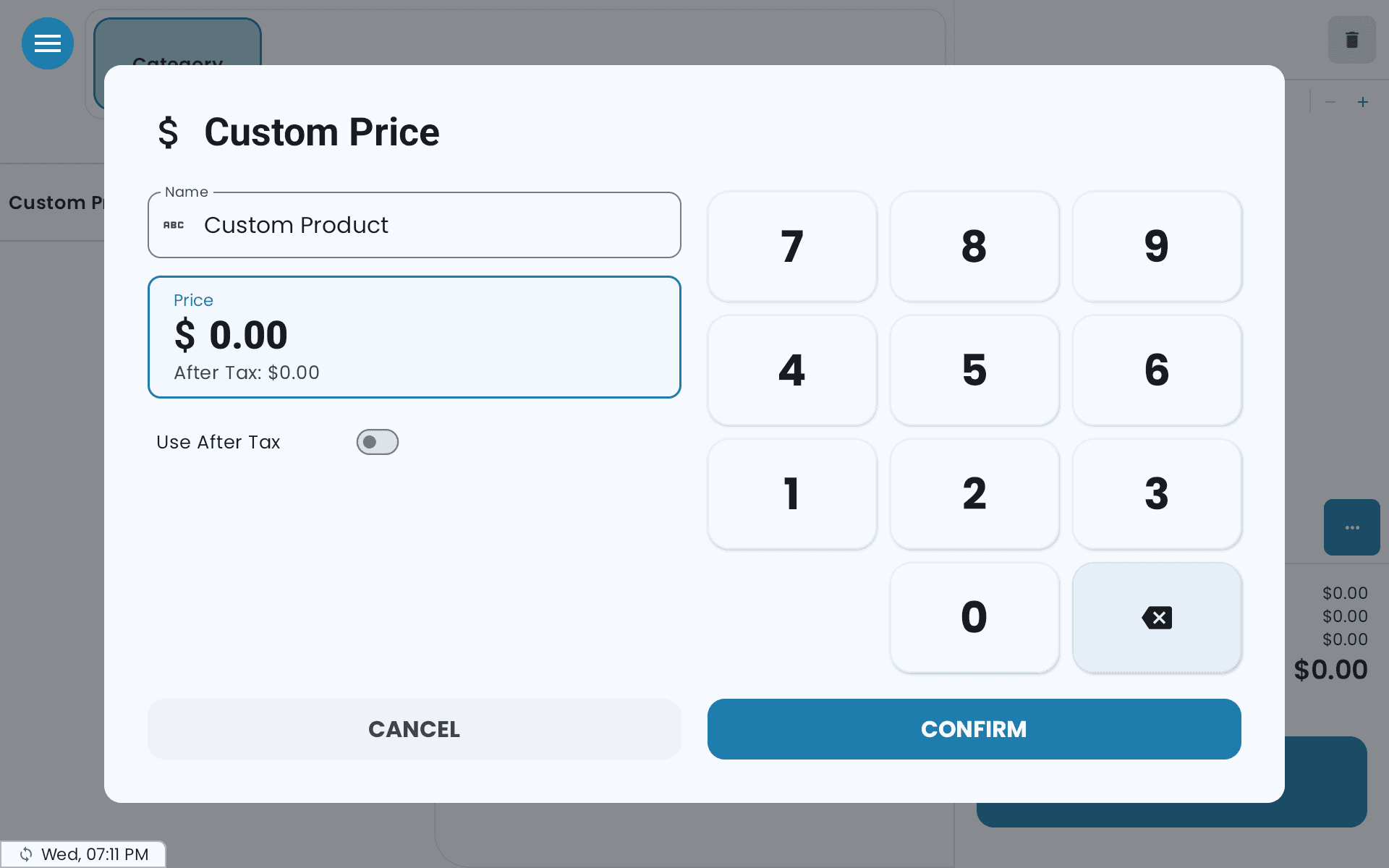
Tap it, adjust the name if you need to, type the price on the number pad, and tap Confirm to add it to the order.
A custom-price item disappears from your online store. There's no price for a customer to see, so the item is hidden there entirely — along with any choice group it empties. Use it for counter-side pricing, not for anything you sell online.
Bundle pricing — cheaper by the several
For "3 for $10". Open the product's Price section → Advanced Settings → Bundle Pricing, then set Bundle Size (Units) and Bundle Price.
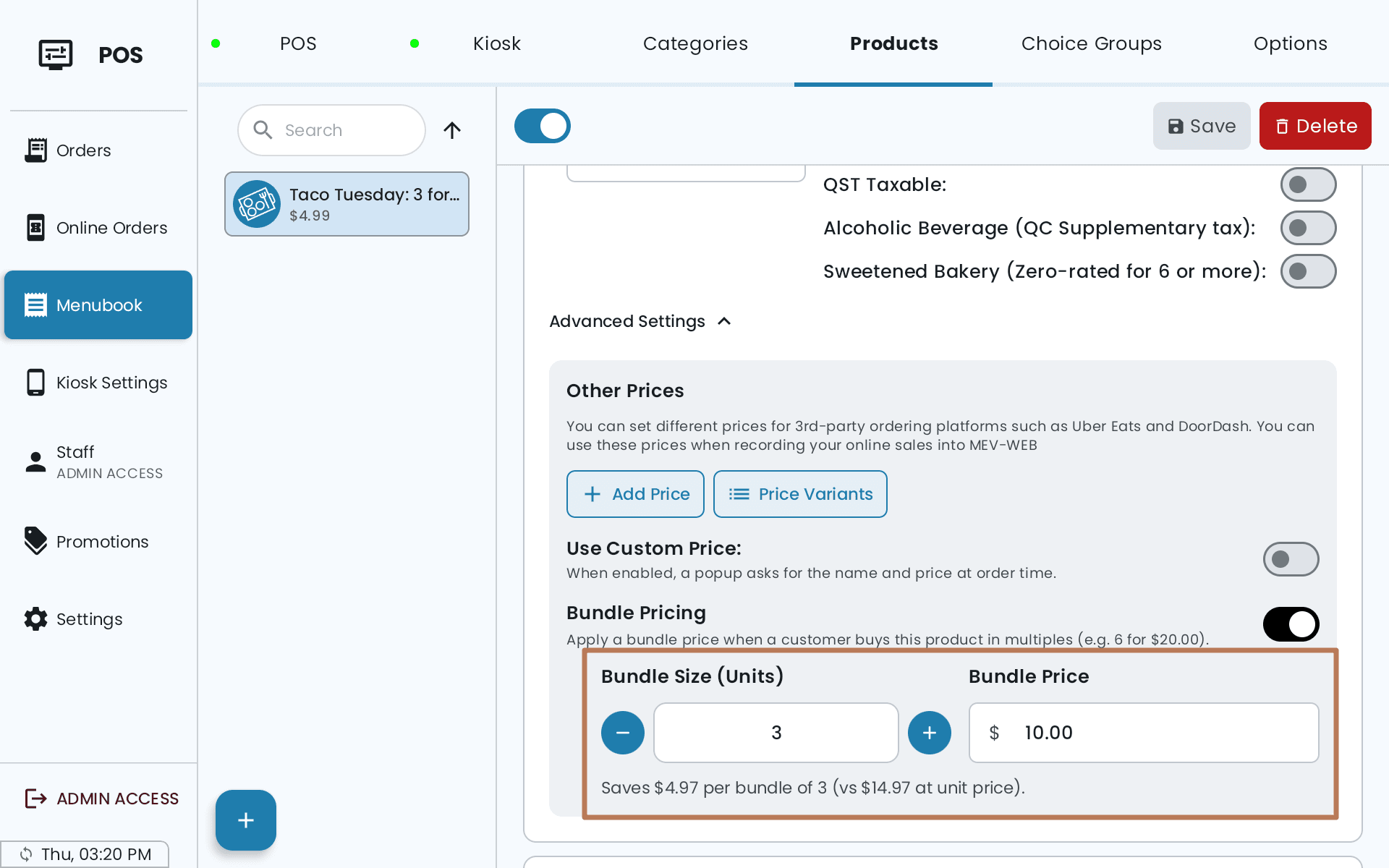
The bundle price has to be lower than buying that many at the regular price; the form won't accept it otherwise.
At the POS there's nothing to remember. Once the cart quantity reaches the bundle size, a Bundle savings line appears and the total recalculates. Seven units of a "3 for $10" is two bundles plus one at full price.
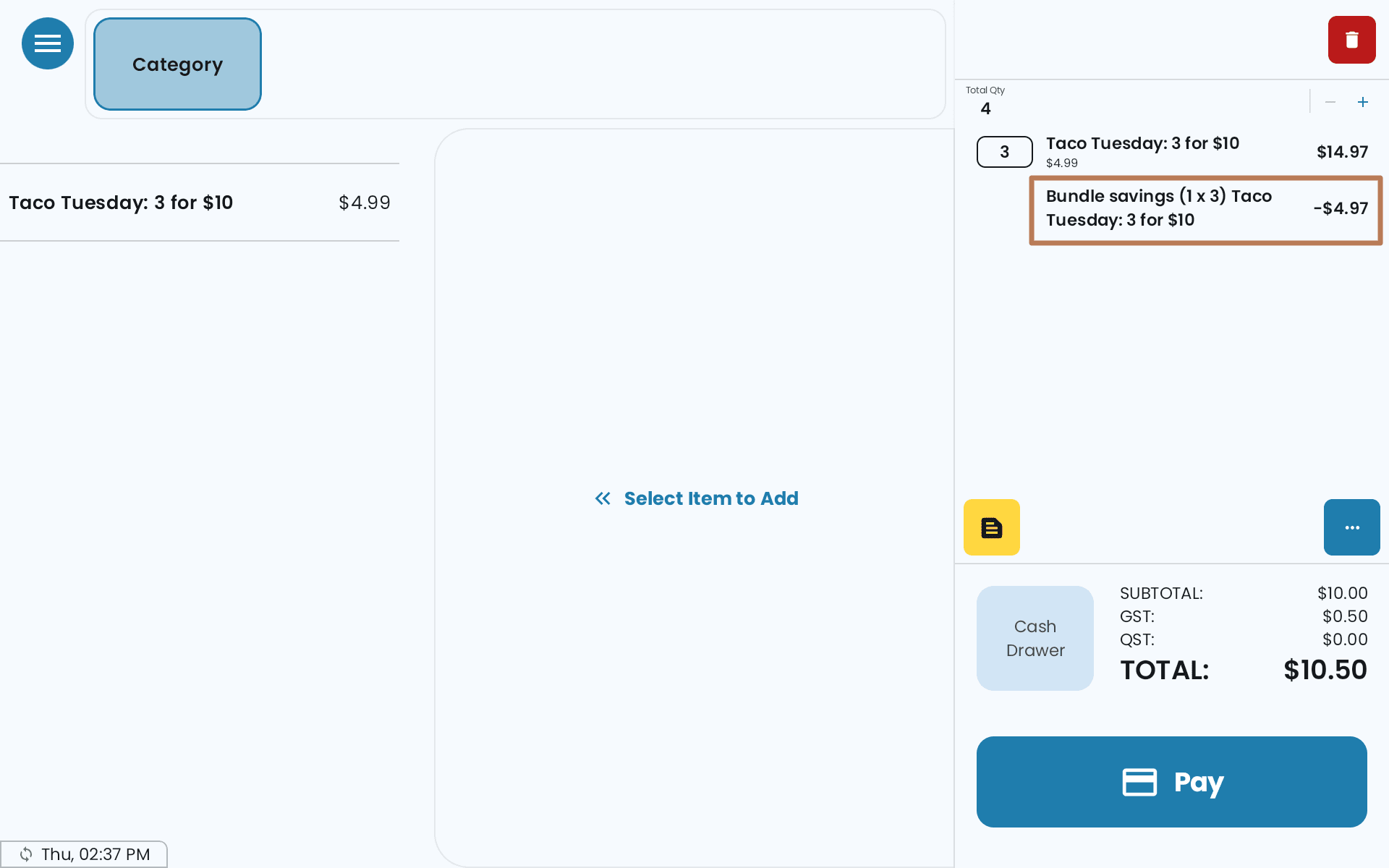
Bundles apply to the product price only — never to choices or options on it.
If a promotion is also running on that product, the bundle saving is worked out against the promotional price, not the full menu price, so the two don't stack into a bigger discount than you intended.
Alternative prices — a second price list
For charging differently on a particular channel: a delivery platform's markup, an online-only price.
Create the list from Online Order in the sidebar — under Use Alternative Price for Online Order, tap Create an alternative price (it reads Manage price types once you have one), then Add Price Setting, and name it something you'll recognise. Enter the actual prices per item on each product's Other Prices, or all at once in the pricing dashboard.
To apply it to Online Order, pick it in that same card and tap the Apply button. To use it on the POS, either tap ··· → Other Price Settings for one order, or give a table its own price list so everything added on it is priced that way automatically.
Anything without an alternative price falls back to its standard price, so you only fill in what differs.
Applying a price setting mid-order only affects items added afterwards. Anything already in the cart keeps the price it went in at. If you meant the whole order, set the list before you start adding items.