Menu Library → Settings → Prices shows every priced item as a spreadsheet. Use it instead of opening products one by one, especially for a menu-wide increase.
One default, plus variants
Every item has a Default Price — required, used everywhere unless something overrides it, and allowed to be $0.00 for a free item. Then optionally a price per variant, one column per alternative price list.
An item with no variant price uses its default, so you only fill in the cells that differ.
Tabs for Products, Choice Groups and Options. No Categories tab — categories don't carry prices.
Editing
Type into cells. Changed rows are outlined in blue. When you click Save Changes, cells that fail validation turn red, the save bar counts the errors, and nothing is saved until you fix them.
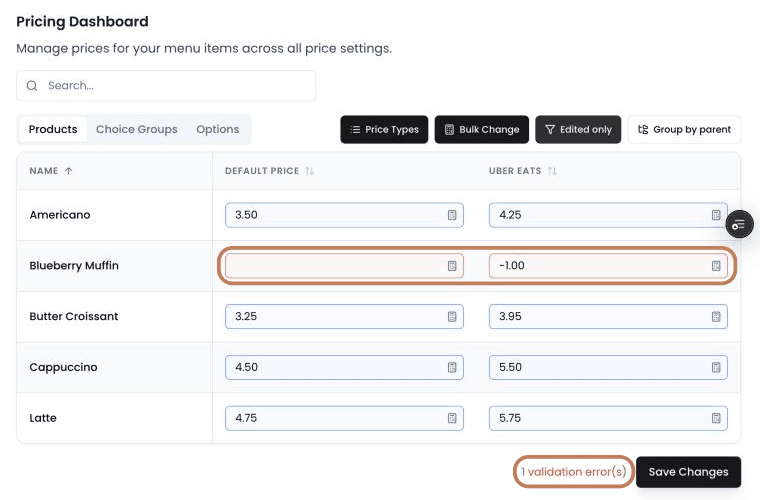
Emptying a cell deletes that variant price and the item falls back to its default. That's how you remove a one-off price — and it means a stray deletion is a silent price change.
Removing a variant deletes every price under it
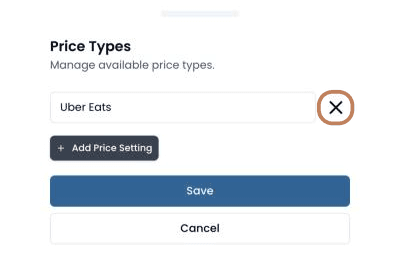
Price Types opens a drawer for adding and renaming variant labels. Renaming is safe. Removing is not.
Removing a price type doesn't just drop the column. On save it permanently deletes that variant's price from every product, option and choice in your library. If 250 items had an "Uber Eats" price, all 250 are gone, and there is no undo. Your browser shows a confirmation listing what will go — read it rather than clicking through it.
To switch a scheme off temporarily, set the dropdown back to your regular price instead of deleting the variant.
Bulk Change — the formula tool
Bulk Change applies a formula across many items: a menu-wide increase, or building a delivery list from your in-store prices. You pick which entity types it covers, a benchmark price to calculate from, and where the result lands. A preview pane shows the outcome before you commit.
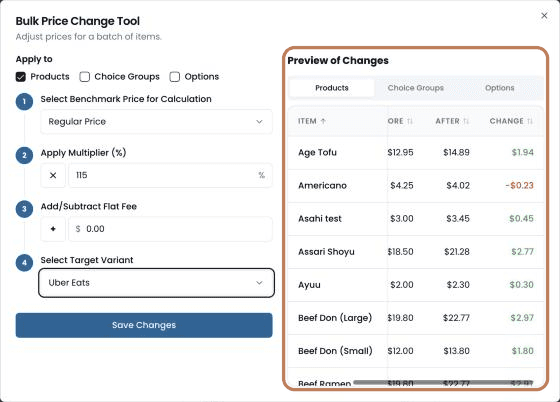
If an item has no price for the benchmark you picked, the tool uses its default price instead — silently.
Build a delivery list from your "Uber Eats" prices and every item that never had one is calculated from its regular price instead. Nothing tells you which. Read the preview, or set the benchmark to your default price so every item is treated the same way.
It applies to every item of the types you selected — there's no per-item targeting.
Before a menu-wide increase
- Run it with the preview open and read a few rows you know well.
- Check your free items are still $0.00 — a percentage on zero stays zero, but a fixed uplift won't.
- A bulk save doesn't push to Online Order. The POS updates in seconds; your online store can take up to 30 minutes to catch up. See Publishing your menu.