Turn on stock tracking for the items where running out matters — a daily special or a limited batch, for example. The POS and your online store then stop offering the item when the count reaches zero.
For items that share stock — two drinks made with the same espresso, for example — see Tracking stock by ingredient.
Turn it on
In Back Office:
-
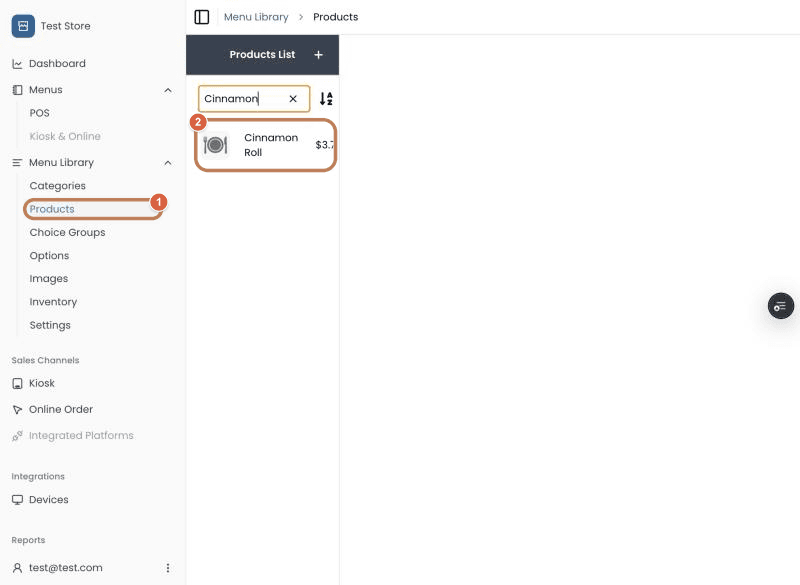
Open the product in Menu Library → Products.
-
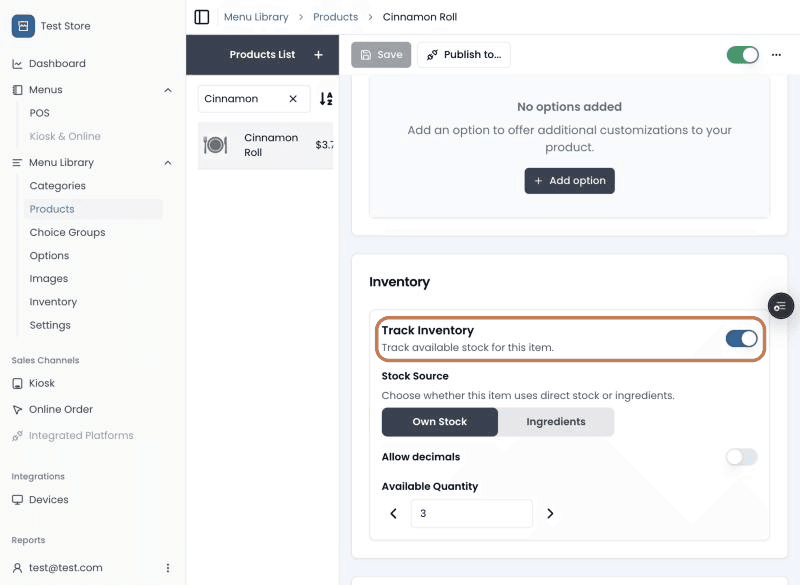
In the Inventory section, turn on Track Inventory.
-
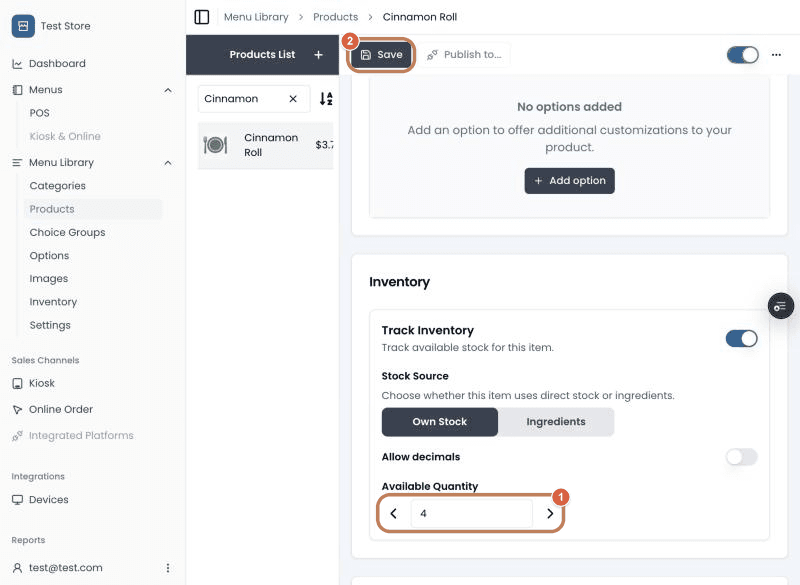
Enter the Available Quantity and save.
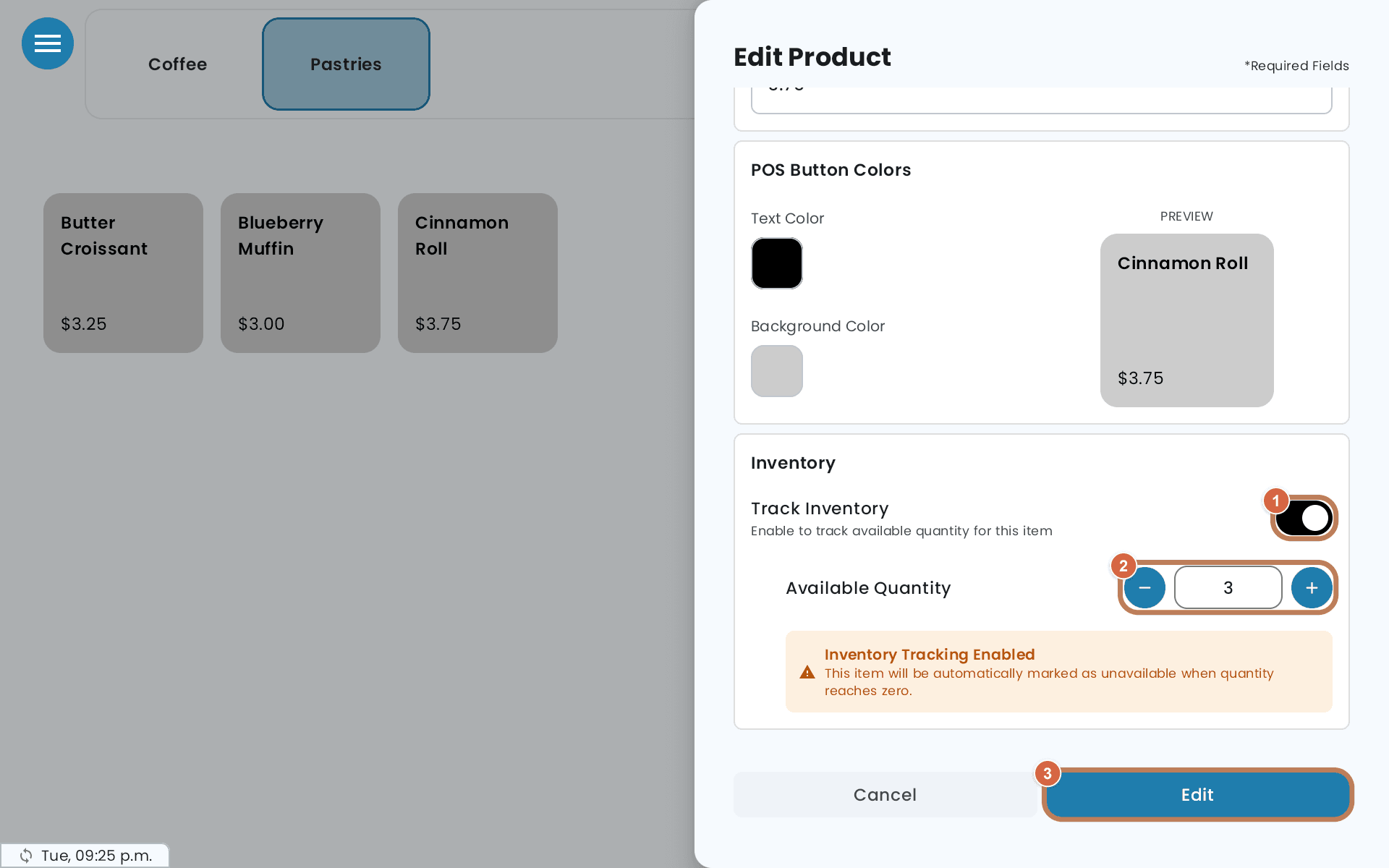
On the POS, either open the product in Menubook and use the same Inventory section, or press and hold the item on the order screen and set Available Quantity under Inventory.
Counts are whole numbers unless you set Quantity Format to Decimals on the POS, or turn on Allow decimal quantities in Back Office. With decimals, a count can have up to two decimal places, and Quantity Used Per Sale sets how much one sale takes — 0.25 for a quarter-kilo scoop sold from a count in kilos, for example.
What happens on the POS
- The count goes down when you tap Send Order, or when you take payment for items that weren't sent first.
- A voided item goes back into stock.
- A refund from Order History doesn't change the count. If the item comes back, correct the count by hand.
- When you send an order, the POS checks the stock again, in case another POS or an online order sold it in the meantime. If there isn't enough, a Not enough stock message names the item and what's left — for example Only 2 Cinnamon Roll left. Please update your order and try again. Nothing is sent. Lower the quantity or remove the item, then send again.
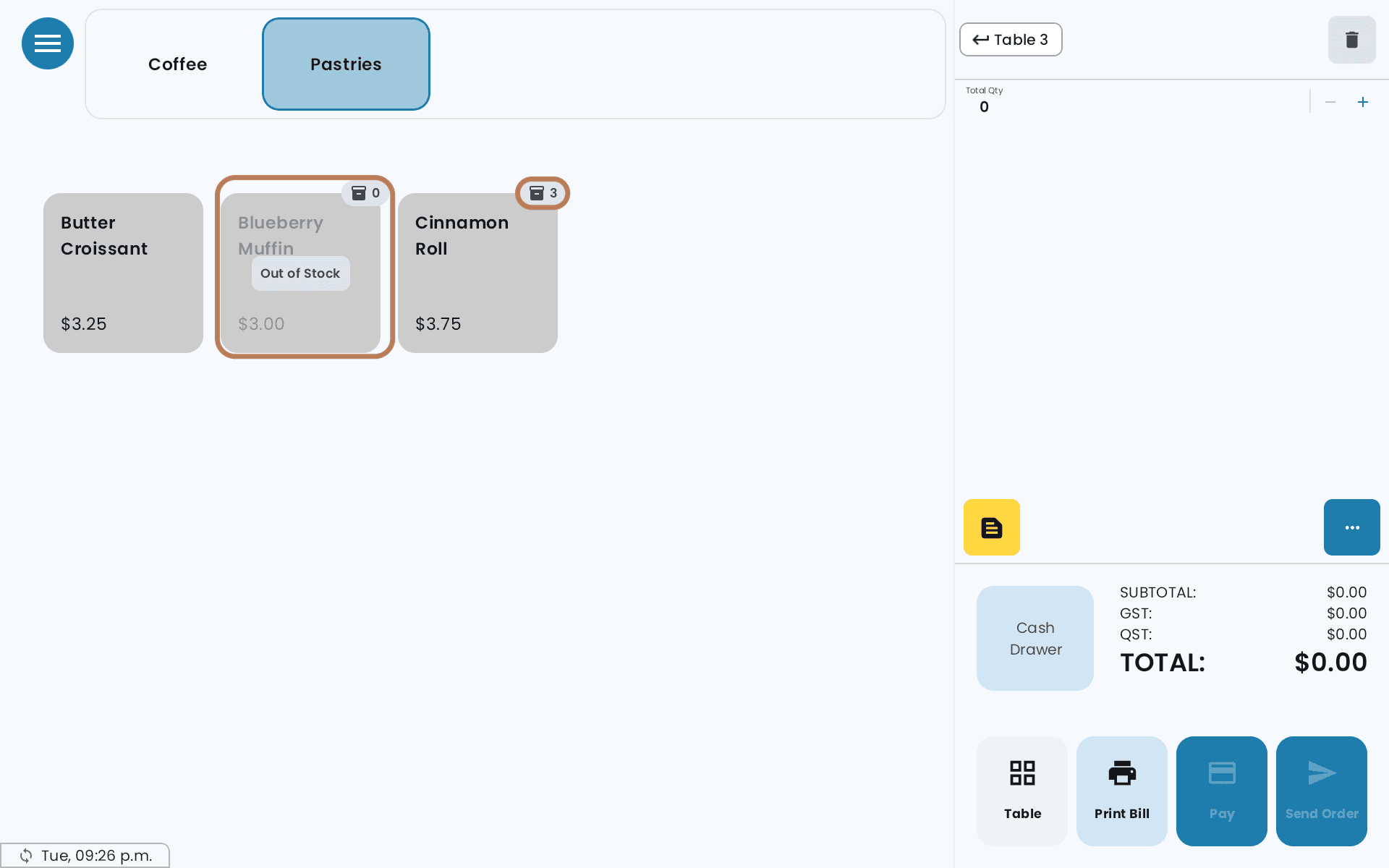
- At zero the item greys out, shows Out of Stock, and can't be added to an order. Until then a small count on the tile shows what's left.
- To top the count up, press and hold the item and change Available Quantity. It's back on sale as soon as you save.
What happens in your online store
- When a tracked item runs low, customers see a note such as Only 3 left in stock. When it's gone, the item's picture on your menu shows Sold out. Customers can still open it to read about it: they see This item is currently out of stock, and the button reads Not Available.
- The count goes down when the customer places the order.
- If you decline or cancel an online order, its items go back into stock.
Keep the count honest
Tracking only helps if someone updates the count. A delivery that isn't entered leaves an item showing out of stock while it sits on the shelf, and a count nobody set leaves it selling past zero. Make it part of the morning routine for the items you track.
If it doesn't work
- An item shows Out of Stock but you have plenty — the count was never set, or a refund brought stock back that the POS wasn't told about. Press and hold the item and enter the real number.
- An item keeps selling after it ran out — Track Inventory is off for that product, or the count is higher than the shelf. Check the product in Back Office.
Related: Tracking stock by ingredient · Adding categories and products · Staff permissions · How to issue a refund.