A promotion discounts products or categories you choose, for a period you choose. Set it up once and it runs itself.
Set one up
From Back Office or from the POS. In Back Office, open Menu Library → Settings and the Promotions tab, then Create Promotion. On the POS, open Promotions and tap Add Promotion.
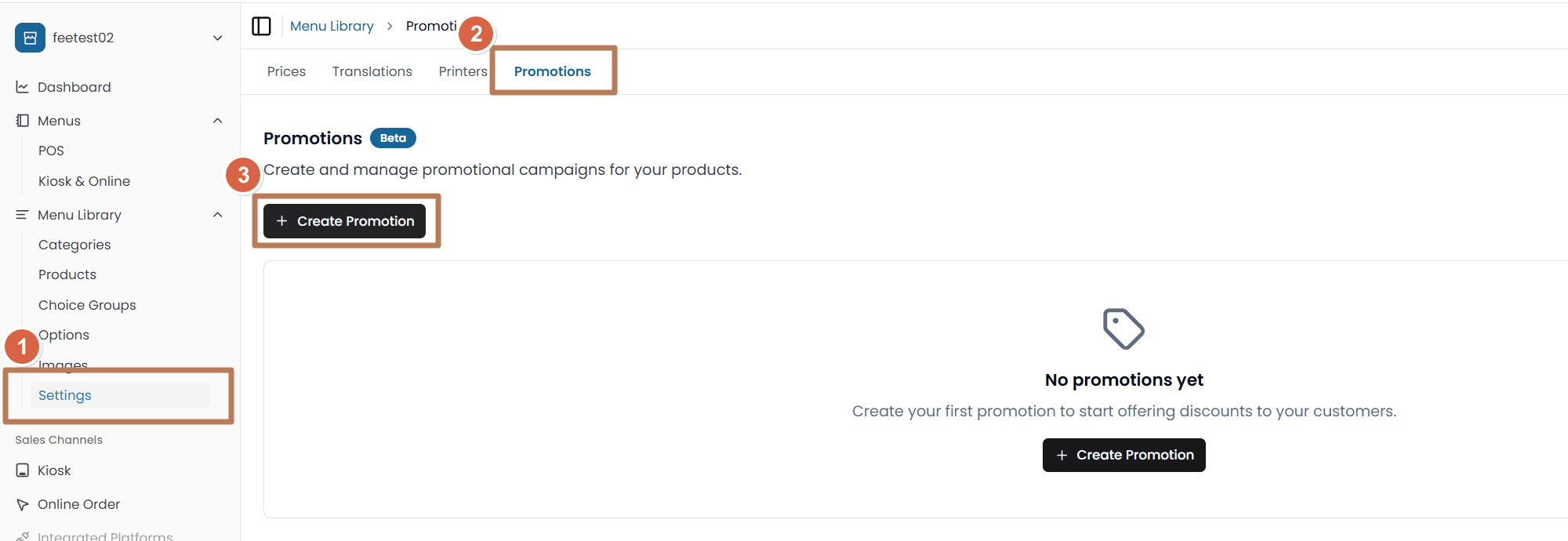
Required: a name, a discount type (Percentage or Fixed Amount), a discount value, and a start date.
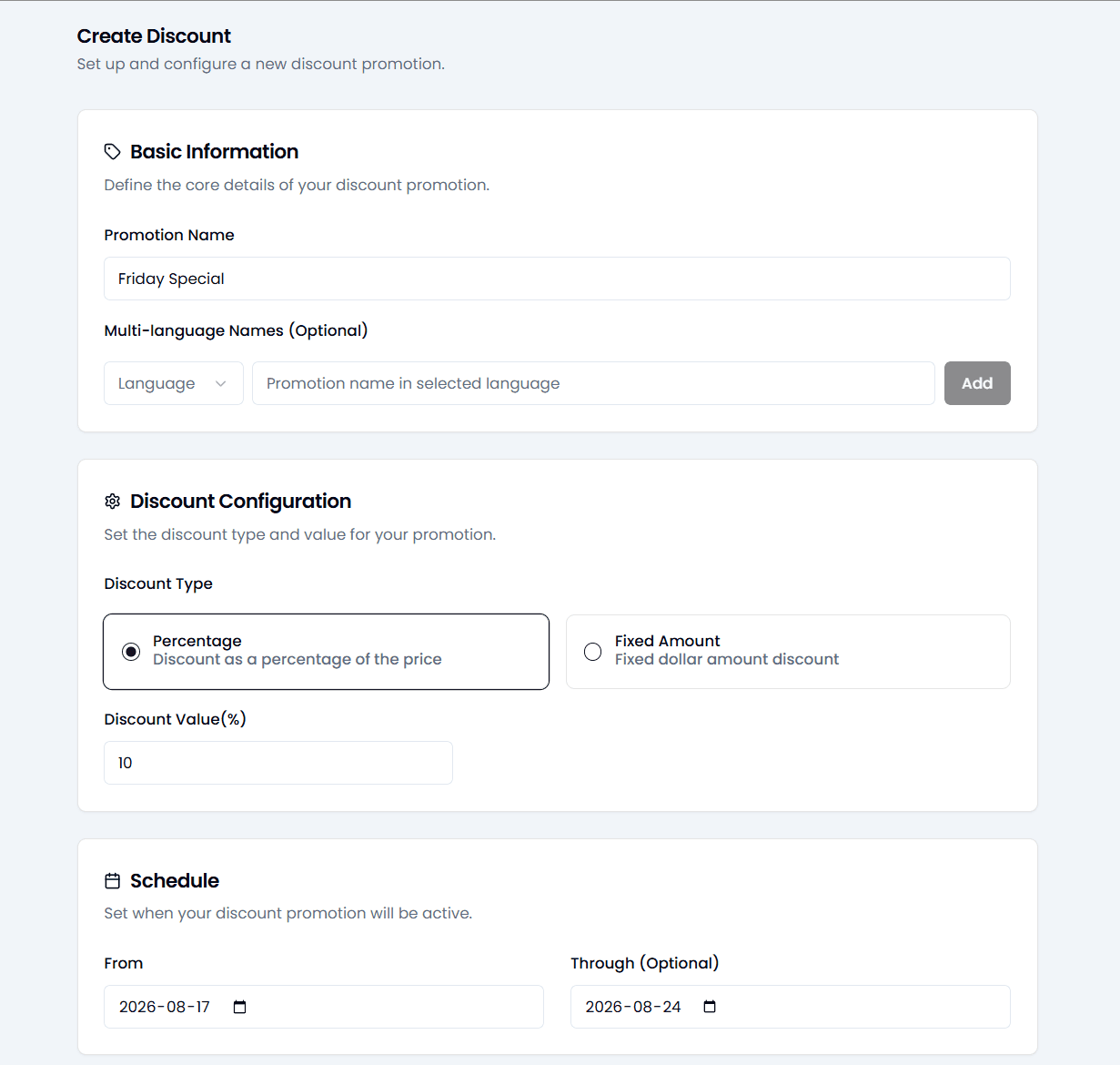
Then, as you need them: an end date (leave empty for no end), the products or categories it applies to, where it runs — Available On on the POS, Platforms in Back Office, where the POS is called Counter — names in other languages, and Enable promotion immediately, which is on by default.
Nothing selected under Available On — or Platforms — means the promotion runs nowhere. It's the field people forget.
Scheduling by day and time — POS only
The POS create form has more than Back Office does:
- Start Date and Time and End Date and Time, or No end date (indefinite)
- Limit to Specific Days and Times — pick the days, then + Add time slot per window. Slots can't overlap, and an end has to be after its start.
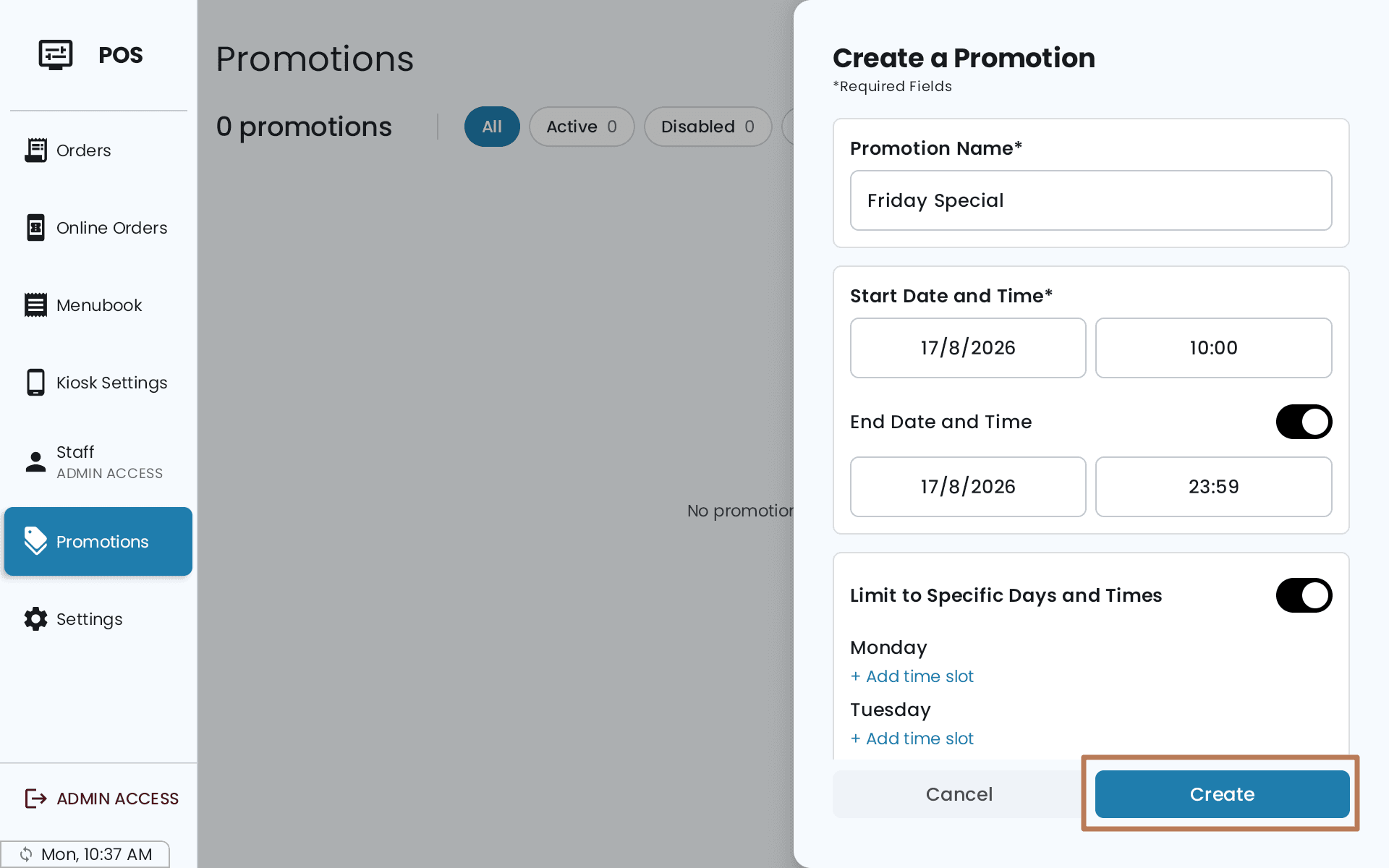
That's how you build a weekday-lunch special that doesn't run at dinner, or a happy hour on three nights. The Back Office form is date-range only, so build time-limited promotions on the POS.
Discounts stack
Two promotions on the same item both apply. A 10% and a 20% promotion make 30% off, not 20%. Fixed amounts add up the same way.
If the stacked total would take an item below zero, the POS refuses to add it to the cart. There's no cap or sanity check on the values themselves, so a 200% discount will save.
If a product also has bundle pricing, the bundle saving is calculated from the promotional price, so those two don't compound.
A promotion discounts specific items. To take an amount off a whole order at the till, use a cart-wise discount instead.
Finding one later
The list filters by All, Active, Disabled, Scheduled and Expired. A promotion whose start date hasn't arrived shows as Scheduled, not missing — check there before creating a duplicate.
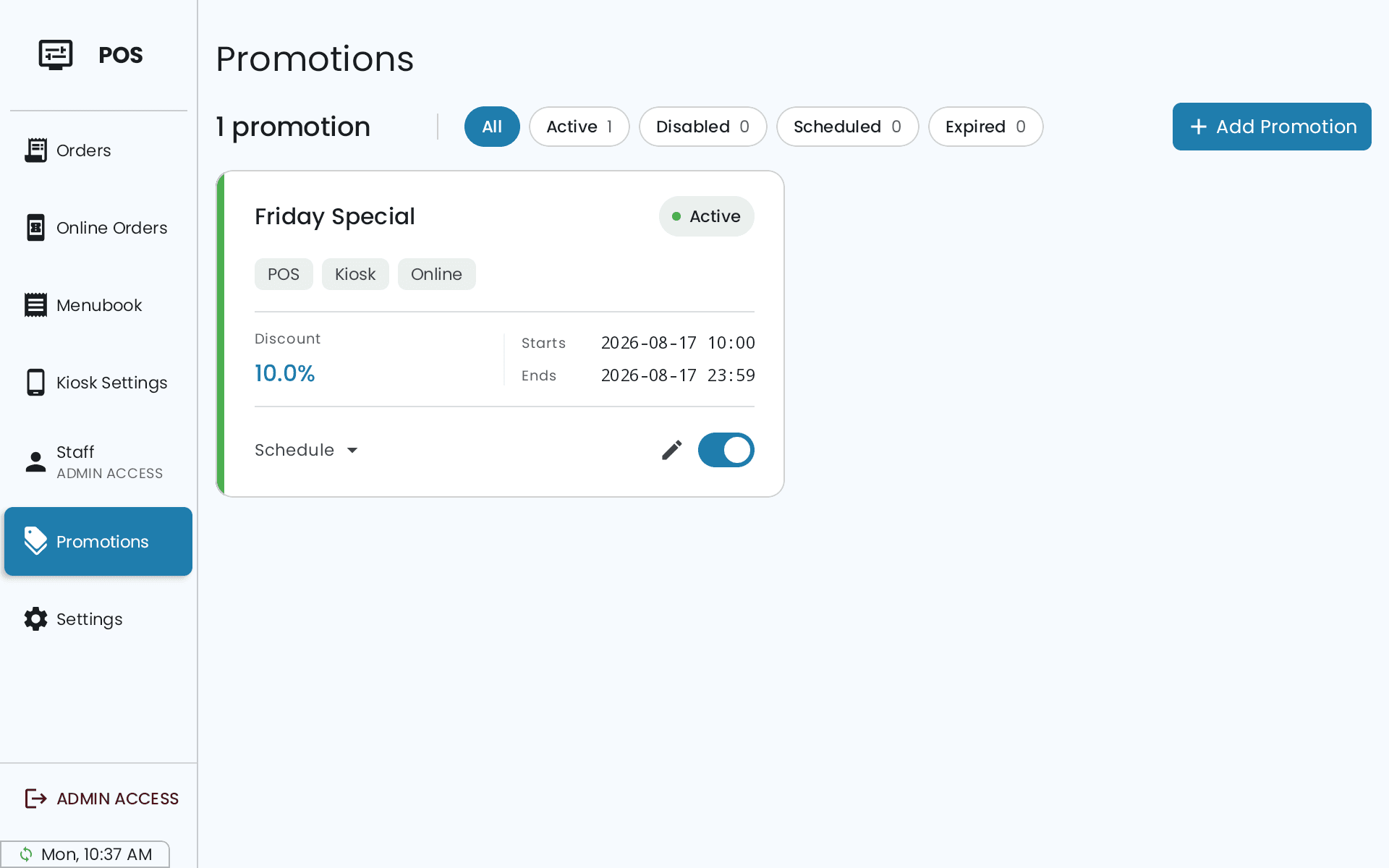
One that hasn't started, or has passed its end date, just doesn't apply. You don't need to delete it.
Creating and editing promotions needs the Manage Promotions permission.
What staff and customers see
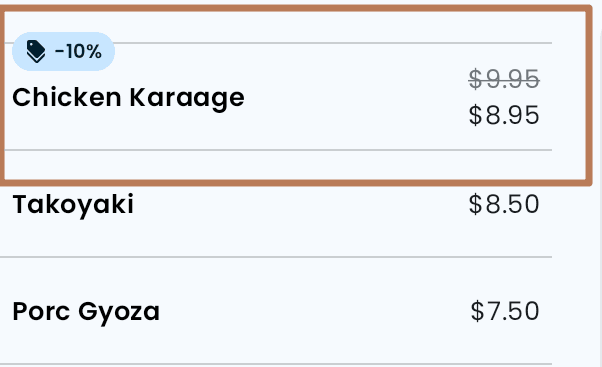
A promotion badge appears on discounted products on the POS, so whoever is on the till can see it's active. In the cart the line reads generically — "Rabais" or "Rabais@15%" — rather than naming the promotion.
Deleting a promotion is permanent and removes it from every product and category it was attached to.