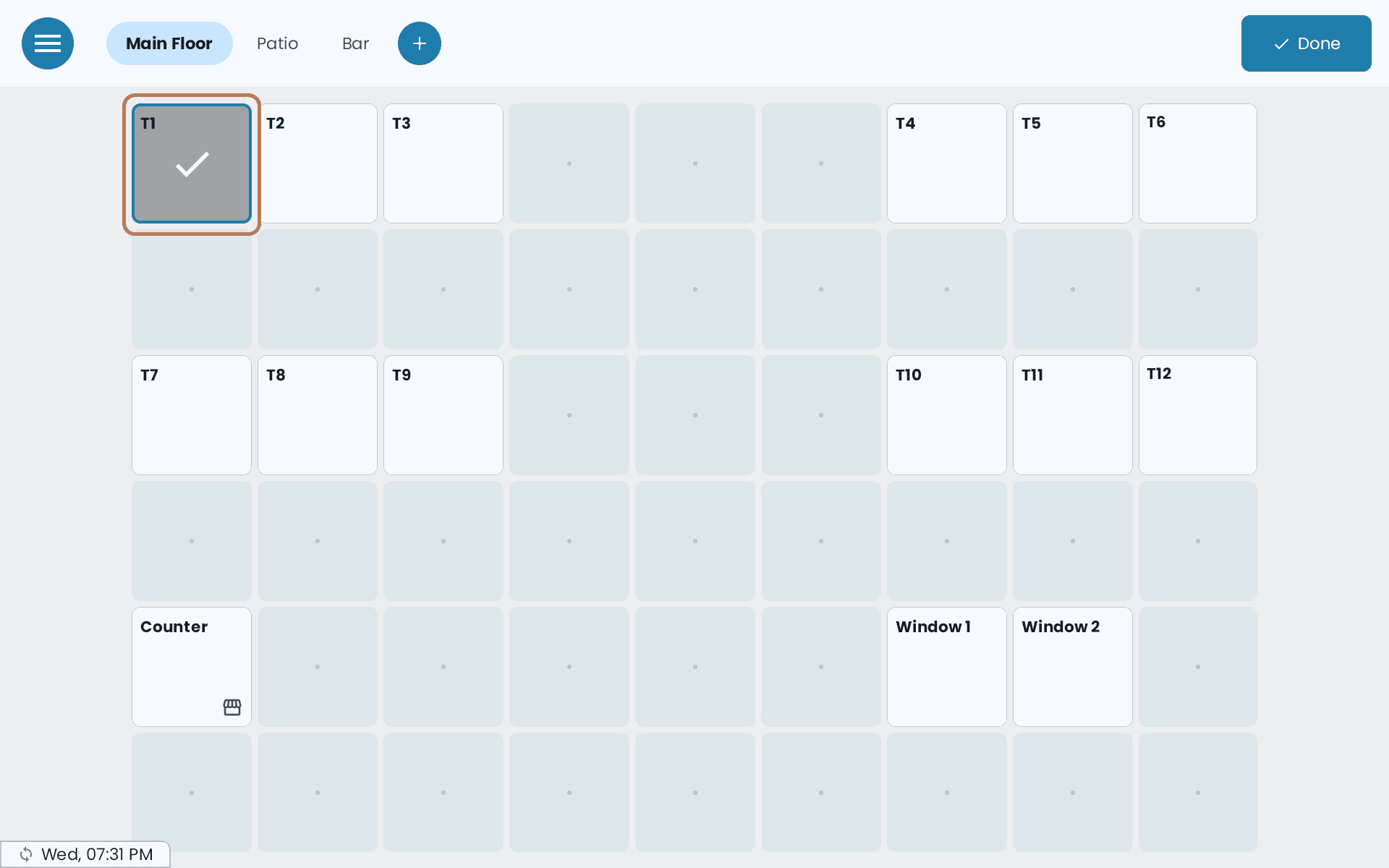
Your floor plan is a grid. You place tables on squares and group them into sections that appear as tabs across the top. Every table has a Mode that changes how orders on it behave.
The floor plan lives on the POS — there is nothing to set up in Back Office — and it only appears in Table mode. See Counter mode or Table mode.
The three table modes
| Mode | Use it for | What changes |
|---|---|---|
| Default | Ordinary dine-in tables | Send Order puts the order in the kitchen while the bill stays open; Pay at the end |
| Counter | A walk-up counter, bar pickup or takeout window on a floor that otherwise has table service | Works like Counter mode on that one table: add the items and Pay, and the kitchen ticket prints with the payment |
| Take Out Phone Order | Orders phoned in for pickup | A phone button in the cart records the customer's name, number and address, which print on the kitchen ticket |
| Default | Counter | Take Out Phone Order | |
|---|---|---|---|
| Send Order and Print Bill | Yes | No — paying sends the ticket | Yes |
| Kitchen ticket prints | When you tap Send Order | When you take payment | When you tap Send Order |
| Dine In or Take Out | Not asked — dine in | Asked on the Pay screen | Not asked — take out |
| Customer details | — | — | On the bill and the kitchen ticket |
| After paying | Table clears, back to the floor plan | Stays open for the next customer | Table clears, back to the floor plan |
| Six-or-more bakery exemption | No | Yes | No |
Counter is not just a label. Tax rules that depend on food being taken away — such as the six-or-more bakery exemption — apply on a Counter table and nowhere else on the floor plan, not even a Take Out Phone Order table. See Bakery items sold in sixes.
A Counter table is one table on your floor plan. POS Mode → Counter is the device-wide switch that removes the floor plan altogether. Changing one doesn't change the other.
The phone-order customer's details print on the kitchen ticket so whoever hands the order over knows whose it is and can call them. They don't print on the customer's receipt. See Taking a phone order.
Before you edit
Tap Edit on the floor plan. You need to be an Administrator — if the button shows a padlock, the POS asks for the Master PIN.
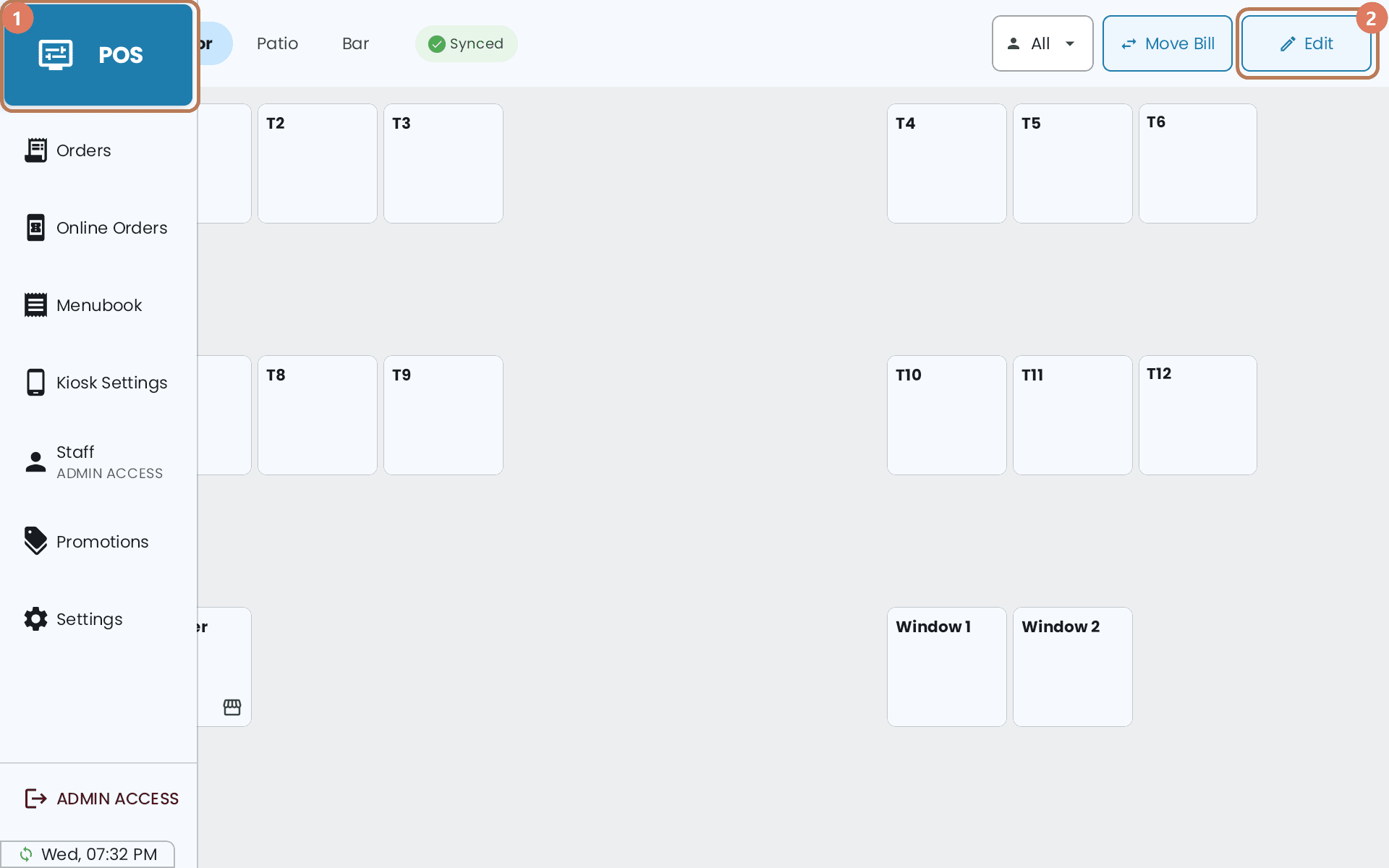
While editing: tap a table to move it, hold a table to edit it, tap an empty square to add one. A table with an open bill can't be edited — its name and Mode are locked until the bill is closed.
Add a section
-
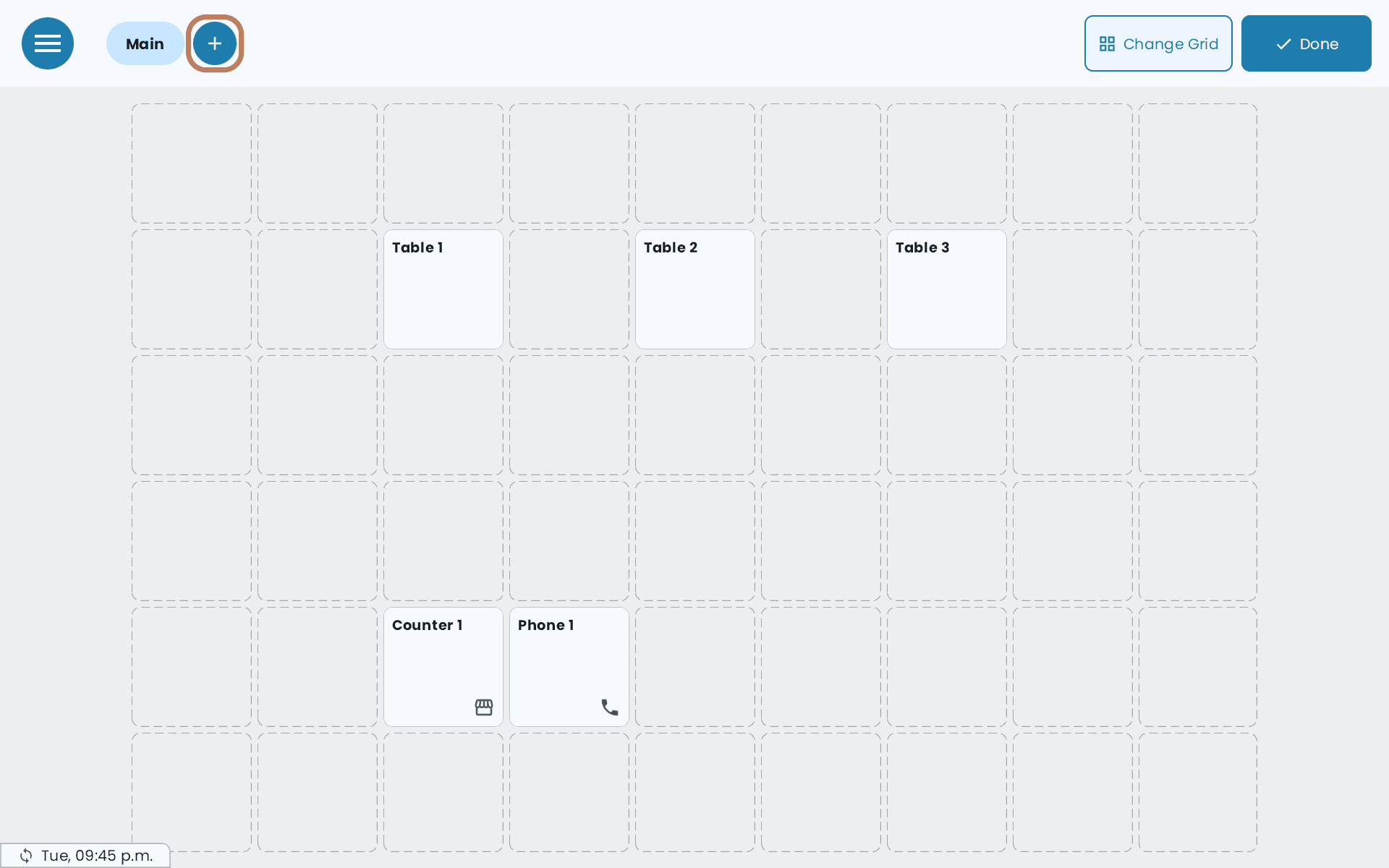
Tap Edit, then the + beside the section tabs.
-
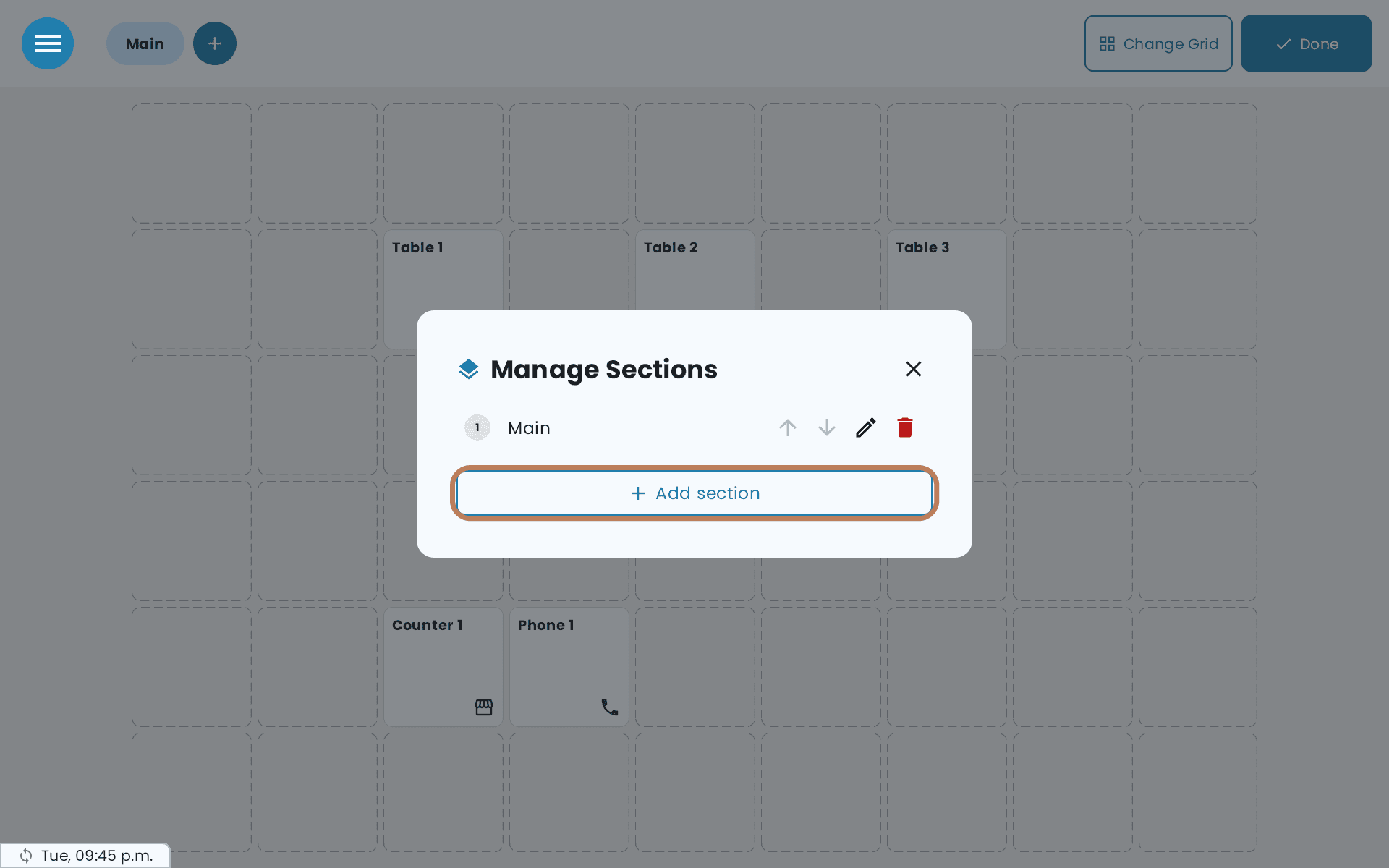
In Manage Sections, tap Add section.
-
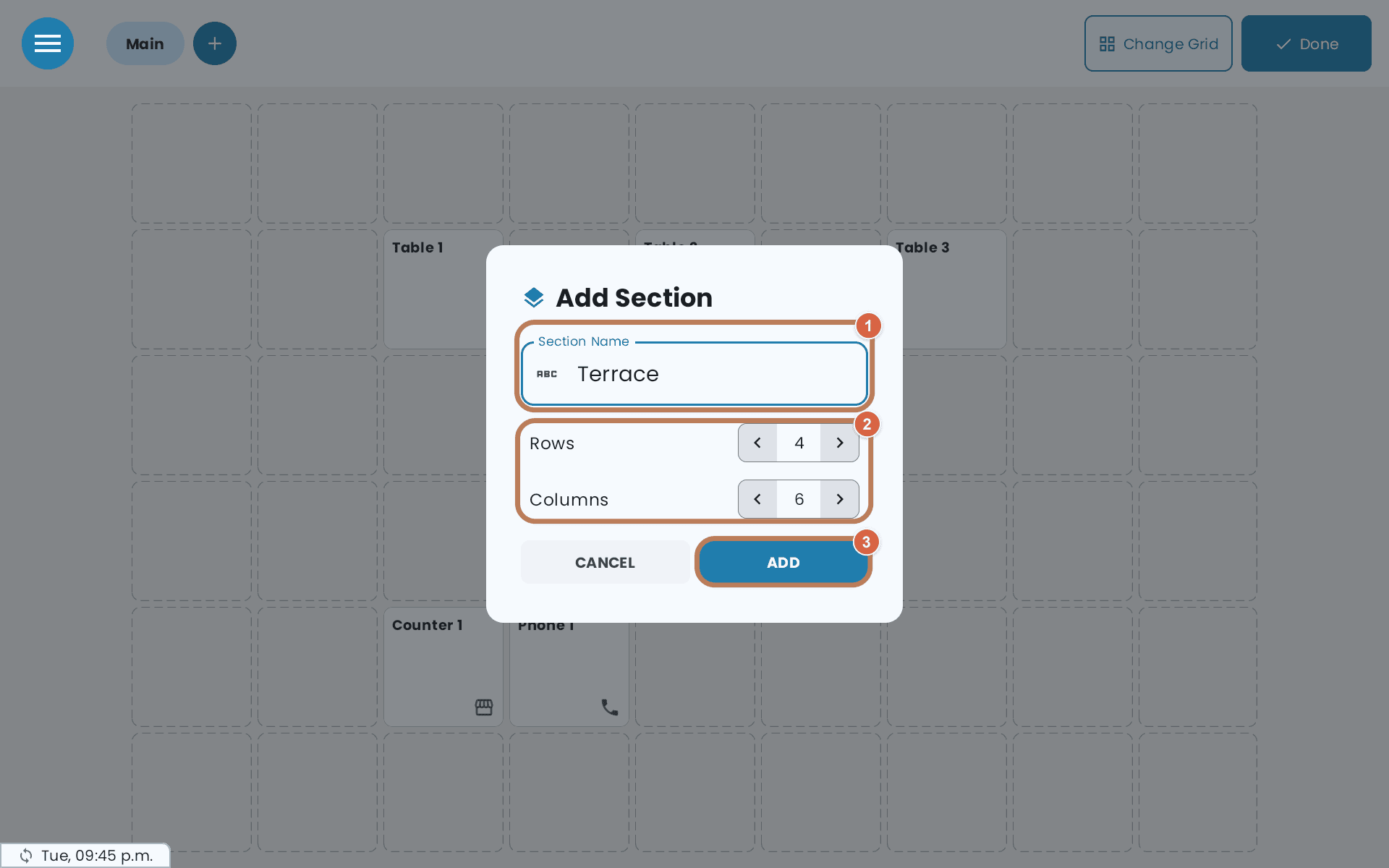
Enter a Section Name — Main Dining, Terrace, for example — set the Rows and Columns you'll need, and tap ADD. Get the grid right now: changing it later with Change Grid deletes the section's tables.
-
Tap Done.
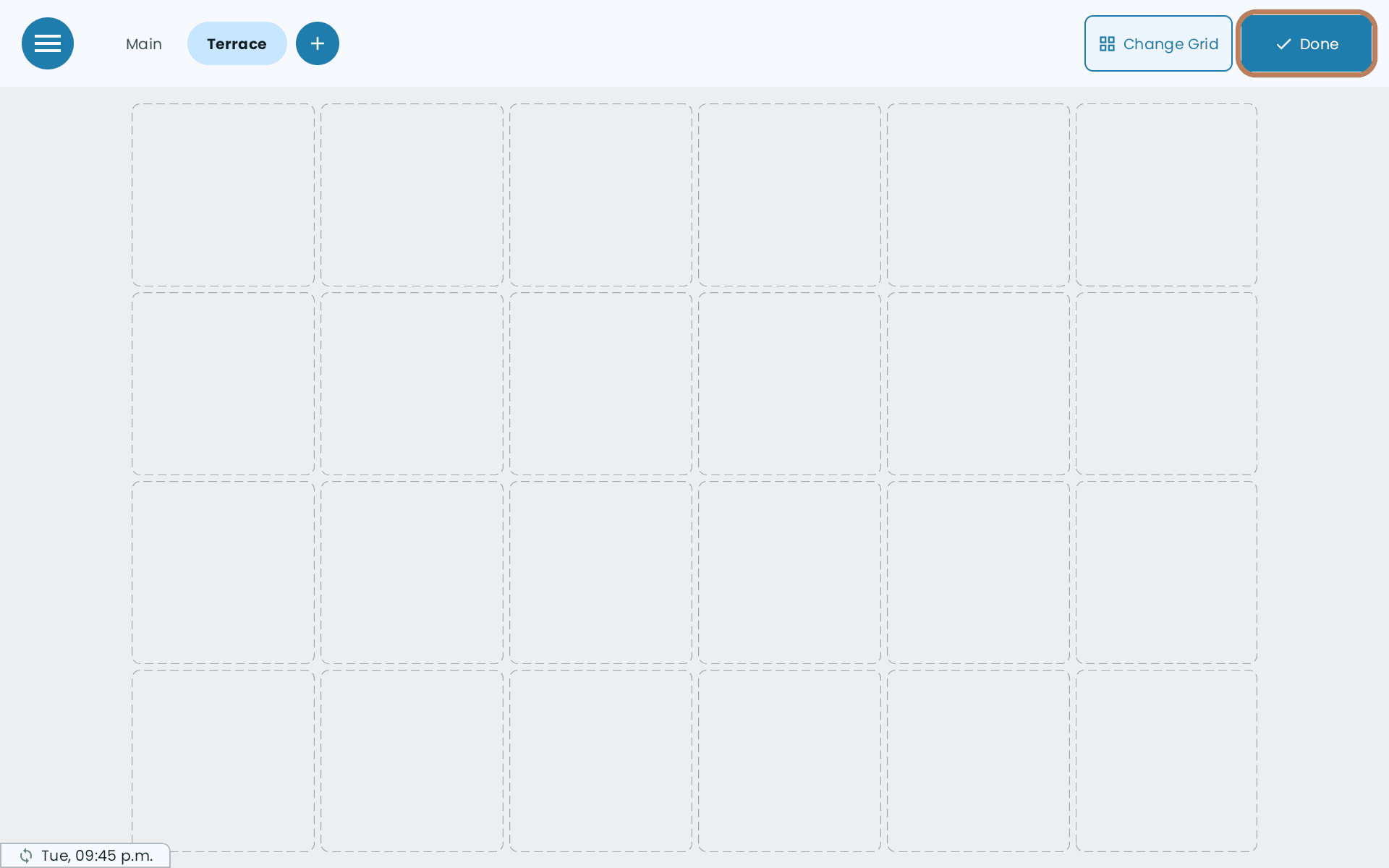
In Manage Sections you can also rename a section with the pencil, reorder with the arrows, or delete one with the bin.
Add a table
-
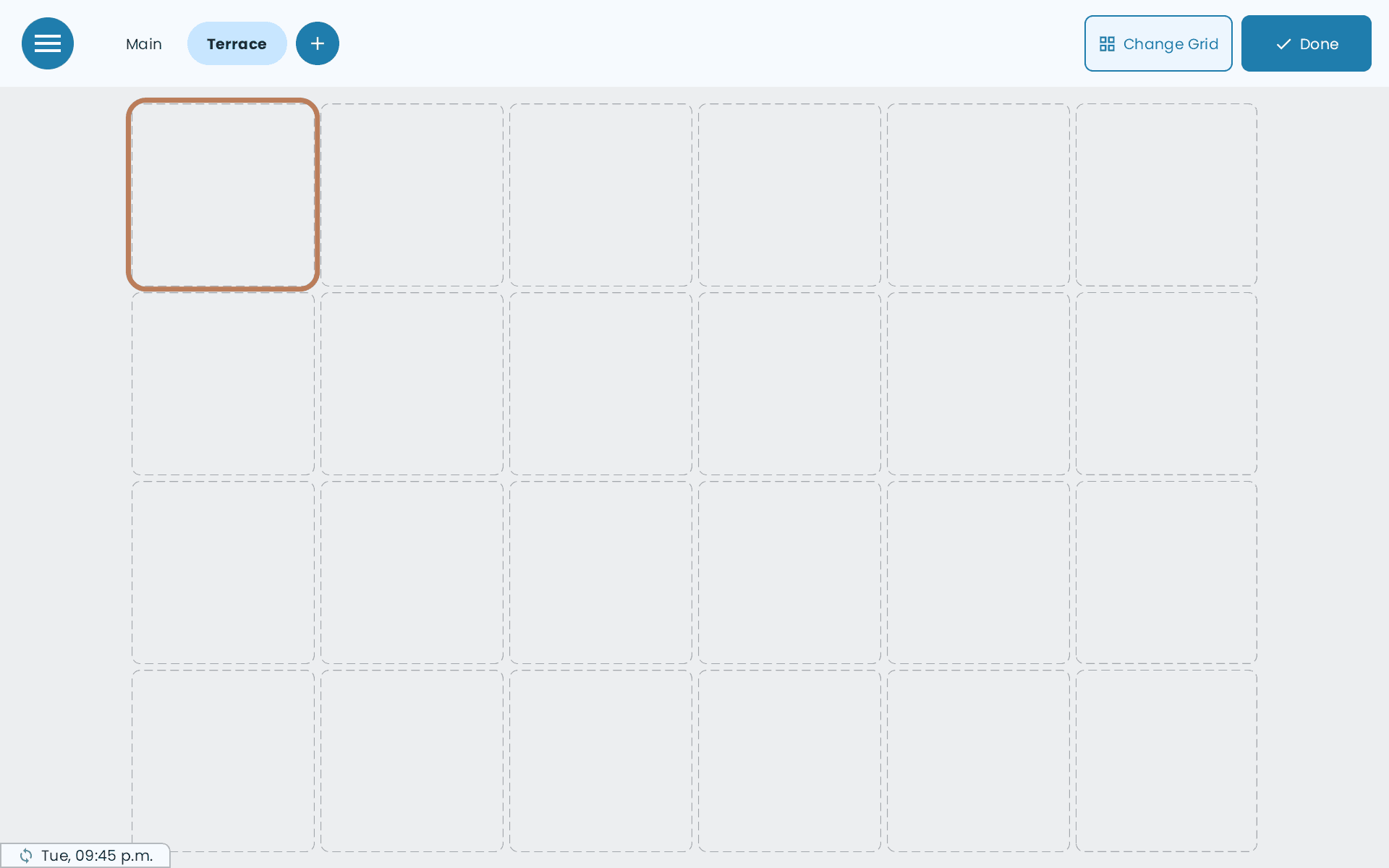
With Edit on, tap an empty square. The Add Table panel opens.
-
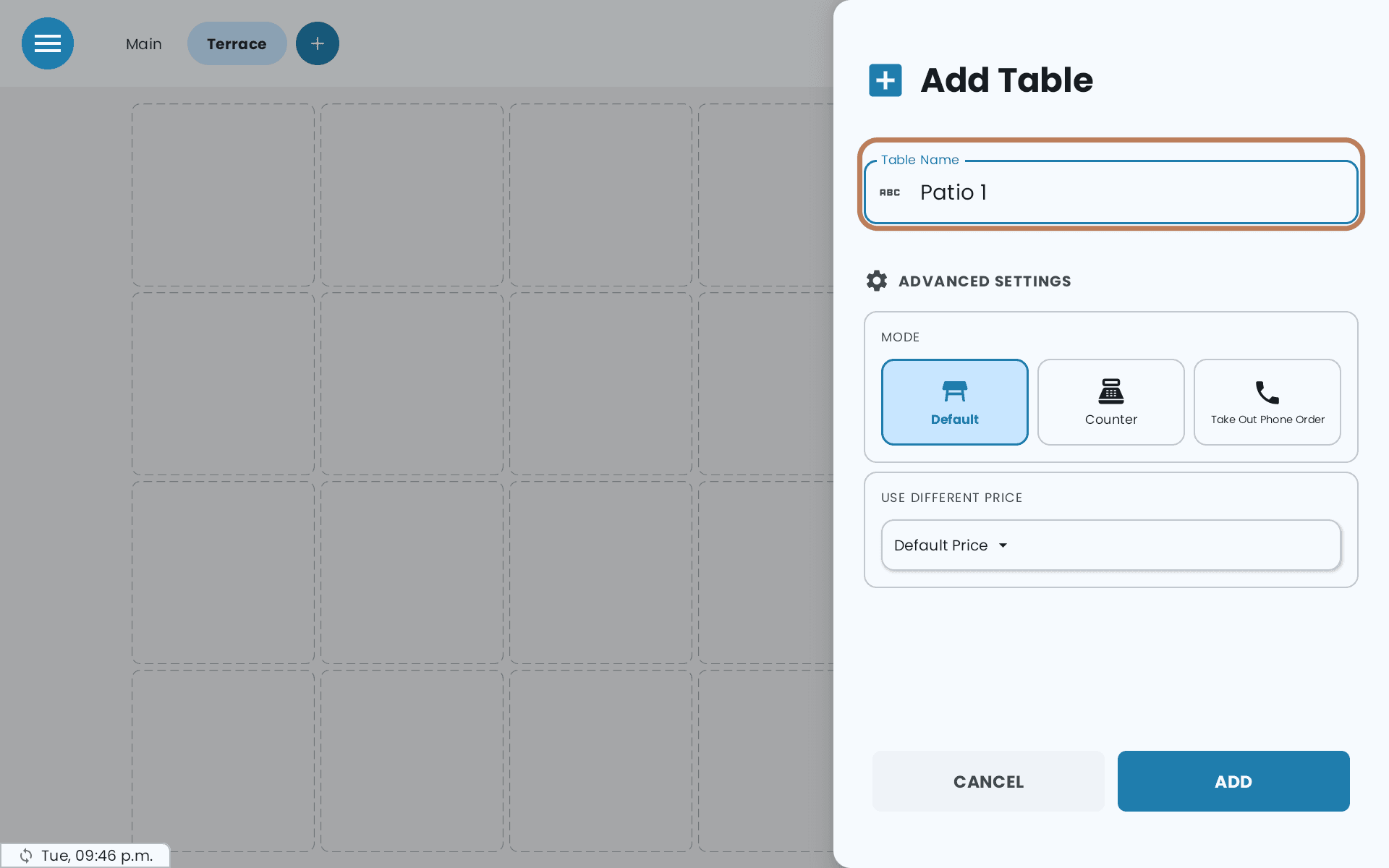
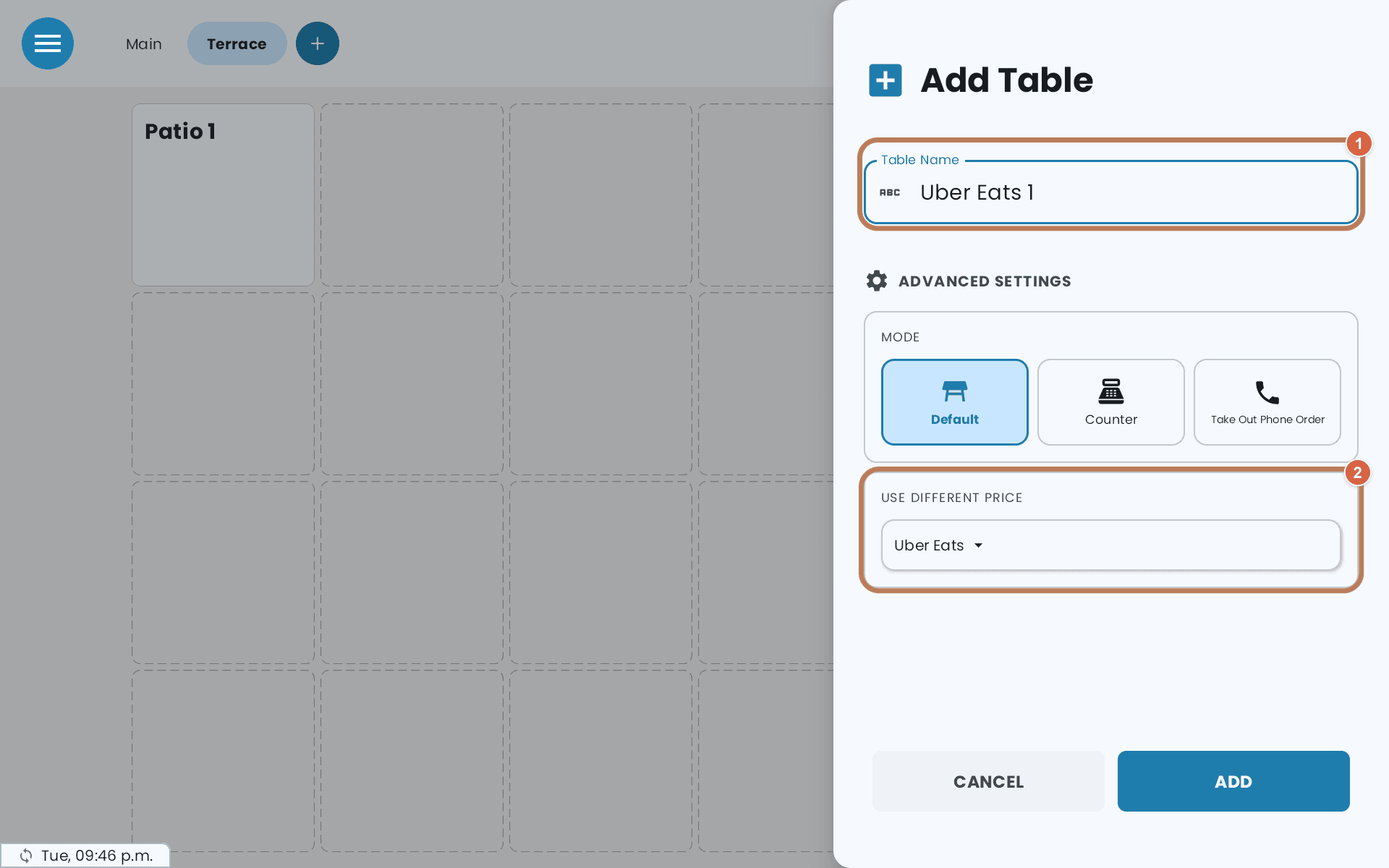
Enter a Table Name — for example, "Table 1". Names have to be unique.
-
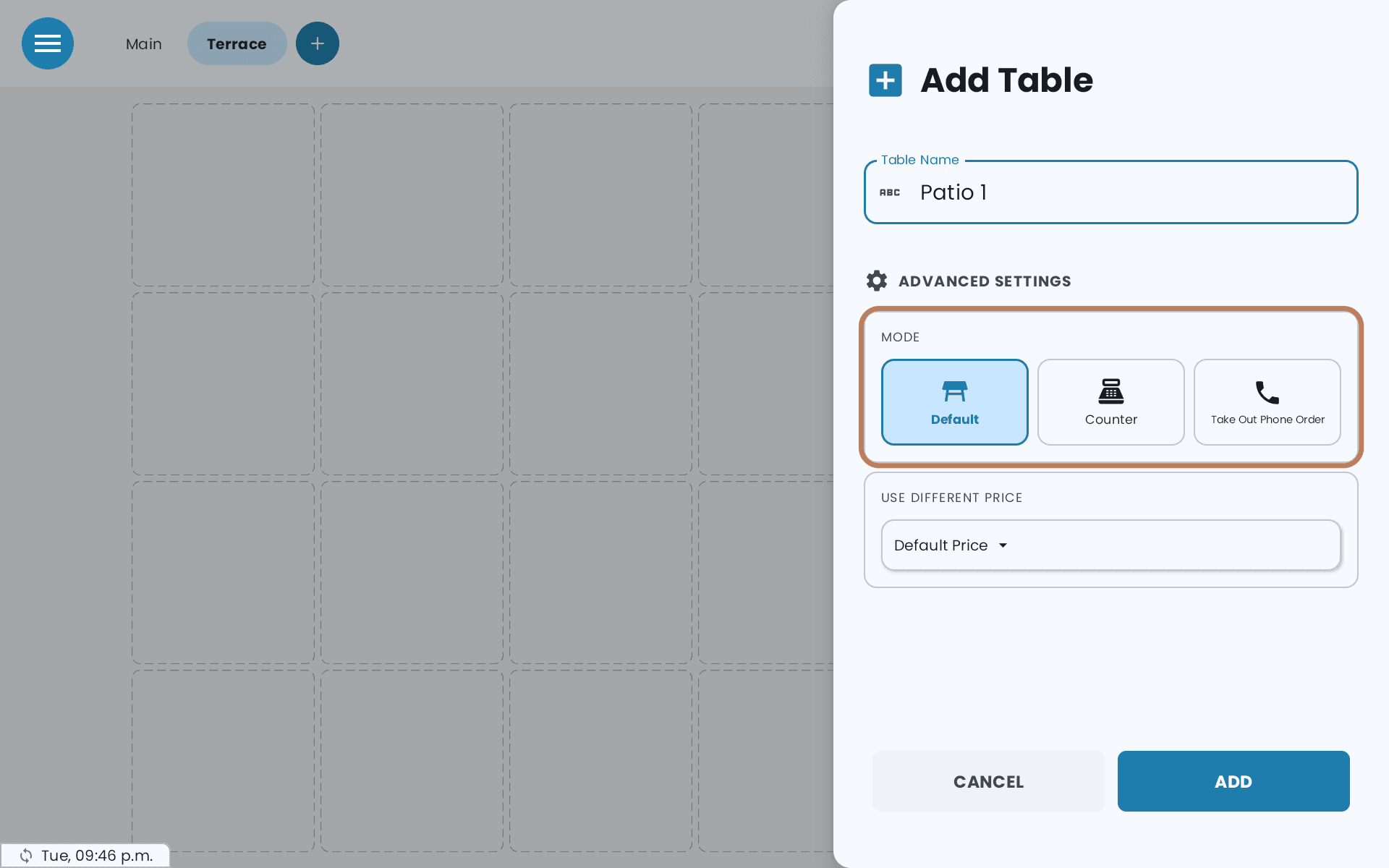
Under Advanced Settings, pick a Mode: Default, Counter or Take Out Phone Order.
-
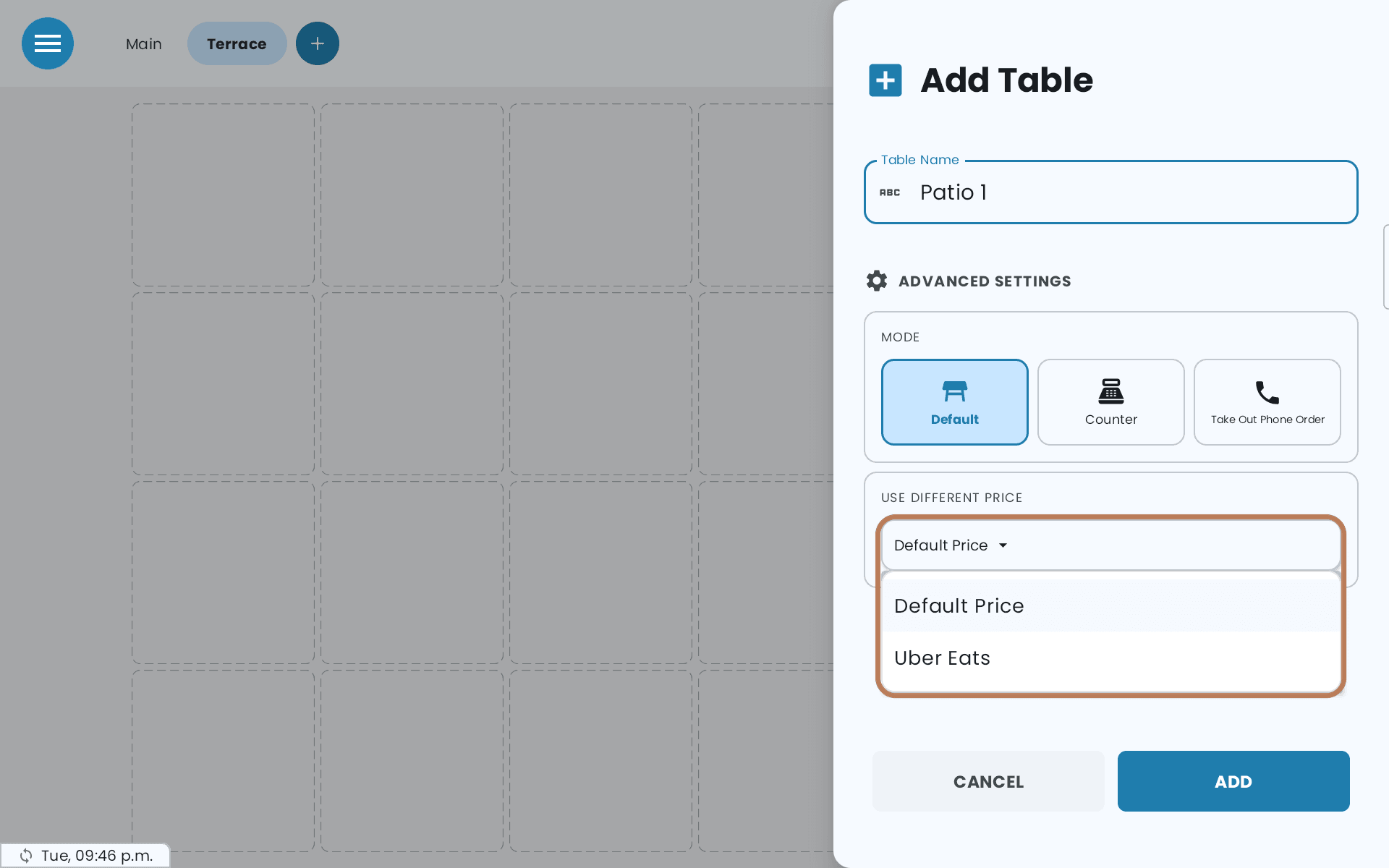
Optionally, choose a price list under Use Different Price.
-
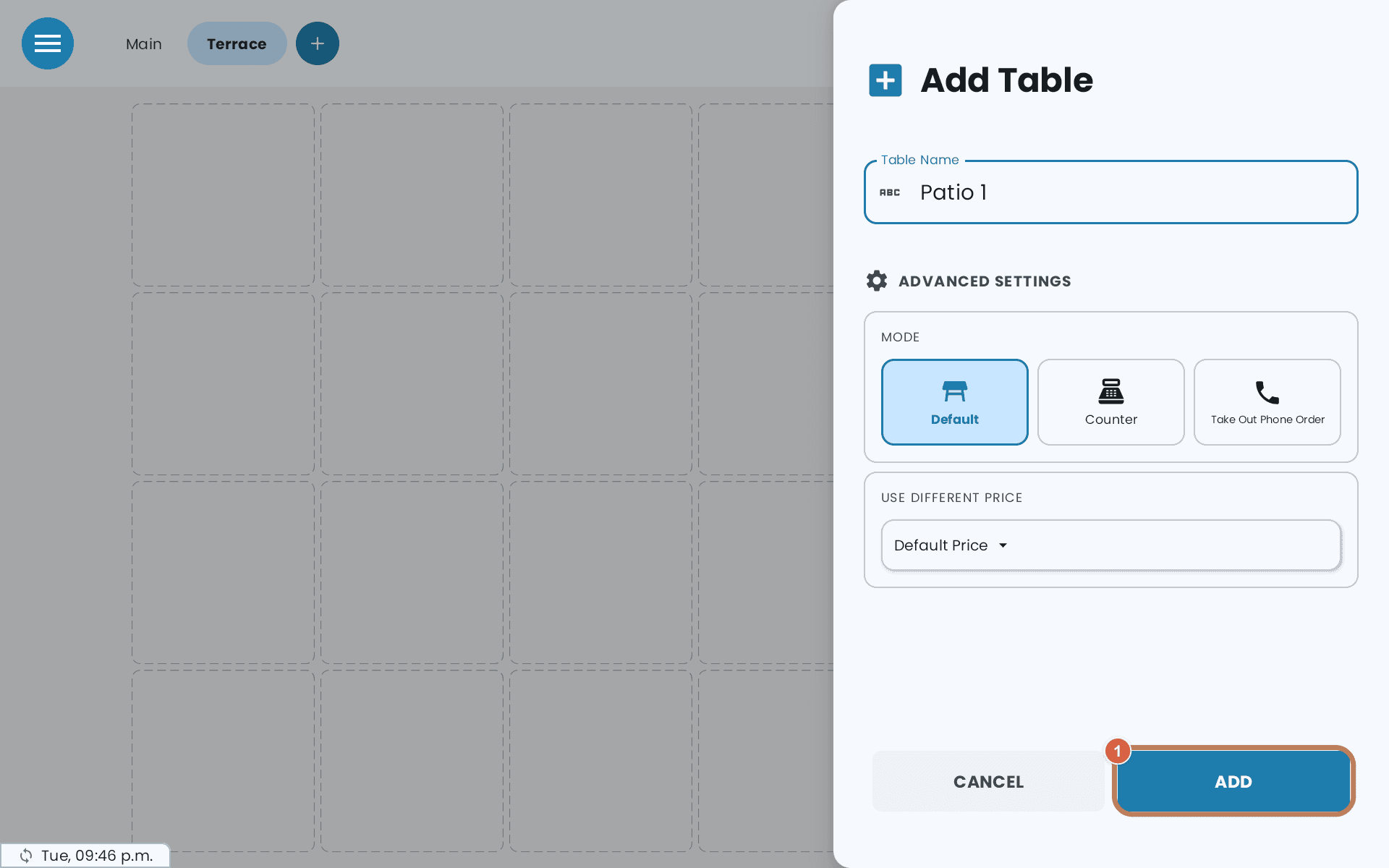
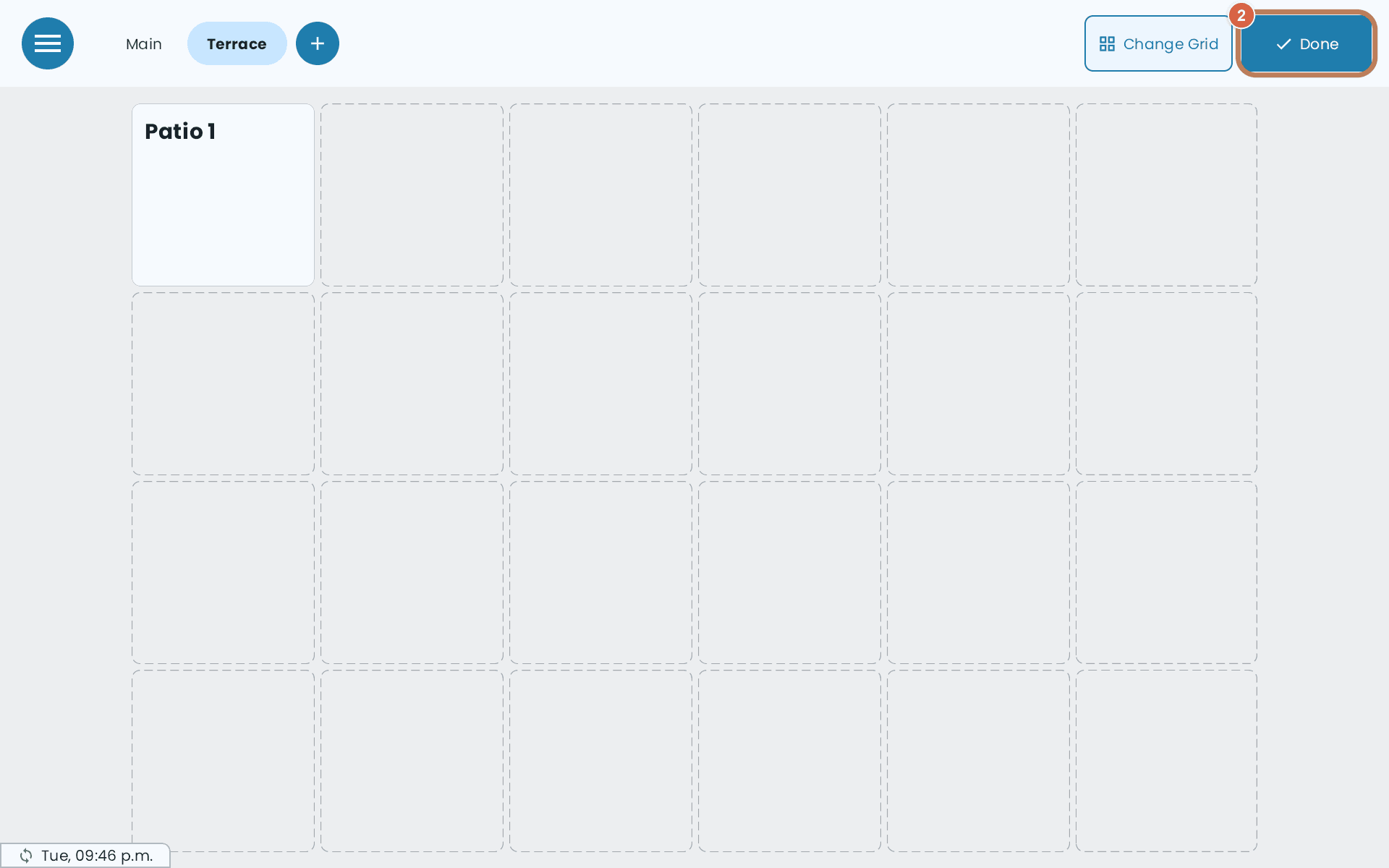
Tap ADD, then Done when you've finished.
To change a table later, tap Edit, then:
-
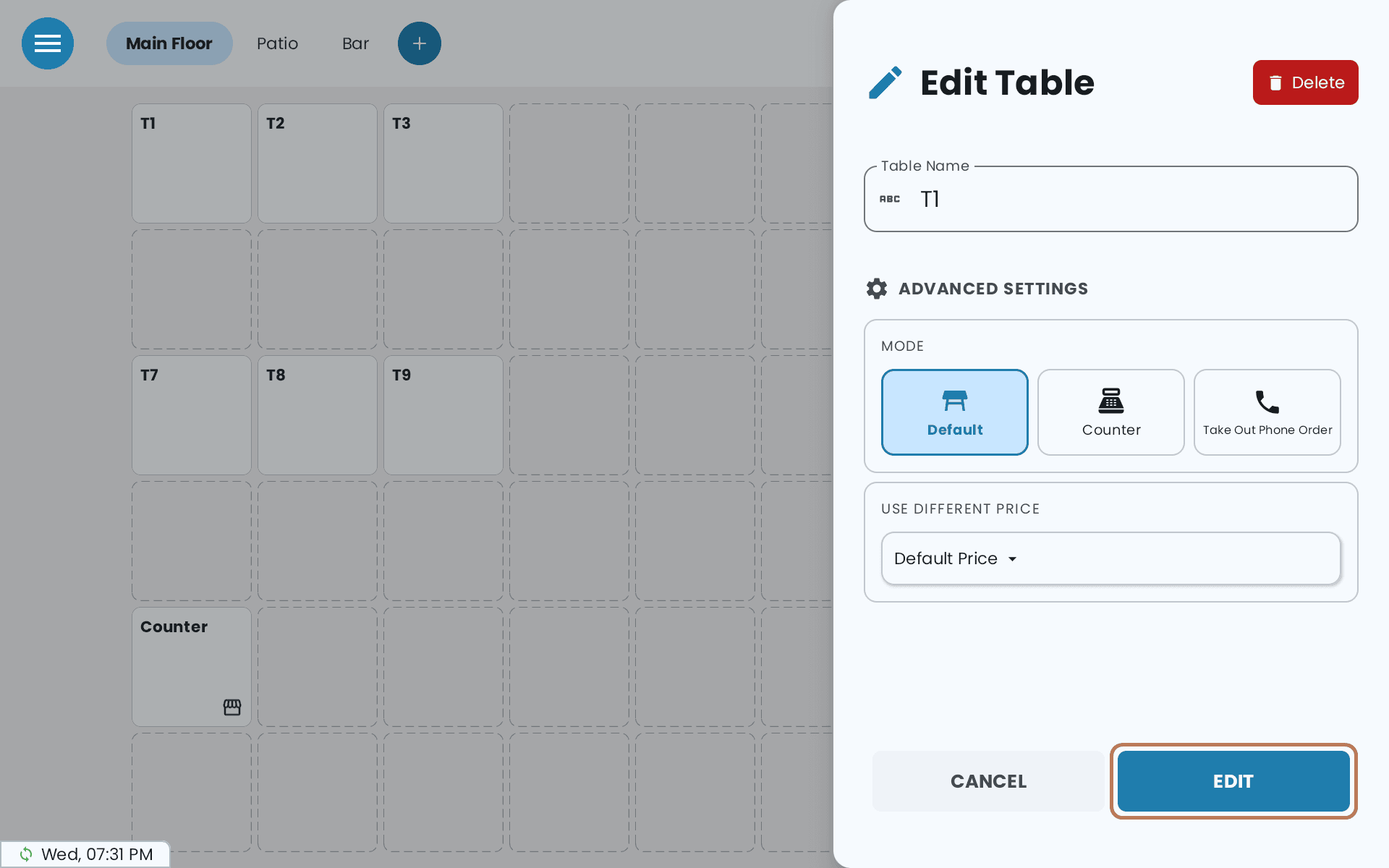
Hold the table to open Edit Table. Make your changes and tap EDIT. Delete is at the top of the same panel.
-
Tap the table, then tap the empty square you want it in, to move it.
A table per delivery platform
Use Different Price is how most restaurants handle Uber Eats, DoorDash and SkipTheDishes.
-
Set up an alternative price list per platform — see Custom, bundle and alternative prices.
-
Create a table named after each platform and give it that price list. If you handle several of a platform's orders at once, make a table for each — "Uber Eats 1", "Uber Eats 2".
-
When an order comes in on the delivery tablet, open that platform's table and add the items. The platform's prices apply automatically.
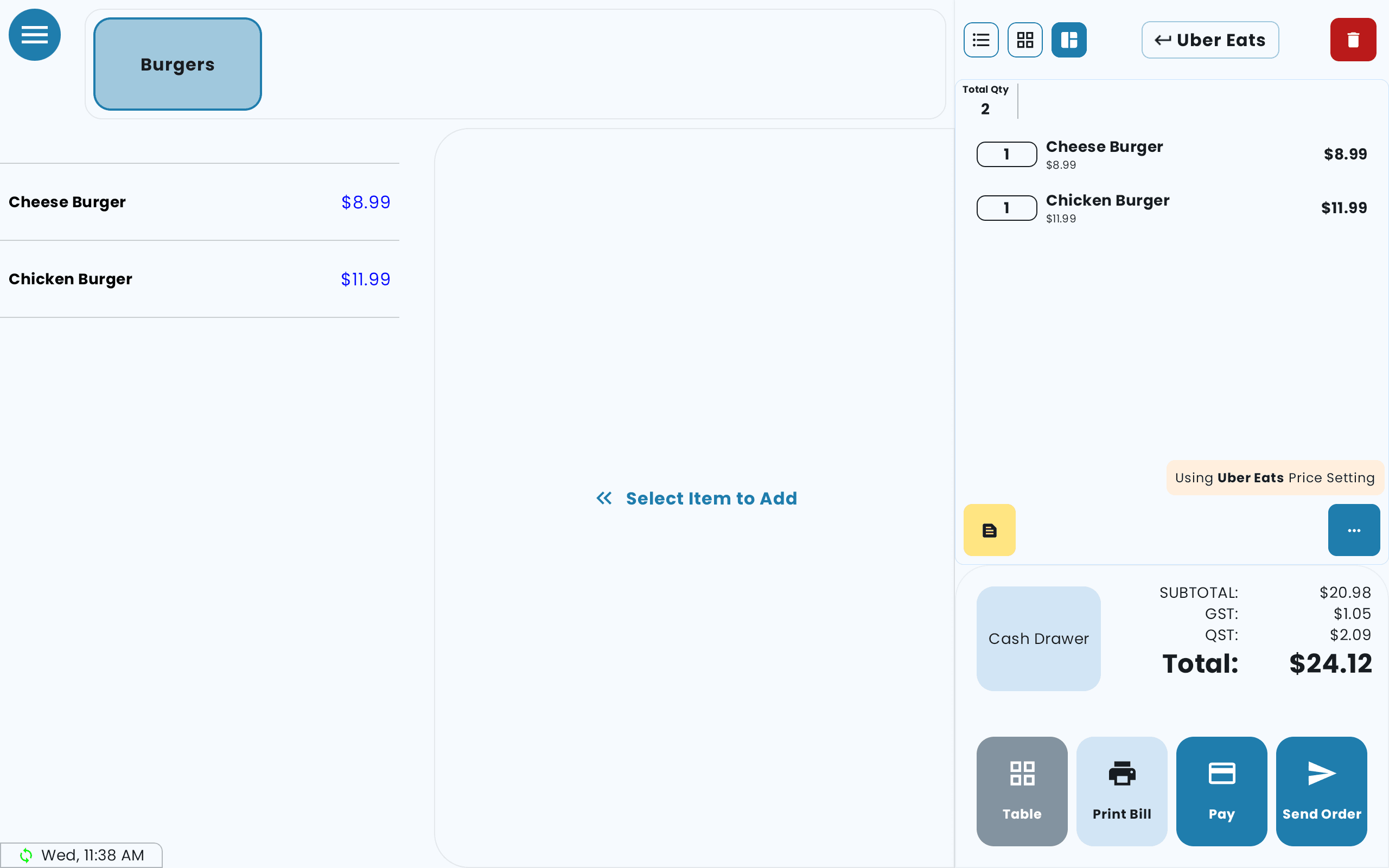
The cart names the price list in use. -
Tap Pay and choose Ecommerce Order, so the sale is recorded as an online one — the platform pays you separately. To also tag which app it came from, turn on Name & Type Input Before Ecommerce Payment — see Taking an order.
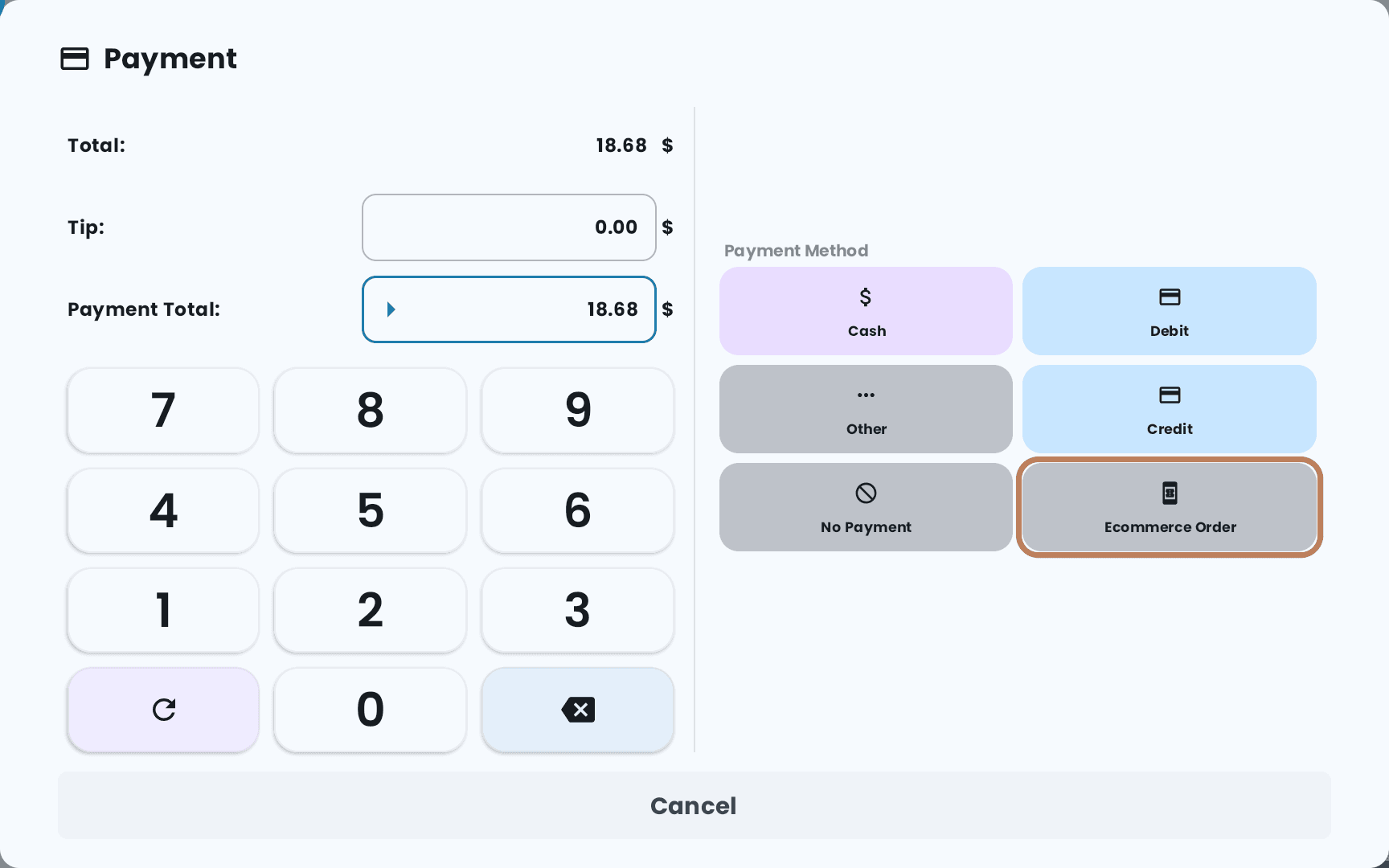
Your reports then separate platform sales from your own, without anyone having to remember a markup. Set the table's Mode to Take Out Phone Order if you also want a customer name on the kitchen ticket.
Moving, switching and merging bills
Move Bill is for when a party changes tables. Tap Move Bill, tap the table with the bill, then tap where it's going. If that table already has a bill, the POS asks whether to Switch the two or Merge them into one. A split bill can't be merged — settle the split first.
Rules that will catch you out
- Five sections maximum.
- Change Grid deletes every table in the section, and their data. The POS warns you first. Lay the grid out before you build tables, not after.
- Deleting a section deletes every table in it. A section with open bills can't be deleted, and neither can your last section.
- A table with an open bill can't be edited or deleted. Close the bill first.
- Every table name has to be unique, across all your sections.
Another server's table
Two things can stop you opening a table:
- Occupied by and a device name means another POS is working that table right now. Wait until that device leaves the table.
- Table 4 is assigned to a colleague means the table belongs to another staff member. This only happens with personal PINs. The table is dimmed and its total hidden; taking it over needs the Manage Other Staffs' Tables permission. See Staff permissions.
Show only your tables
With personal PINs, the floor plan has a staff filter beside Move Bill.
-
Tap the filter — it reads All — and choose your name.
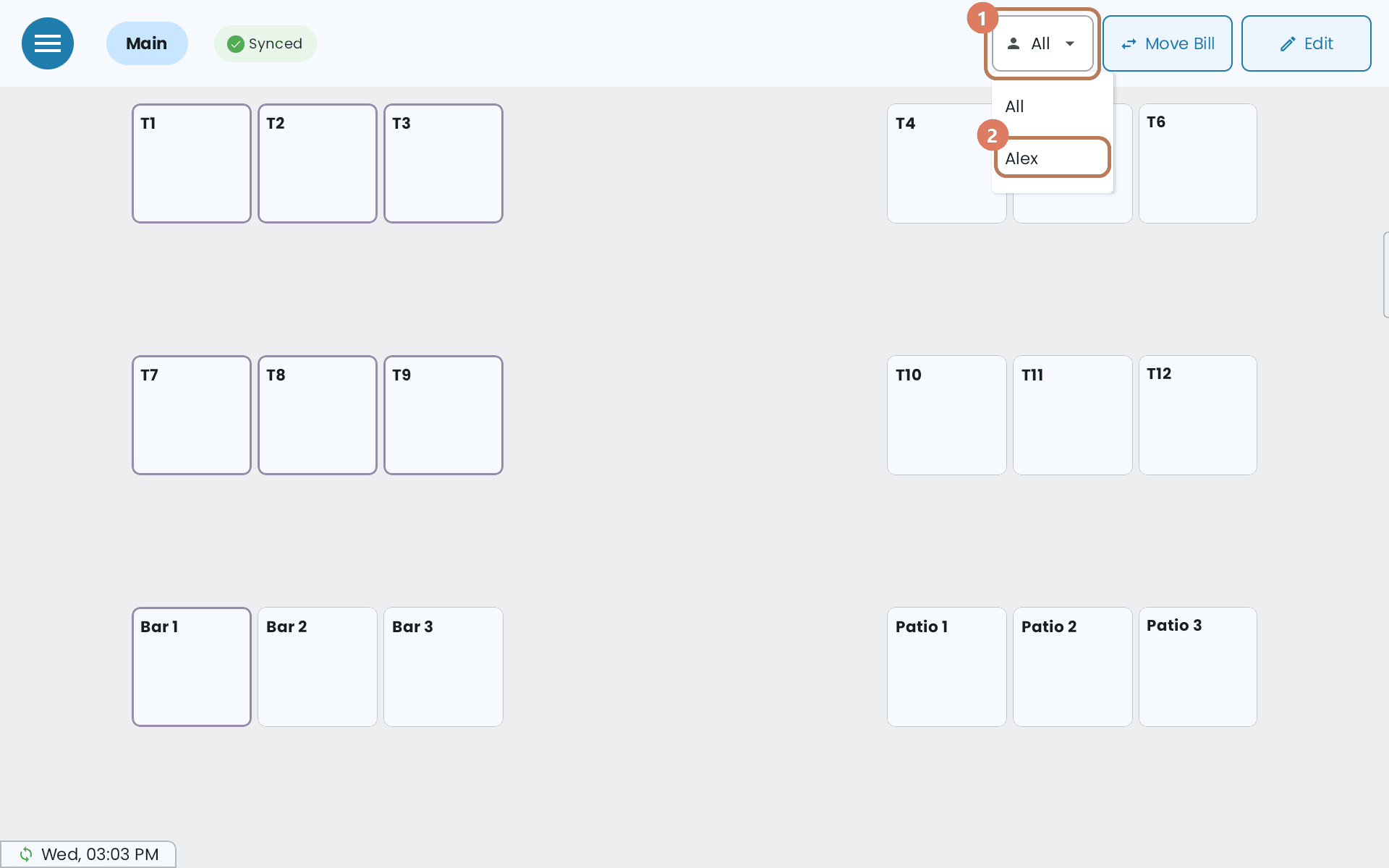
1 — the staff filter. 2 — your name. -
The floor plan now shows your tables, plus any table nobody has opened yet, so you can still seat new guests. Counter tables always stay.
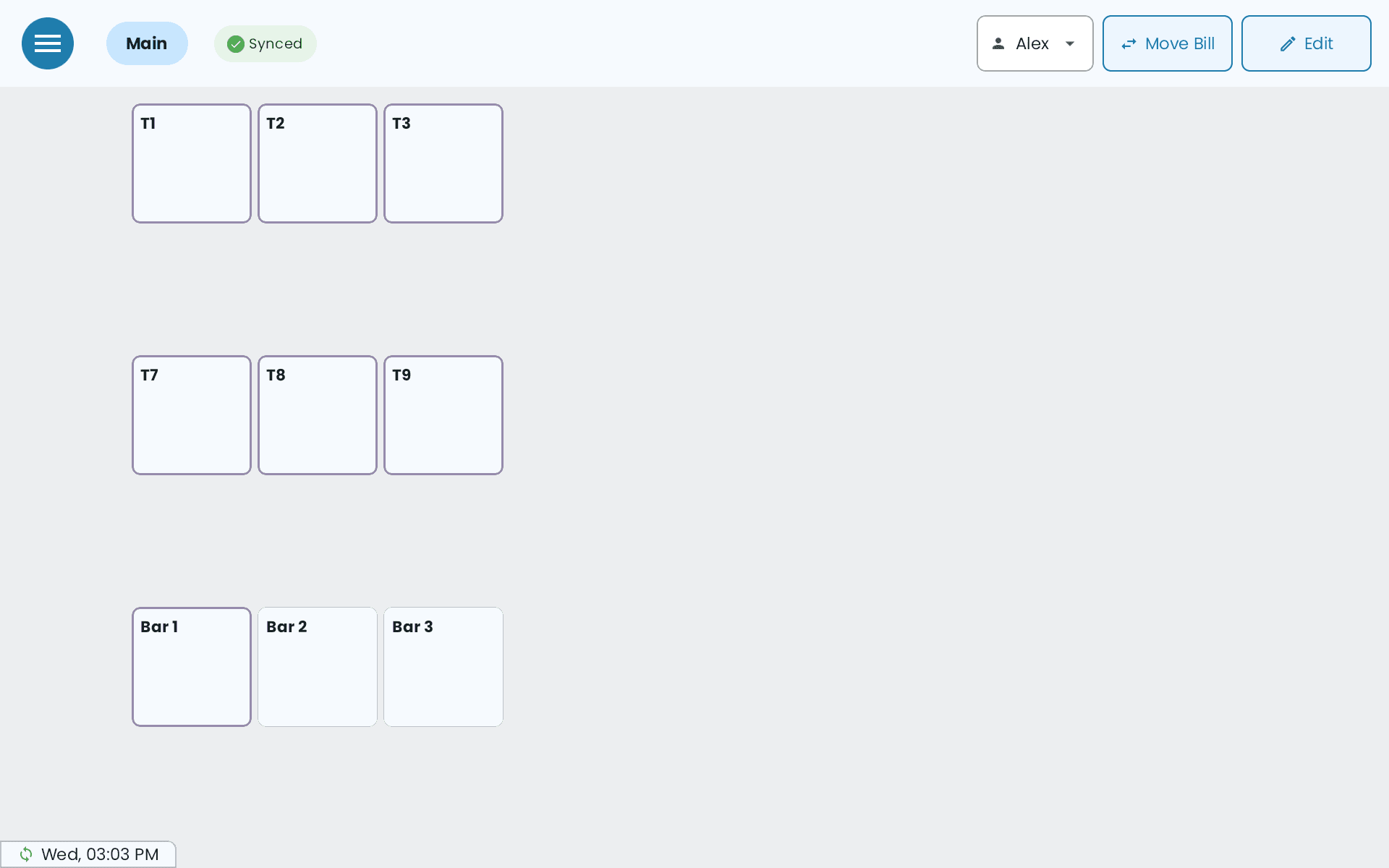
Choose All to bring everything back. The choice sticks: hand the POS over and the next person sees their own tables, not yours. The filter only applies while you're looking at the floor plan — tap Edit and every table is shown.
When more than one POS shares the floor
-
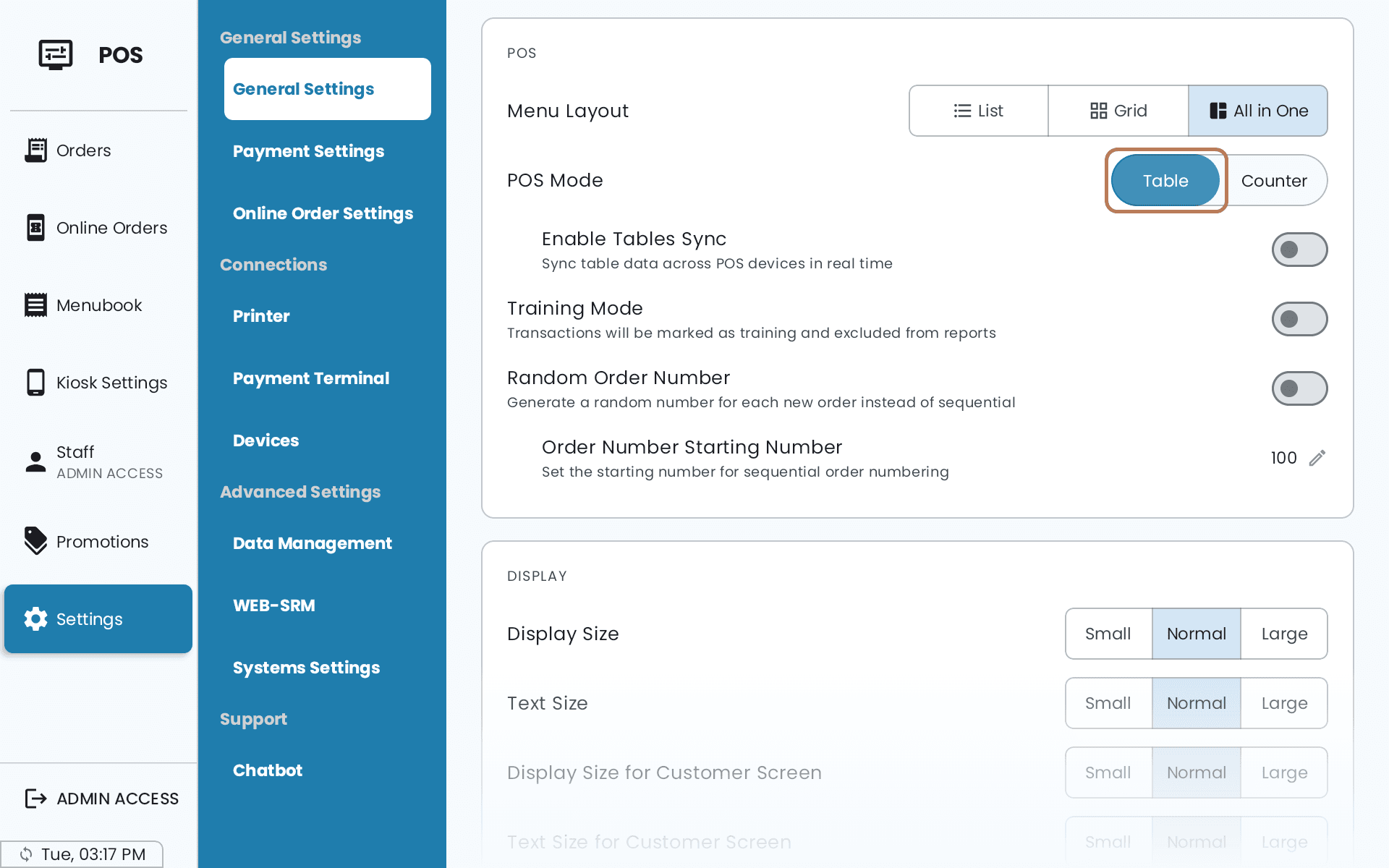
Open Settings → General Settings and find the POS card. POS Mode has to be Table.
-
Turn on Enable Tables Sync.
-
The first time, the POS asks which copy of your tables to keep. Use Online Data replaces this device's tables with the ones online; Upload Local Data sends this device's tables up and replaces what's online. Choosing wrong overwrites a floor plan, and the POS warns you before it does.
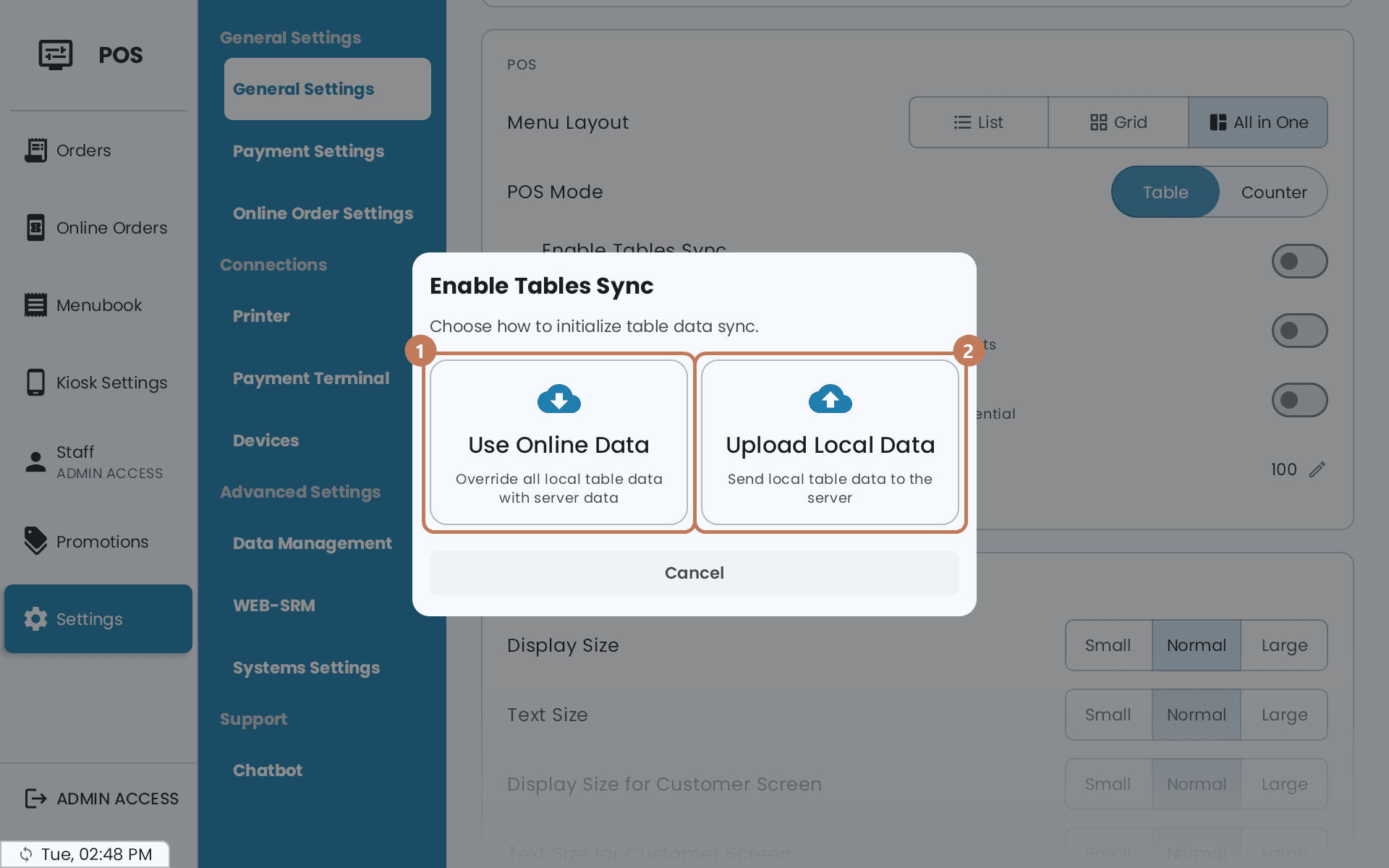
1 — Use Online Data. 2 — Upload Local Data.
The floor plan then shows where it stands: Synced, Syncing, Changes pending, Sync failed, or Main POS handles sync.
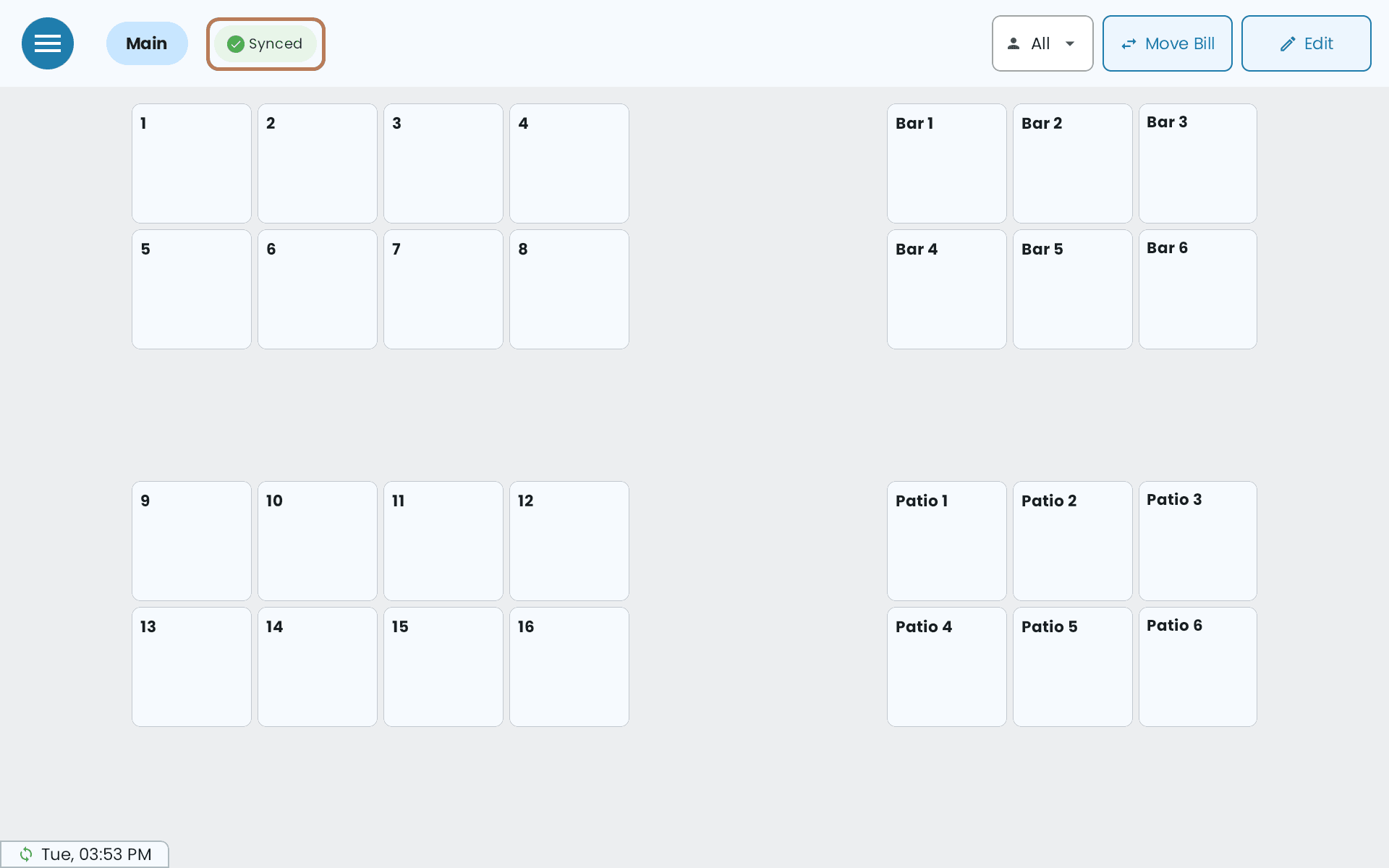
If you leave a table on a handheld with changes that haven't reached the main POS, it asks Save Before Leaving the Table? Take Save & Leave — it stores the table without sending anything to the kitchen. Leaving without saving is how two servers end up with different versions of the same table. The main POS saves on its own when you leave a table.