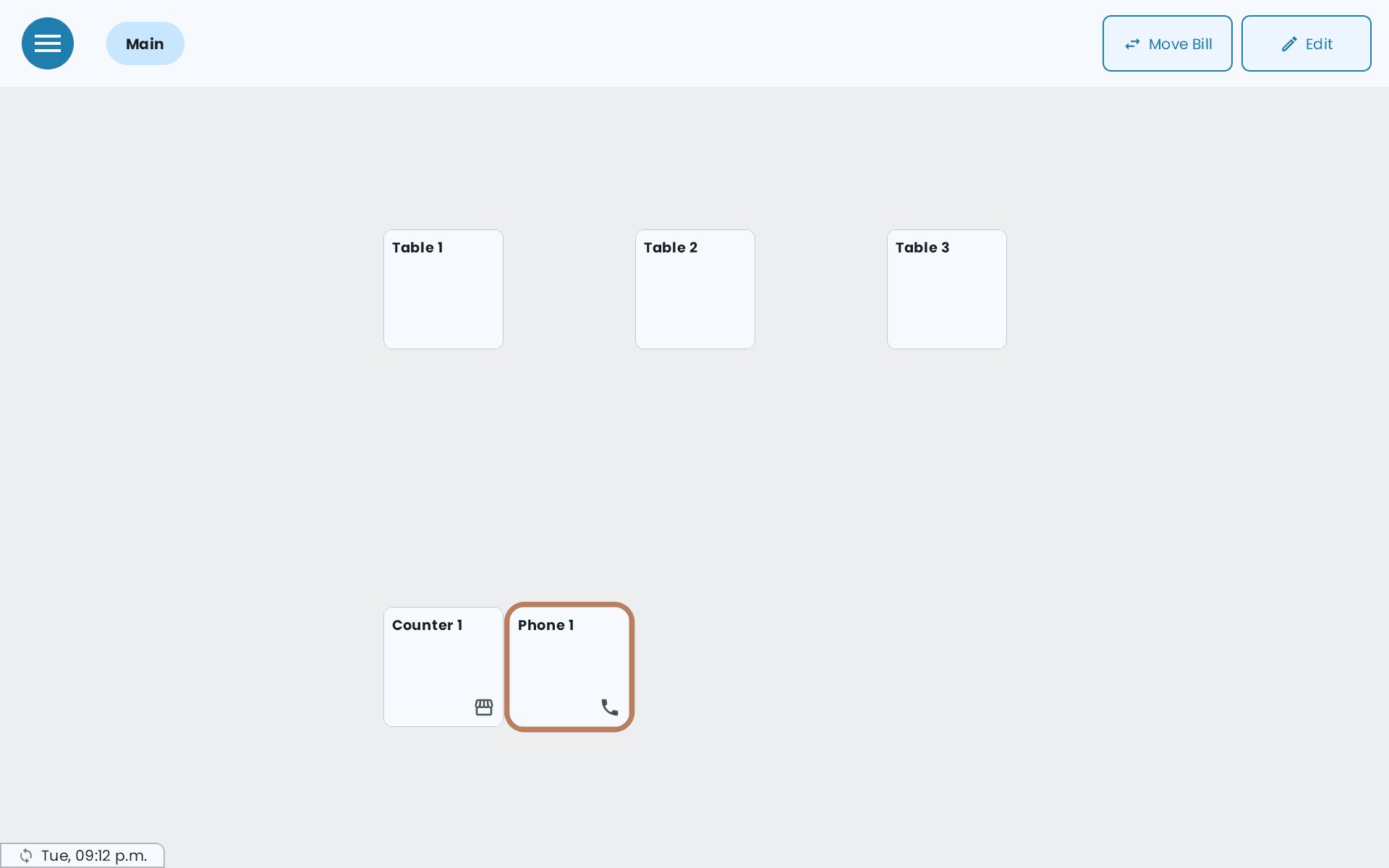
A Take Out Phone Order table holds an order phoned in for pickup, with the customer's details attached so whoever hands it over knows whose it is.
Set a table's Mode to Take Out Phone Order first — see Tables and your floor plan.
Take the order
-
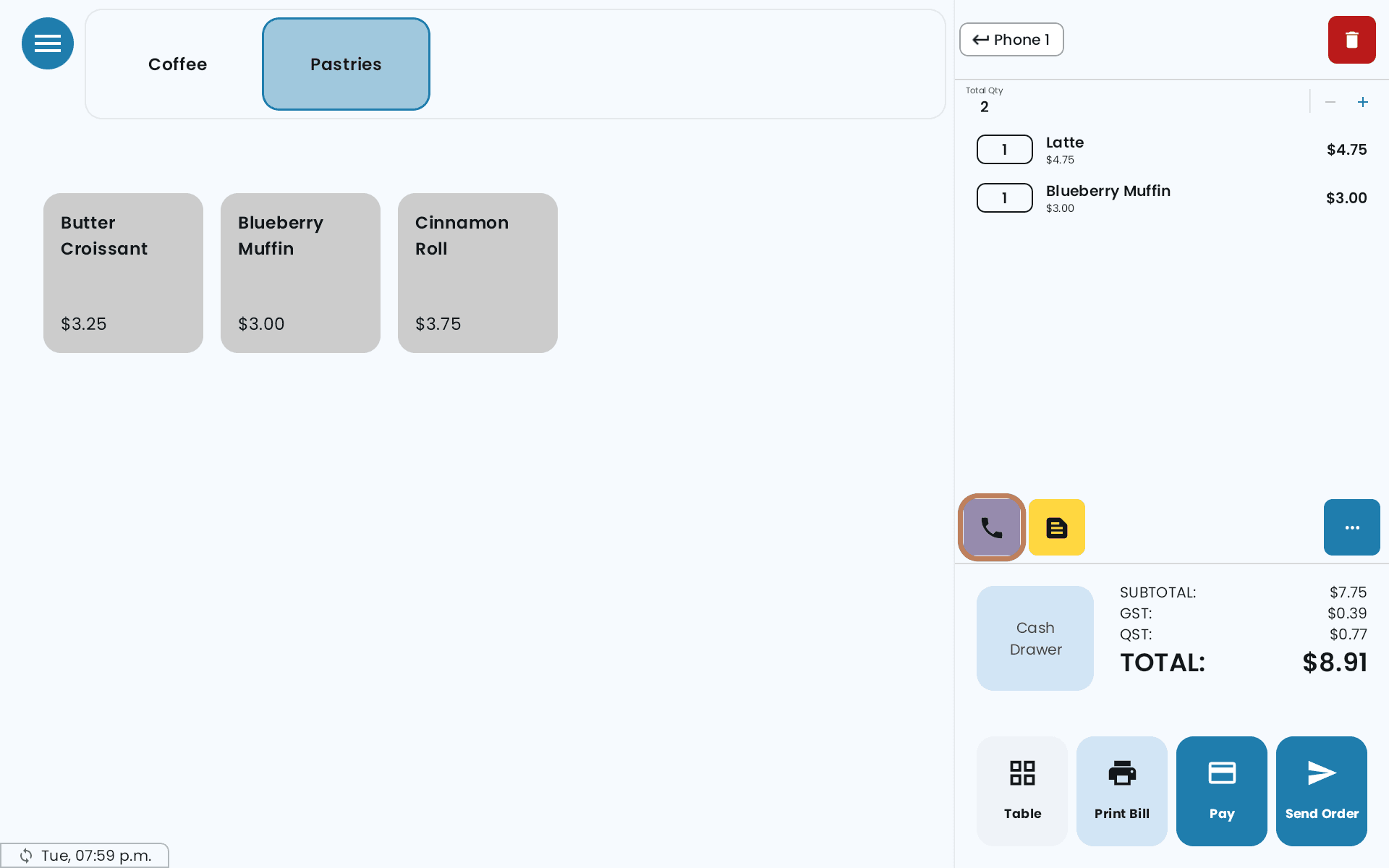
Open a phone-order table and add the items.
-
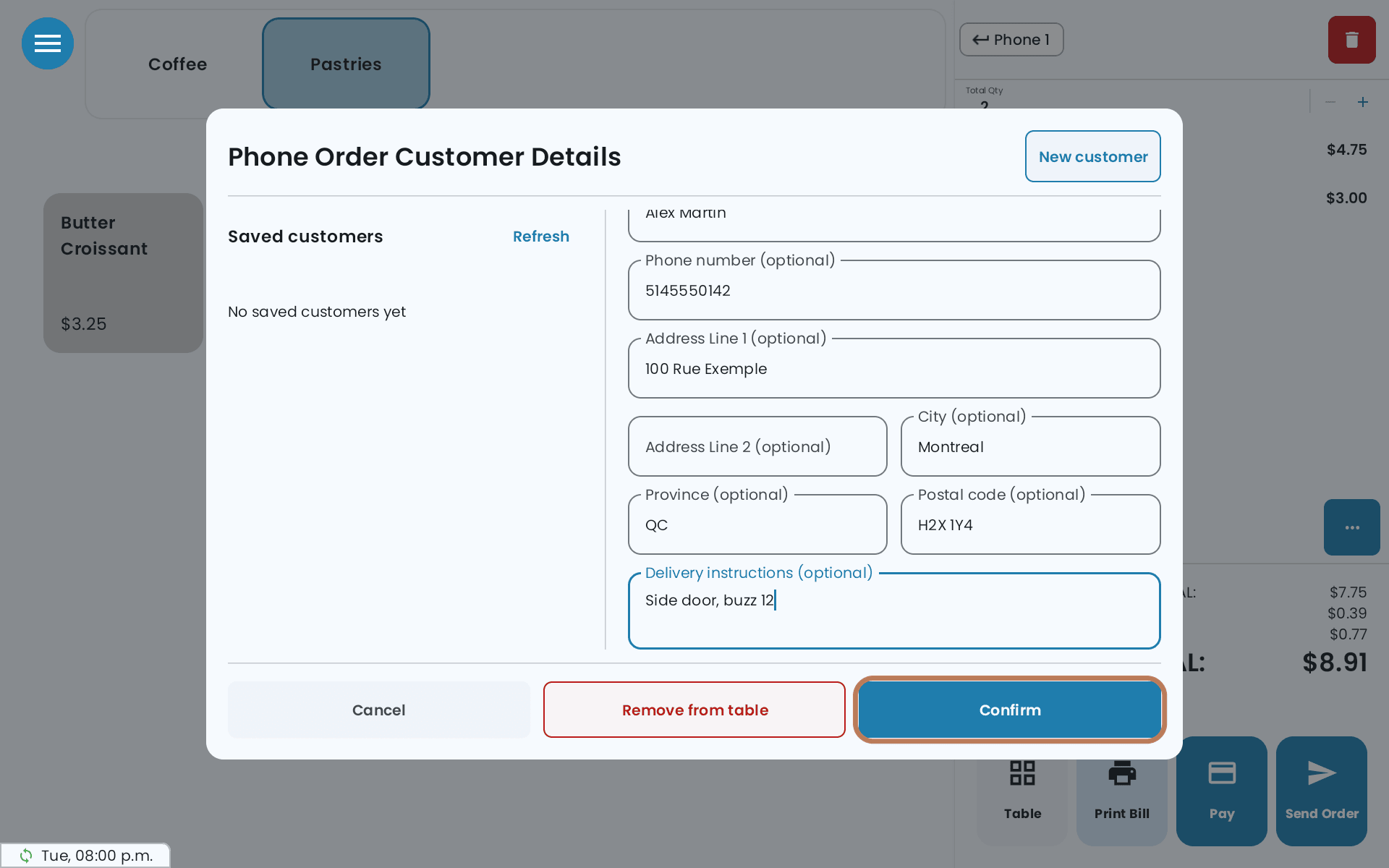
Tap the phone button in the cart. Phone Order Customer Details opens.
-
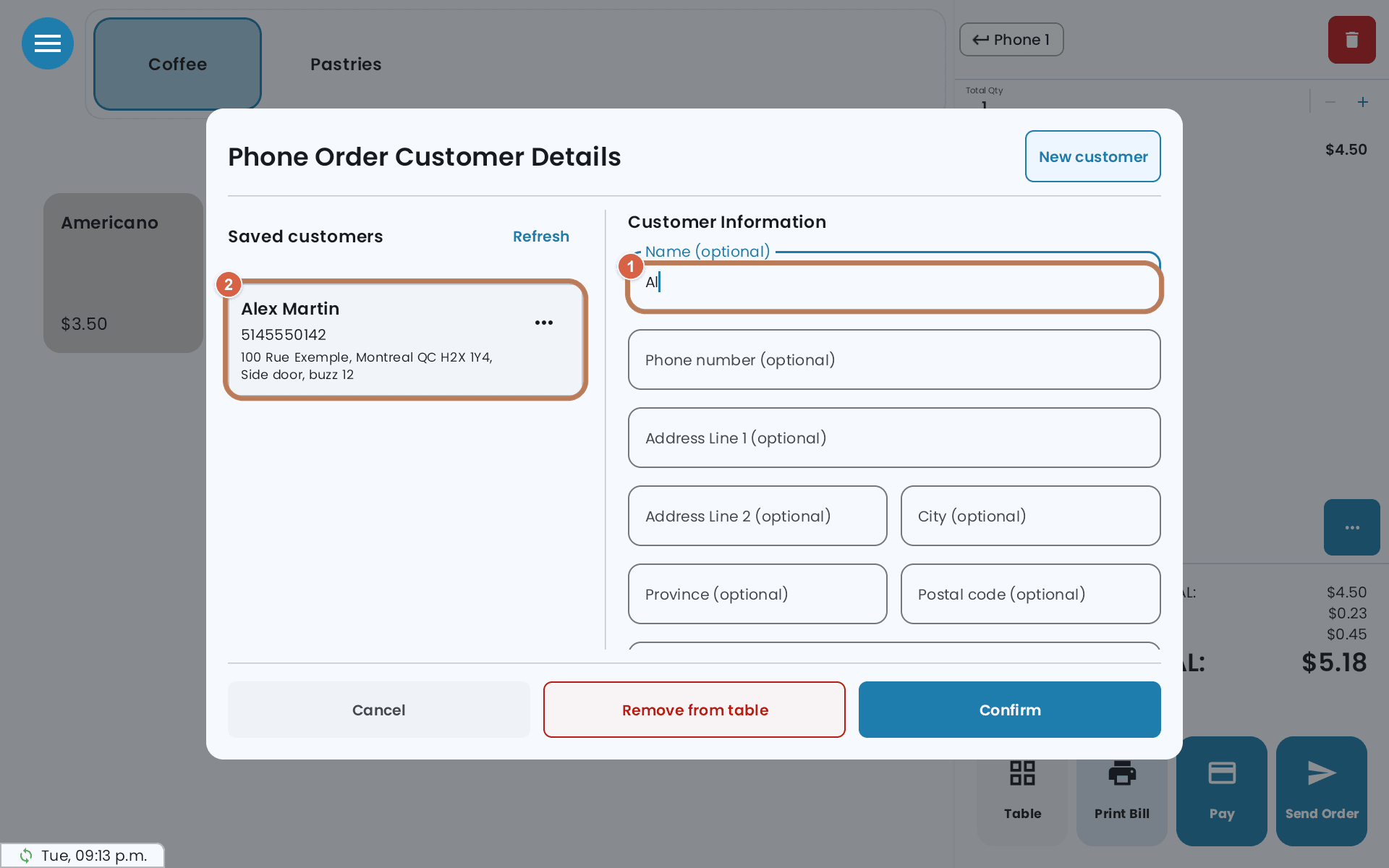
Start typing the name or number. Customers you've saved before appear under Saved customers as you type — tap one to fill the form.
-
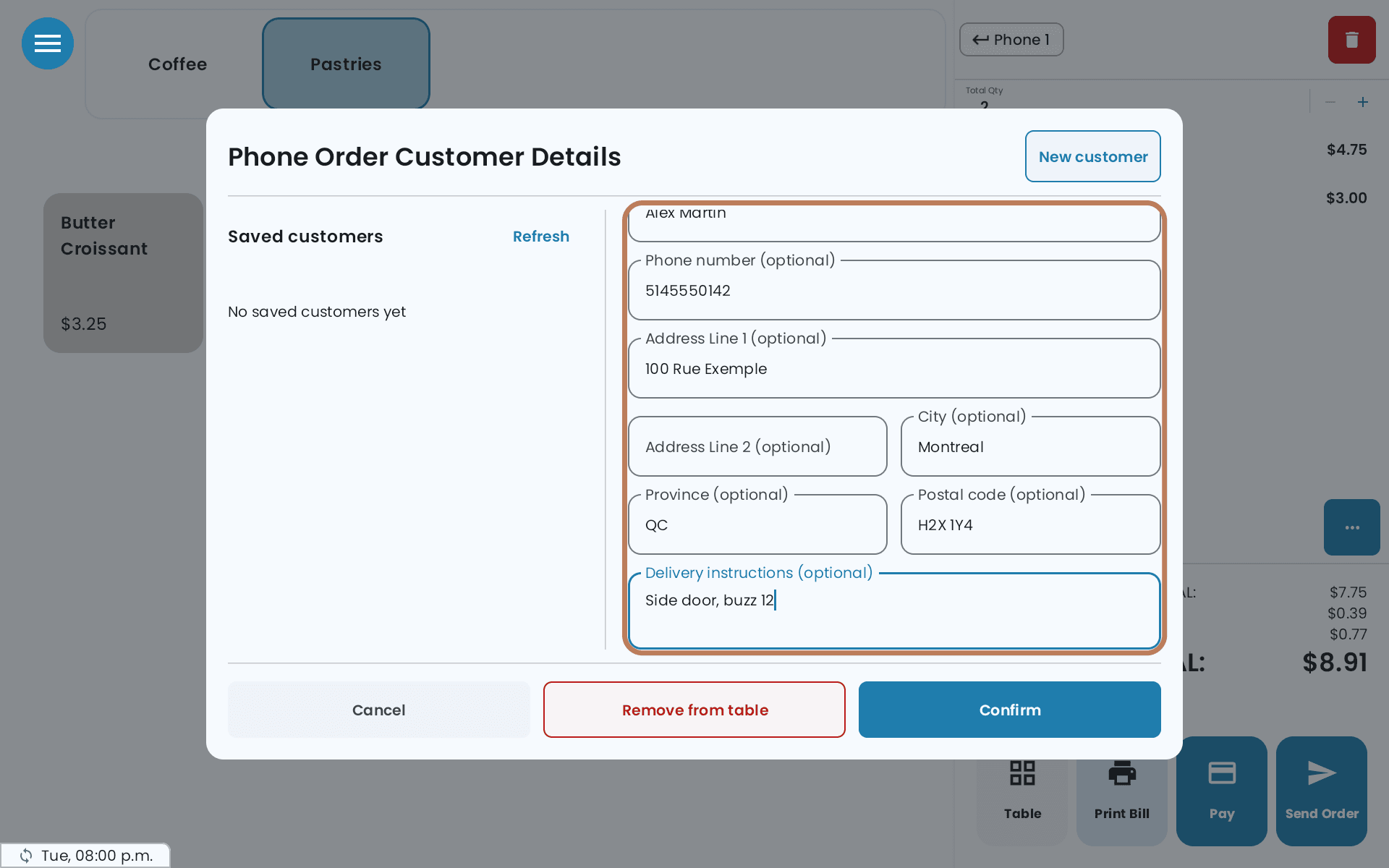
For someone new, fill in what you have: Name, Phone number, the address fields, and Delivery instructions. Each field is optional; fill in at least one.
-
Tap Confirm.
-
Send Order, then Pay as usual.
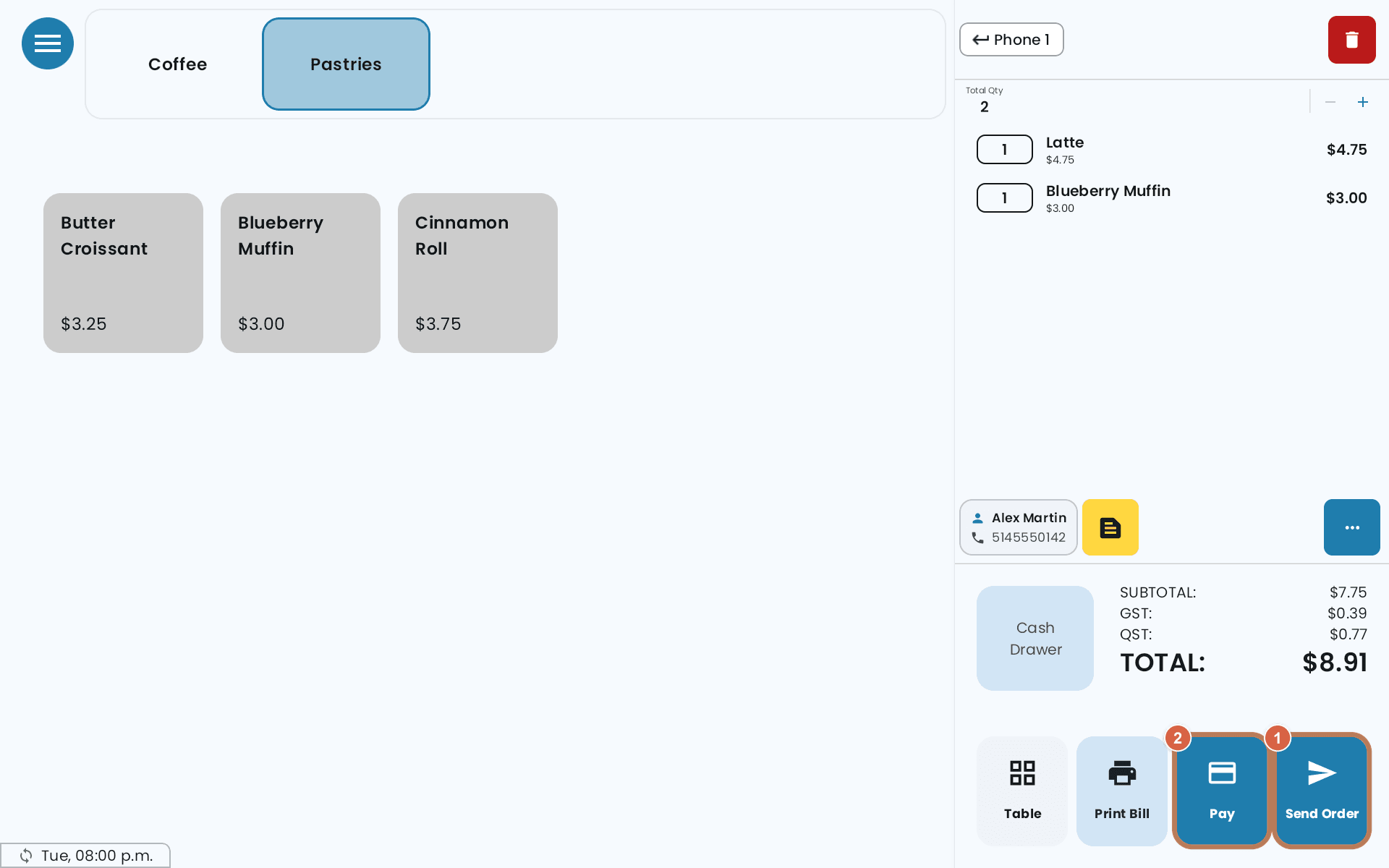
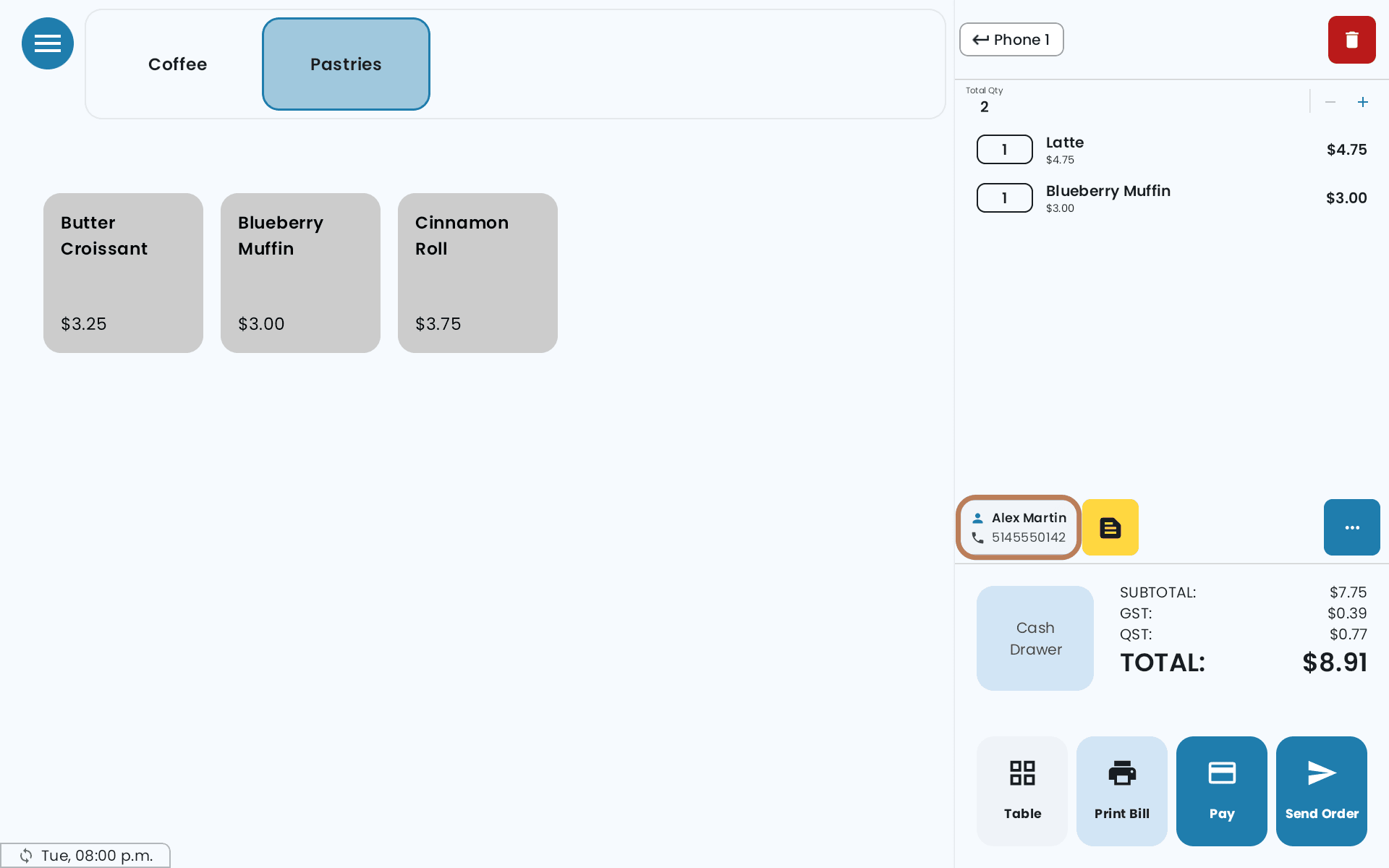
The name and number then show in the cart. Tap them to change the customer or correct a detail.
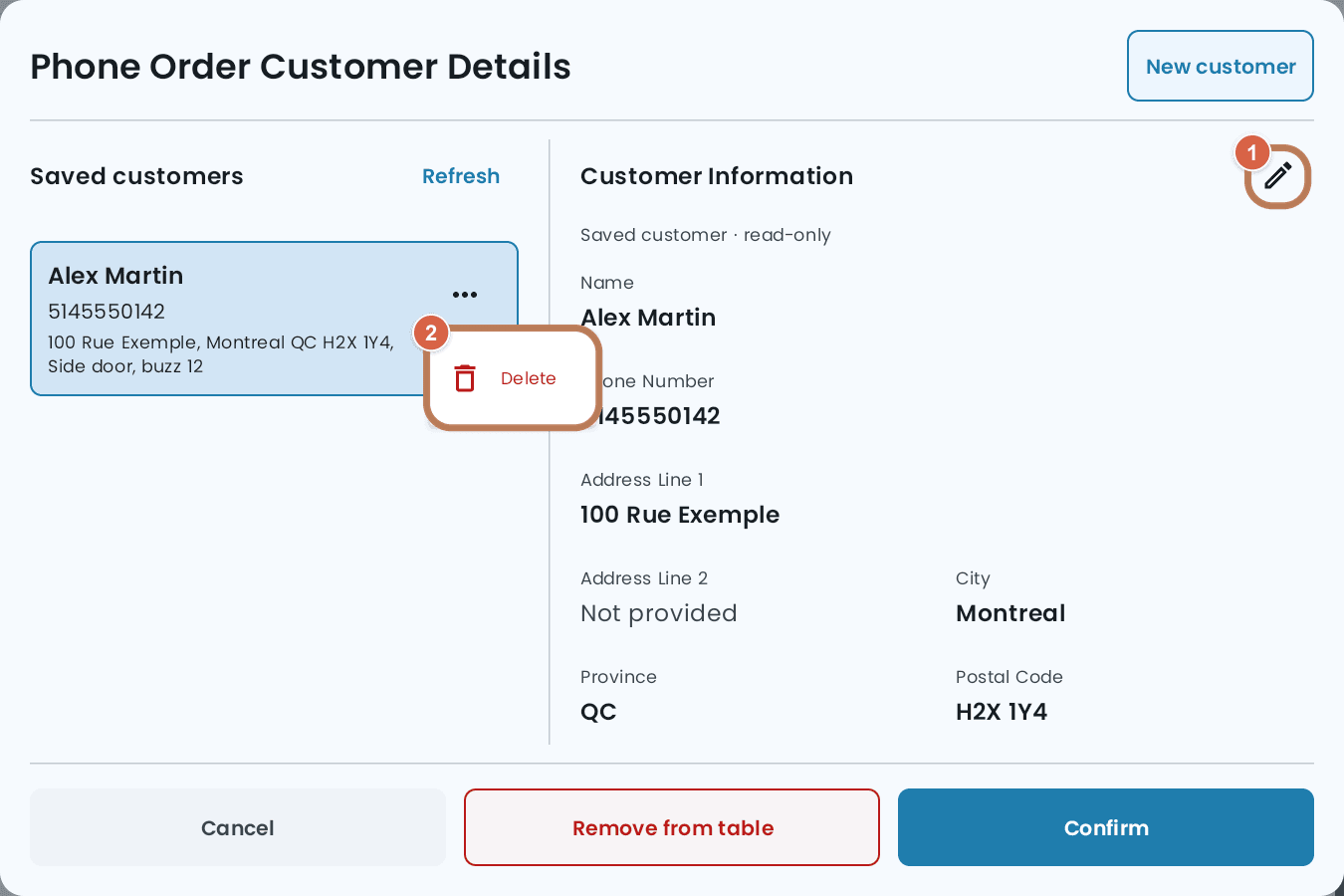
Customers you've saved
Confirming someone new saves them, so a regular only gets typed once. Your other POS stations see the same list.
- Edit — tap the customer, then the pencil. Change what you need, then Save.
- Delete customer — the ··· on the customer, then Delete, and confirm. It removes them from the list; the order in front of you keeps its details.
- New customer — clears the form for someone else.
- Remove from table — takes the customer off this order without deleting them.
Without a connection you can still pick a saved customer, but you can't add, change or delete one.
What prints
The kitchen ticket carries Name, Phone, Address and Instructions above the items. Anything you left empty is left off. None of it prints on the customer's receipt.
If the kitchen struggles to read it across the pass, open Settings → Printer, open your kitchen printer, and set Font Size for Customer Info to Small, Normal or Large. The sample ticket on that screen shows the size you've picked.
For the rest of the order flow, see Tables and your floor plan.